
The Notetaker records your online meetings in Google Meet, Microsoft Teams and Zoom, writes a transcript, summarises the conversation and gives you coaching with a score after every sales meeting. The results go straight to the matching lead in inDeal.
Open the module
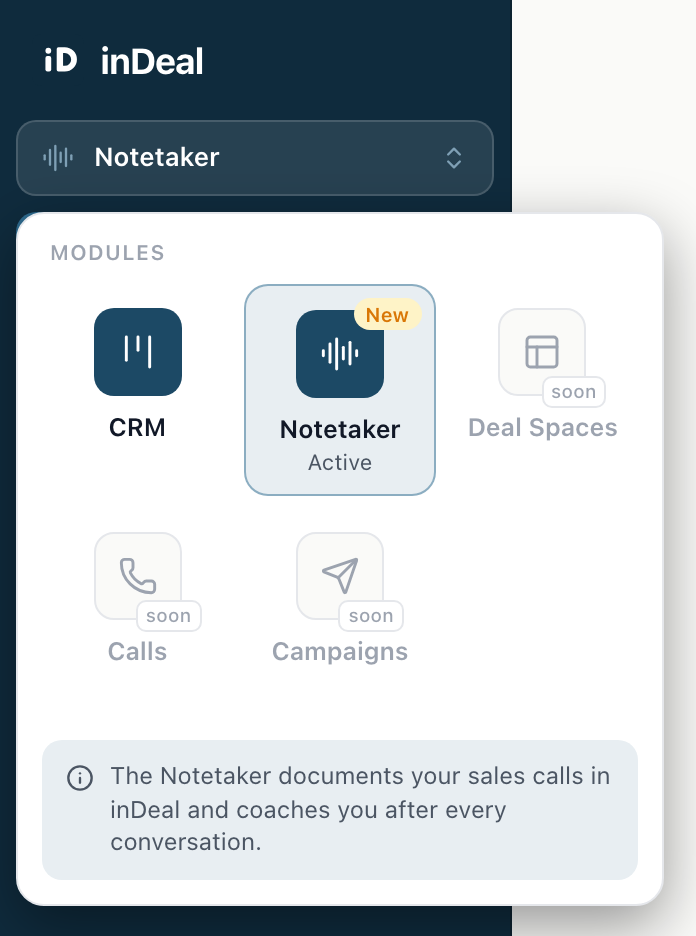
Switch to Notetaker in the module switcher at the top left. You see Home, Meetings and Settings.
Record a meeting
- Click New meeting.
- Paste the link of your meeting in Google Meet, Microsoft Teams or Zoom.
- The Notetaker joins as soon as the meeting starts.
Your free hours count from your first recording. At the top right you always see how many are left.
Connect your calendar
Once you connect your calendar, the Notetaker joins your events automatically. You no longer paste the link.
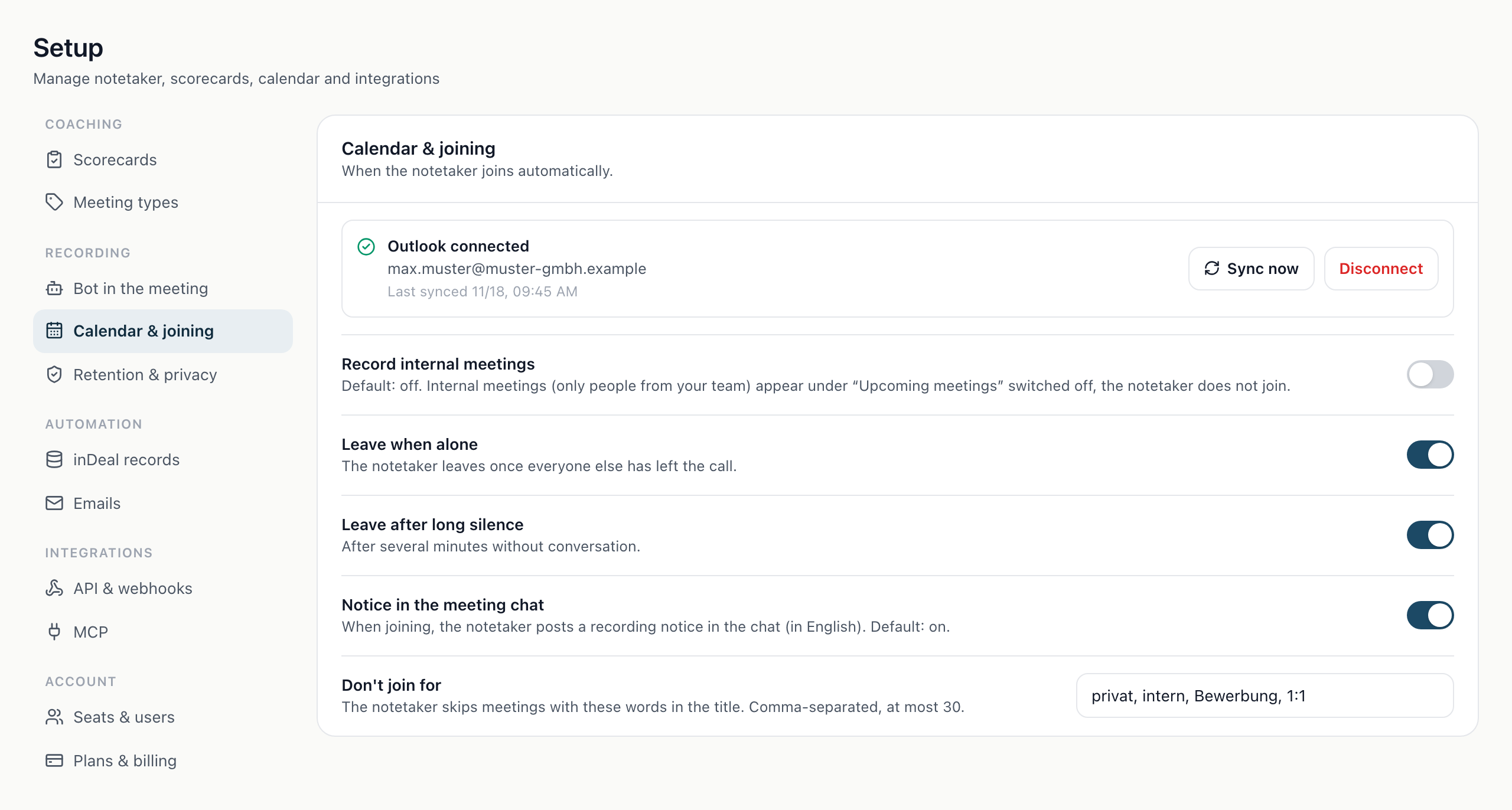
- Open the Notetaker home page. As long as no calendar is connected, you see the card Connect your calendar there (or go to Settings > Calendar & joining).
- Click Microsoft Outlook and sign in with your Microsoft account. Google Calendar follows soon.
- Confirm read access to your calendar.
From then on:
- Which events: all events in the next 7 days with a Google Meet, Microsoft Teams or Zoom link that match the rules under Calendar & joining. By default only events with external guests and no exclusion keyword in the title. All-day, cancelled and declined events are skipped.
- When: the Notetaker is scheduled about 20 minutes before the start and joins at the start. If you move an event, it follows. If you cancel it, it does not come.
- Skip single events: on the home page under Upcoming meetings switch an event off. The Notetaker then does not join that one event.
- What inDeal reads: title, time, meeting link and the attendees' addresses. inDeal never writes to your calendar and only stores events the Notetaker joins.
- Disconnect: under Calendar & joining with Disconnect. Planned events are removed, finished meetings stay.
Everyone connects their own calendar. If your company requires IT approval, you see a note while connecting. Your IT then approves the inDeal calendar app once.
Who sets what
- Owners and admins set scorecards, bot behaviour, retention, CRM entries, emails and seats.
- Members see their own meetings, their coaching and their progress.
After the meeting
A few minutes after the meeting you find under Meetings:
- recording and transcript
- summary and a Who does what by when table with action items and the next step. If the conversation names no person or deadline, it says "open".
- for sales meetings the coaching score with strengths, levers and an exercise
- the entries on the lead: note, follow-up and an email draft
You also get a short email with the key points and the same table. Under Settings > Emails, owners and admins choose whether they get a copy.
Internal meetings, meaning conversations only with people from your own team, always count as "Not a sales meeting": no score and no coaching. Their summary goes only to the meeting owner, even if Copy to owners and admins is switched on.
Ask the meeting
Each meeting has a chat that only knows that meeting's transcript. Ask for example "Which objections came up?" or have it draft something: "Write a follow-up email to Diana". The chat then writes a subject and text in the language of your question. Anything not said in the conversation becomes a placeholder in square brackets, for example [date], instead of being made up.
- The copy icon on every answer copies the text without time markers like [00:08].
- The chat cannot send anything. You send the email yourself from your mailbox.