
The filter panel narrows leads and deals down to exactly the records you need right now, for example all leads from one campaign with an overdue follow-up. The panel is available on four pages: Open leads ↗, All leads ↗, Open deals ↗ and All deals ↗.
Field names and time periods in the filter panel are currently shown in German, even in the English interface. This article gives the English meaning with the German label in brackets, so you can find each field quickly.
Contents
- Opening the filter panel
- Key filters
- Filtering by agent
- Filtering by LinkedIn connection
- Standard fields and custom fields
- Combining filters
- Conditions per field type
- Search
- Chips and result count
- Copying a link and resetting
- At most 10 standard fields
- List and Kanban
- Next
Opening the filter panel
In the bar below the page title, click Filter. The panel opens to the left of the list, on a phone above the list. A number on the button shows how many filters are active. The X at the top of the panel or the Escape key closes it again, and your filters stay active.
At the top of the panel sits the action bar with Save as view, Copy link and Reset all filters. It stays in place while you scroll. How to save views is explained in Saved views.
Key filters
The Key filters section groups the fields people filter by most often. Each field is its own block that you expand. An active block is marked active.
| Leads | Deals | |
|---|---|---|
| Fields | Stage (Phase), Follow-up, Owner (Inhaber), Campaign (Kampagne), Agent, LinkedIn connection (LinkedIn-Verbindung), Channel (Kanal), Value (Wert), Touchpoints, Last activity (Letzte Aktivität), Created on (Erstellt am) | Stage (Phase), Owner (Inhaber), Value (Wert), Expected close (Erwarteter Abschluss), Follow-up, Existing customer (Bestandskunde) |
For the follow-up there are fixed buttons: Overdue, Today, Next 7 days and No follow-up. For date fields you pick a period such as "last 7 days" (Letzte 7 Tage) or "this month" (Dieser Monat), or set two days via Custom range. For value and touchpoints you enter "from" and "to": only "from" means greater than, only "to" means less than, both together include the limits.
On the open pages, the stage filter only offers the open stages. For leads these are Qualify (Qualifizieren) to Discovery done (Termin durchgeführt), for deals Send offer (Angebot senden) and Win the deal (Auftrag reinholen).
Filtering by agent
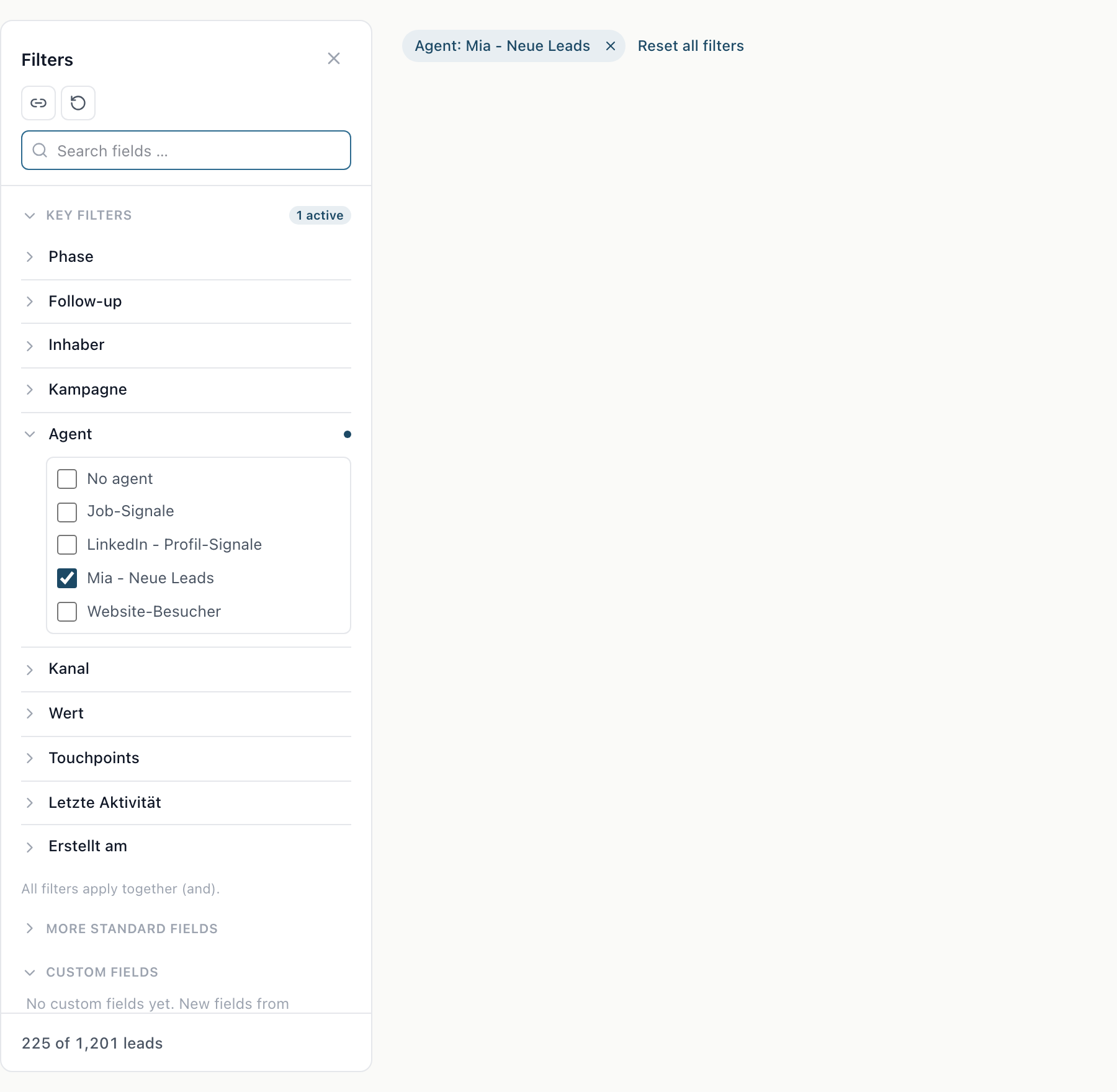
For leads, the Key filters section has the field Agent right after Campaign (Kampagne). It shows all leads that are currently running in an agent, for example so you can also call the leads of a profile campaign.
- You can choose from the agents in your account in alphabetical order, with No agent at the top.
- A lead belongs to an agent while it is running there. It is the same agent the lead detail shows under Details next to Agent. Once the participation has ended, for example because the sequence is finished or you removed the lead from the agent, the lead counts as No agent.
- If you pick several agents, you see the leads from each of them (or). If you also tick No agent, the leads without an agent are added.
- Combined with other filters, and applies as usual: an agent plus the stage Qualify (Qualifizieren) shows only that agent's leads in that stage.
- If you only see your own leads, the list only offers agents in which at least one of your leads is running. Deleted agents do not appear.
The filter works in the list and in Kanban, in saved views and in copied links. If an agent is deleted or someone has no access to its leads, inDeal leaves that agent out of the filter. If no agent is left, the filter is dropped and the panel shows a notice. How to save an agent's leads as a call list is explained in Practical examples for filters and views.
Filtering by LinkedIn connection
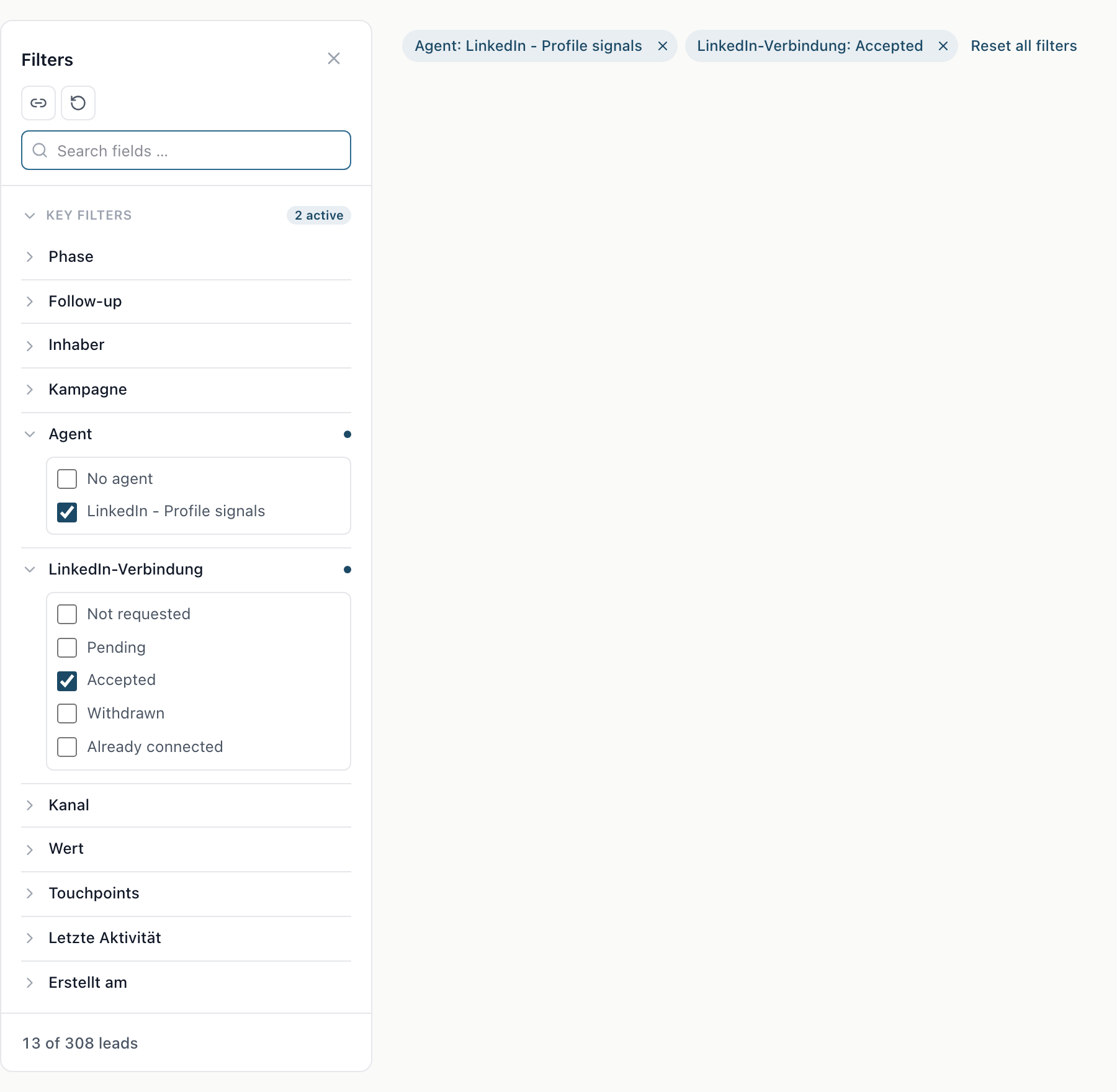
For leads, the field LinkedIn connection (LinkedIn-Verbindung) comes right after Agent. Use it, for example, to find all leads who accepted an agent's connection request and call them.
- You can choose Not requested, Pending, Accepted, Withdrawn and Already connected. These are the same values the lead detail shows under Details next to LinkedIn connection.
- The agent maintains the value. If no agent has sent a request yet, the lead counts as Not requested.
- If you pick several values, you see the leads with any of them (or). Combined with other filters, and applies: an agent plus Accepted shows only that agent's accepted leads.
The filter works in the list and in Kanban, in saved views and in copied links.
Standard fields and custom fields
Under More standard fields you find all other fields, such as job title, industry, city, lead source, sentiment or contract end. Add filter opens the field picker. It is split into Standard fields and Custom fields, and Search fields … finds a field quickly.
Custom fields are the fields an admin creates under Layout ↗. A new field shows up in the field picker automatically as soon as it exists. There is nothing for you to set up. Hidden fields are not available until an admin restores them.
Combining filters
All filters apply together. Between the rows the panel shows the word and. A lead only appears if it meets every condition. To allow several values of one field, for example two campaigns, select both in the same row ("is one of").
If a row is still missing its value, it shows Value missing, this filter is not applied yet. The list only changes once the row is complete. After that every change takes effect immediately, there is no apply button.
Conditions per field type
The conditions you can choose depend on the field type. This works the same for standard fields and custom fields.
| Field type | Conditions |
|---|---|
| Text and link | contains, does not contain, is, is not, is empty, is not empty |
| Number and currency | is, greater than, less than, between, is empty, is not empty |
| Date and date with time | on, before, after, between, in period, is empty, is not empty |
| Dropdown and person (e.g. owner) | is one of |
| Multi-select | contains any of, contains all of, contains none of |
| Checkbox (yes/no) | Yes, No, empty |
"in period" offers today, yesterday, last 7 days, last 30 days, this week, last week, this month, last month, this quarter, last quarter, next 7 days and next 30 days. For the follow-up there are also "overdue" (before the current moment, überfällig) and "before today" (vor heute). Periods always count from today, so a filter on "last 7 days" shows different leads tomorrow than it does today.
Search
The search field Name or company … sits in the bar next to Filter. For leads it searches the name and the company, for deals also the deal name. The search starts at 3 characters. With one or two characters you see At least 3 characters. The search applies together with all filters.
Chips and result count
Every active filter appears as a chip above the list, for example "Follow-up: überfällig". Clicking the chip opens the panel at exactly that row, and the X on the chip removes the filter. An active search also appears as a chip.
The bar shows the result count. Without filters it reads, for example, "240 leads". With filters it shows "12 of 240 leads": 12 matches out of the 240 leads you would see on this page without filters. On the open pages the second number only counts open leads or deals.
Copying a link and resetting
Copy link puts the page address with all filters, the search, the sorting and the layout on your clipboard. Send it to a colleague and they see the same selection. Everyone only sees the records they have access to.
Reset all filters removes all filters and the search at once. On the open pages you then see all open records again.
If a link contains a filter that no longer exists, for example on a hidden field, inDeal leaves it out and shows a note in the panel.
At most 10 standard fields
On each page you can filter by at most 10 different standard fields at the same time. On Open deals ↗ the limit is 9, because the page already sets the open stages itself. Under More standard fields you see how many are in use, for example "3 of 10 standard fields in use". Once the limit is reached, the field picker locks further standard fields. You can still add custom fields.
List and Kanban
Filters and search work the same in the list and in Kanban. When you switch the layout, your selection stays. Open leads ↗ is only available as a list.
If you arrive via a drilldown, for example from a campaign, the list shows a note such as Filtered: {label}. These lists have no filter panel. Clicking the note takes you back to the full list.