
Team ↗ shows who has access to your account. The area is reserved for the Admin role; anyone opening it without the permission ends up on Personal profile ↗.
Contents
- The list
- Inviting somebody
- The two roles
- Deactivate or remove - the difference matters
- Delete permanently
- Transfer ownership
- Next
The list
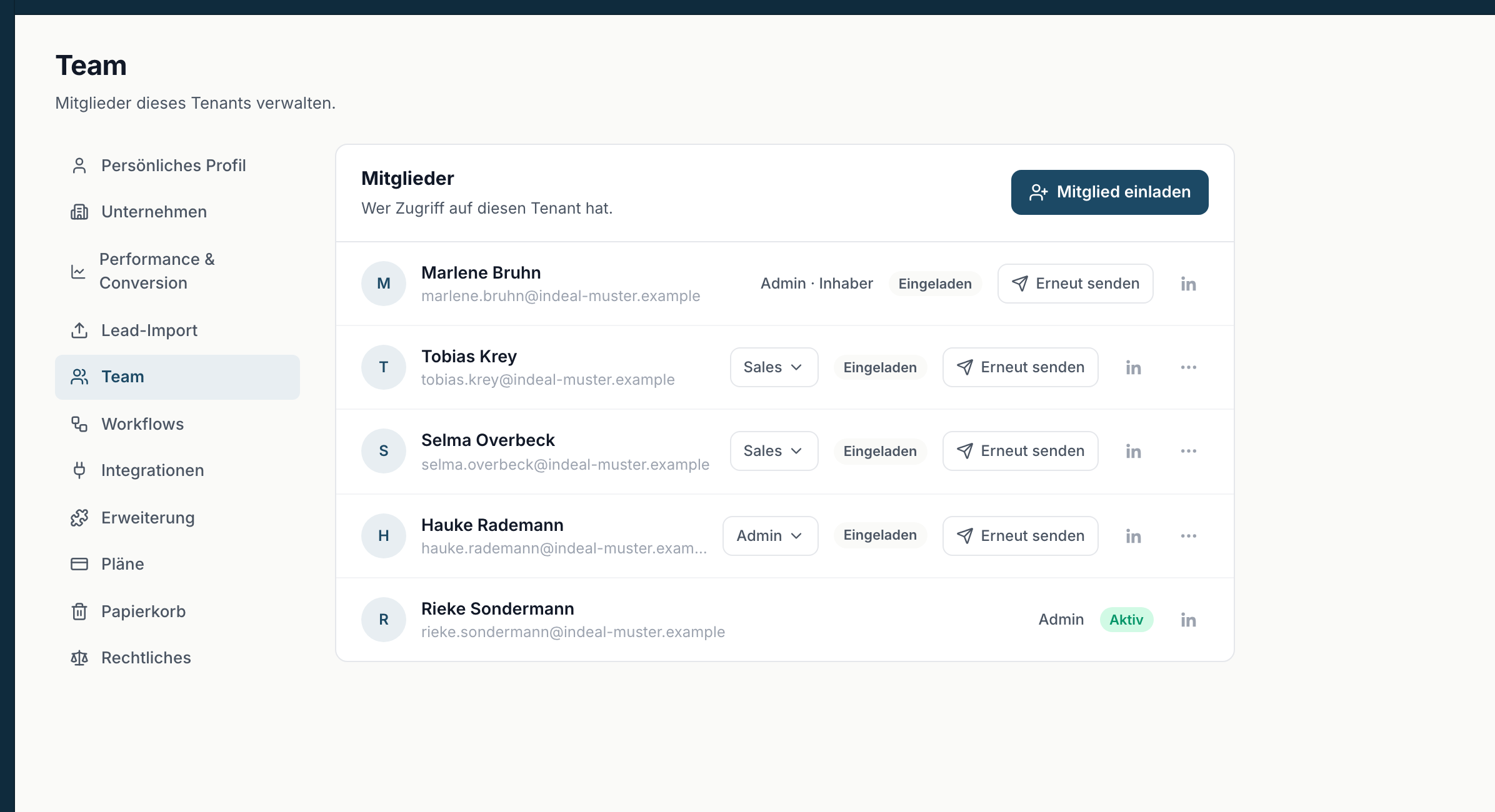
Each row shows the name, the address, the role and the status. The status is one of three:
- Active - the person has signed in and is working.
- Invited - the invitation is out but has not been accepted.
- Deactivated - access is blocked.
The person the account belongs to carries Owner after their role.
Inviting somebody
- Click Invite member.
- Enter the Email address.
- Choose Admin or Sales under Role.
- Confirm with Send invitation.
Invitation sent. then appears and the person shows up in the list with the status Invited. If the address is already on the team, you see This address is already on the team.
If the invitation does not arrive, Resend sits on the row.
The two roles
- Admin - full access to all records, import, mass updates, setup and team.
- Sales - sees and edits only their own leads. No import, no deleting, no mass updates, no setup.
Change role switches between them. Two limits apply: The owner's role can't be changed. and You can't change your own role.
Deactivate or remove - the difference matters
Both block access. The difference is what happens to the records, and it cannot be undone if you choose wrong.
Deactivate - the assigned leads and deals stay with that person. They remain visible and selectable as owner, so you can reassign their records deliberately. Reversible via Reactivate.
Remove - the assigned leads and deals become unassigned and can be given to somebody else. The history is fully preserved either way.
Recommendation: deactivate first. Reassign the records at your own pace and only then remove the person. The other way round, you are hunting for ownerless leads in a long list.
The owner cannot be removed, and nobody can remove themselves.
Delete permanently
Delete permanently removes the membership entirely. It only works for deactivated people, and only when they have no active leads or deals left. Otherwise you get a note that this user still has active records assigned and they have to be reassigned first. The row then shows how many are left.
The history is preserved even after that.
Transfer ownership
Only the owner can do this, and only to somebody with the Admin role. If there is nobody, you see To transfer ownership, first add a user as an admin and invite them.
- Choose Transfer ownership on the row.
- Read the warning. It says in effect: afterwards you are an admin, no longer the owner. The other person will then be able to manage the team, pass ownership on, and delete the account.
- Type the requested name exactly to confirm.
- Confirm with Transfer ownership.
If the input does not match, you see The company name you entered doesn't match. and nothing happens. That prompt is deliberate: only the new owner can undo this step.