
If your agency has enabled self-service setup for email outreach, you connect PlusVibe yourself. The wizard guides you through four to five steps, each headed Step {n} of {total}. Unlike PROSP, inDeal sets up the webhook itself, there is nothing to configure in PlusVibe.
Allow about five minutes and have your PlusVibe access to hand. You can close it at any time and resume later. If you do not have a PlusVibe account yet, the link No PlusVibe account yet? Start here (partner link) on the card and in the wizard takes you to the sign-up.
Contents
- Step 1: enter the API key
- Step 2: choose the workspace
- Step 3: select campaigns
- Step 4: assign mailboxes
- Step 5: webhook
- Replacing the key and disconnecting
- What happens to leads and replies
- Next
Step 1: enter the API key
- Click Connect PlusVibe.
- Fetch your key in PlusVibe under Settings, Integrations. The button Open PlusVibe settings takes you straight there.
- Paste it under PlusVibe API key.
- Click Connect.
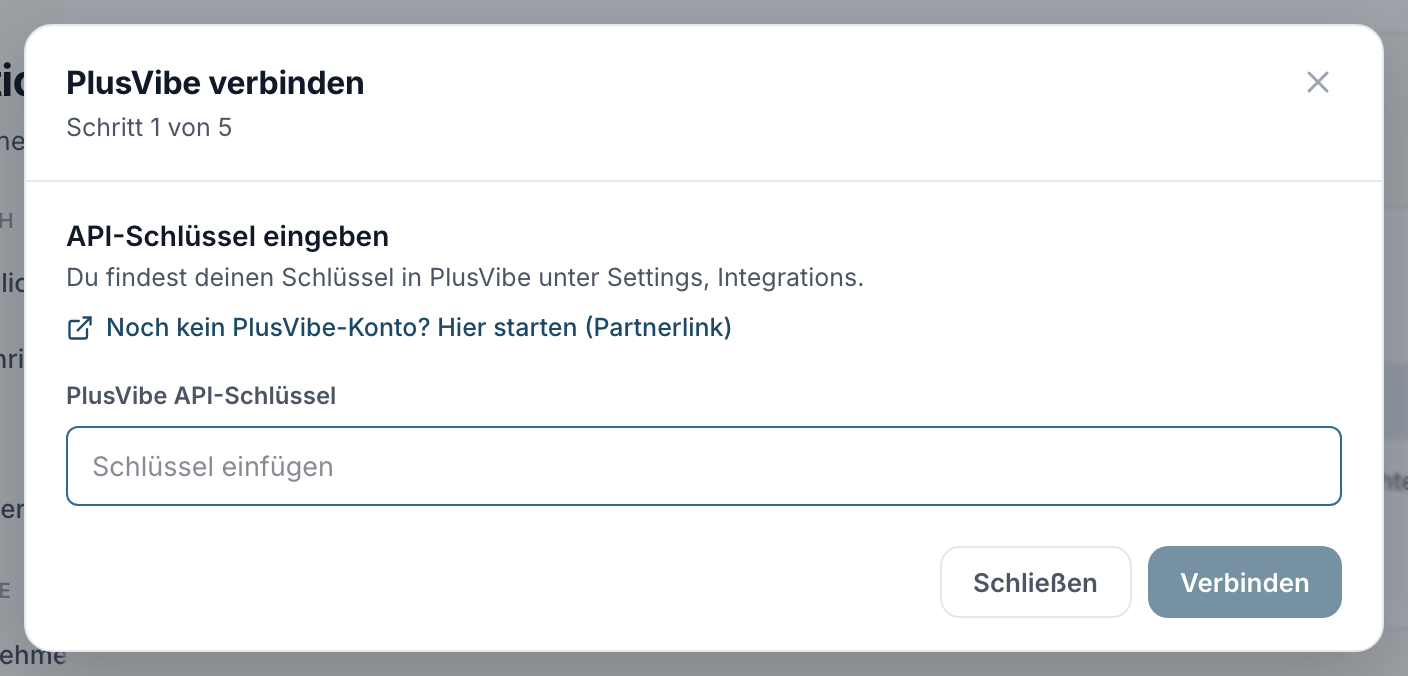
The key covers your whole PlusVibe account. If it is rejected, copy it again and watch for leading or trailing spaces. The other messages match those for PROSP, see Connecting PROSP.
Step 2: choose the workspace
A PlusVibe account can have several workspaces. The note reads: Your PlusVibe key covers all workspaces of the account. Choose the workspace whose campaigns should flow into inDeal.
If your account has exactly one workspace, inDeal picks it for you and skips this step. If it reads No workspace was found in this PlusVibe account., create a workspace in PlusVibe first.
Step 3: select campaigns
Select the campaigns whose leads should be imported and click Start import ({n}). The import begins right away and runs in the background. If you would rather import nothing for now, use Skip without selection and add the campaigns later under Not imported campaigns.
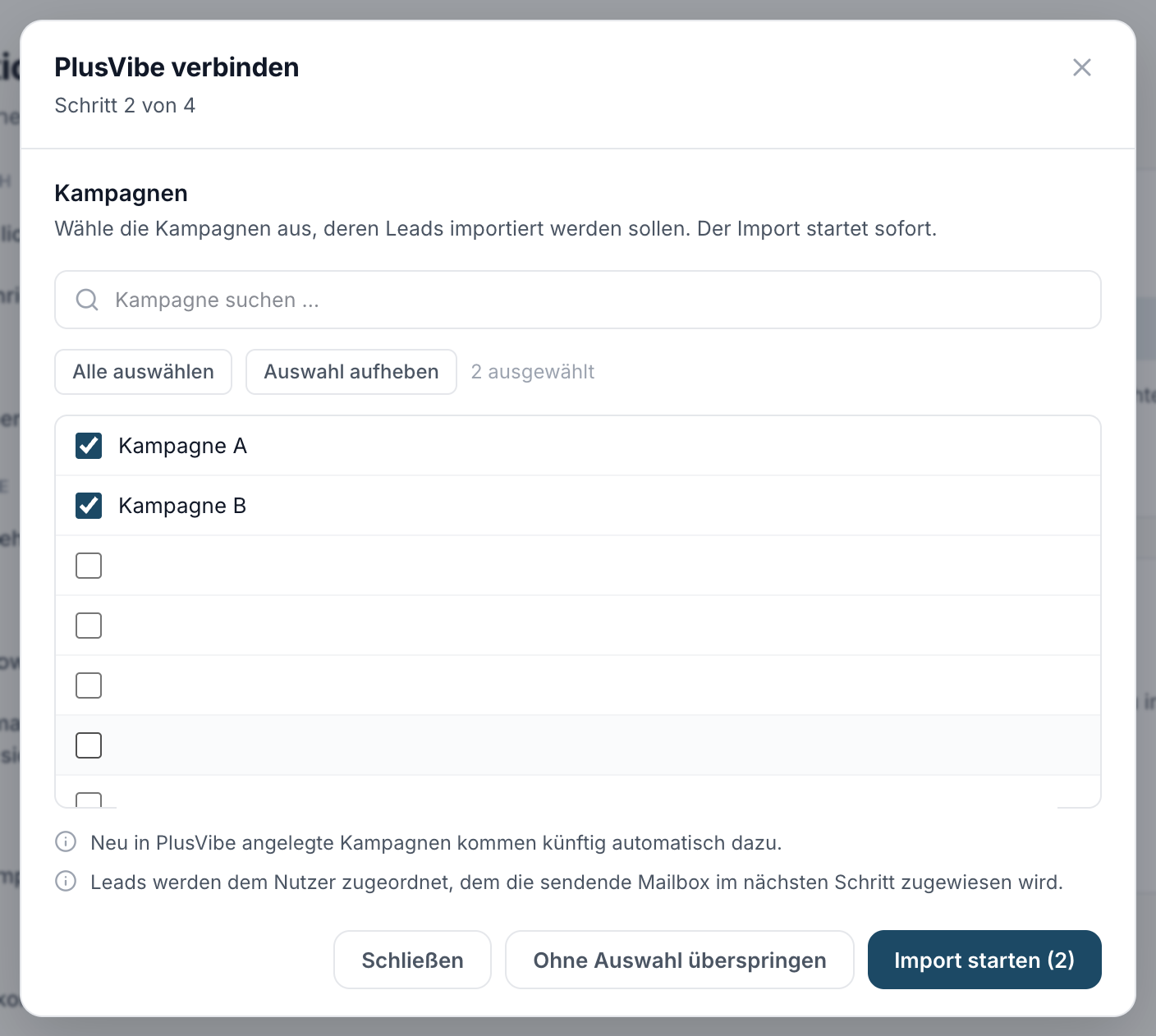
Two notes accompany this:
- Campaigns newly created in PlusVibe will be added automatically in the future. You only pick the existing ones, not future ones.
- Leads are assigned to the user mapped to the sending mailbox in the next step.
Active, paused and completed campaigns are offered. Drafts and archived campaigns do not appear. For a completed campaign the leads are imported once but not refreshed afterwards; its metrics also stay at the state of the import.
Step 4: assign mailboxes
The note reads: Assign each person with their PlusVibe mailboxes to a team member. Replies to those mailboxes are attributed to that member as owner. Mailboxes are grouped per person, below it reads {n} mailboxes. Pick the responsible colleague per person via Choose member.
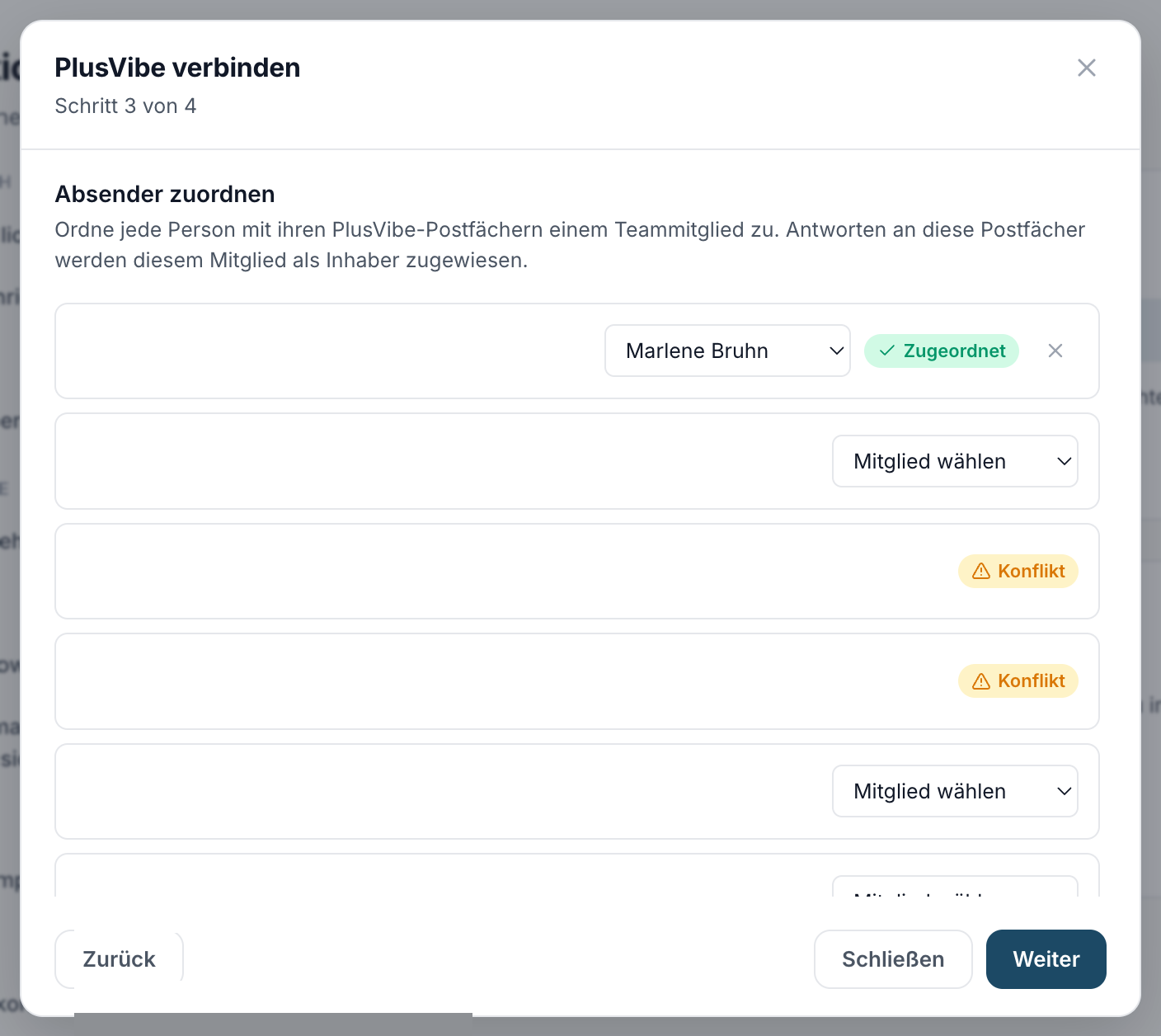
This step is optional. Unassigned mailboxes go to the workspace owner. You can change this later under Senders. Replies to unassigned mailboxes therefore belong to the workspace owner, nothing is lost. Next takes you to the last step.
Step 5: webhook
The note reads: inDeal registers the webhook in PlusVibe automatically. Replies to your campaigns arrive instantly afterwards.
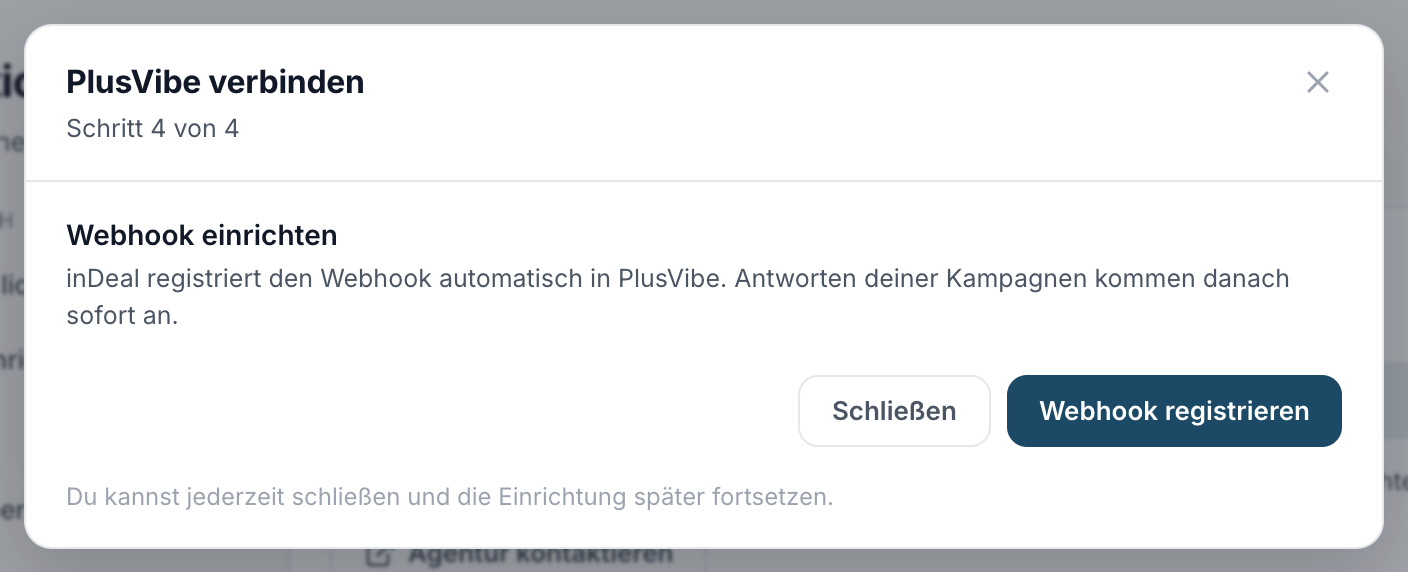
- Click Register webhook.
- While it registers, it reads Registering the webhook in PlusVibe …
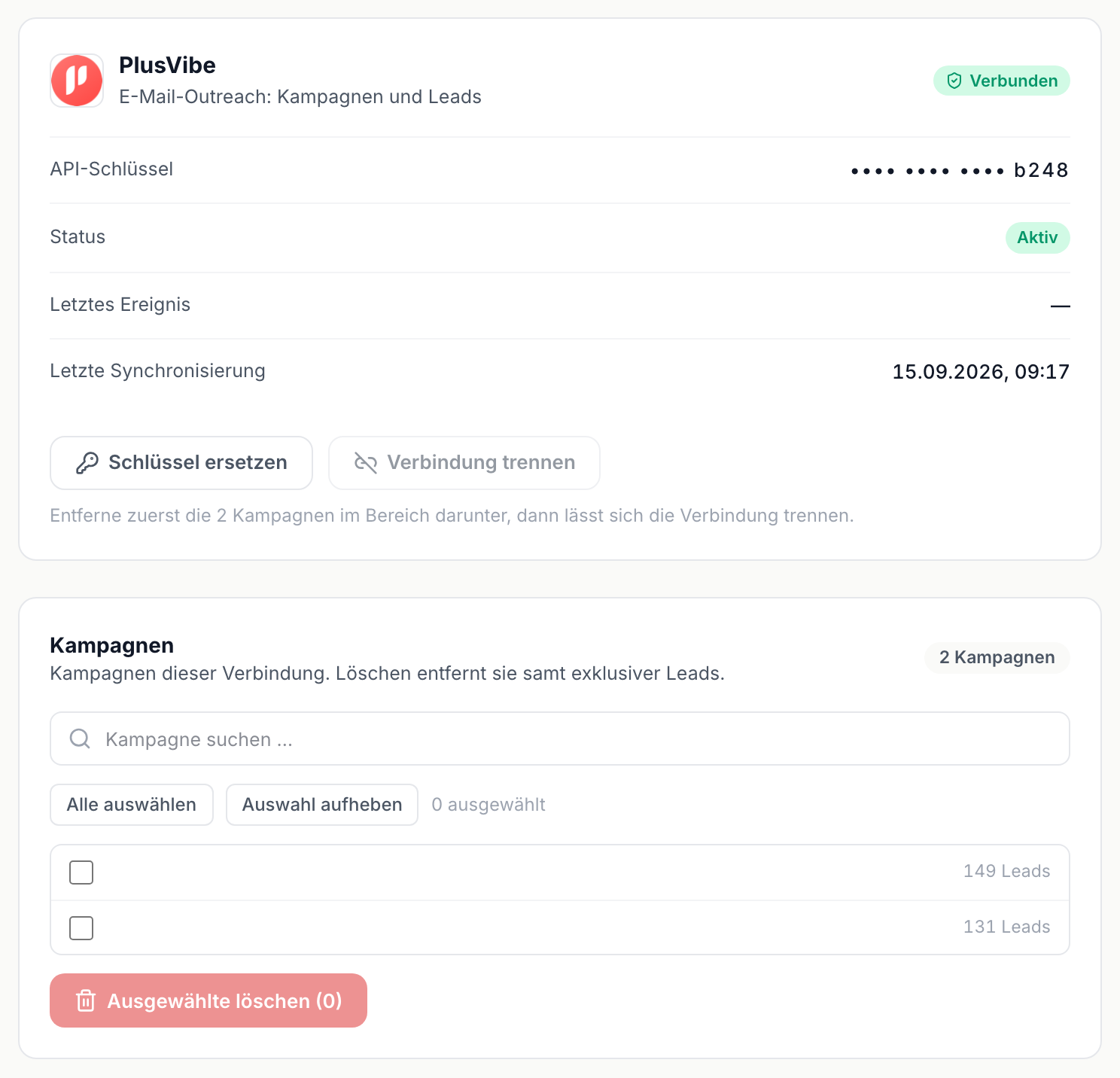
- Then Connected. Replies are flowing into inDeal now. appears and the connection status reads Active.
If registration fails, it reads The webhook could not be registered. You can retry in a moment; the connection is kept. Retry starts it again. The connection and the imported campaigns stay in place, only replies do not arrive until then.
The webhook covers all campaigns of the workspace, including ones created later. You do not have to maintain it.
Replacing the key and disconnecting
Both work as for PROSP, see Rotating the key and disconnecting. Two differences:
- Replace key opens Replace PlusVibe key. The new key has to belong to the current workspace, otherwise you see The chosen workspace does not belong to this PlusVibe account. Webhook and campaigns stay intact.
- Disconnect removes the webhook in PlusVibe automatically and deletes the stored key. You have to remove the campaigns first; their exclusive leads are permanently lost in the process. Leads that also belong elsewhere stay.
What happens to leads and replies
- Leads are recognised by email address. If a person already exists, for example from a LinkedIn campaign, no duplicate is created; the existing record is completed instead.
- Every reply appears as an "Email Reply" activity on the lead, is classified automatically and triggers your workflows.
- On the connection card, Last event shows when a reply last arrived and Last sync when campaigns were last synced.