
Leads reach inDeal three ways: one at a time by hand, in bulk from a file, or automatically from a campaign. Missing contact details you add afterwards through enrichment.
Contents
Creating a lead by hand
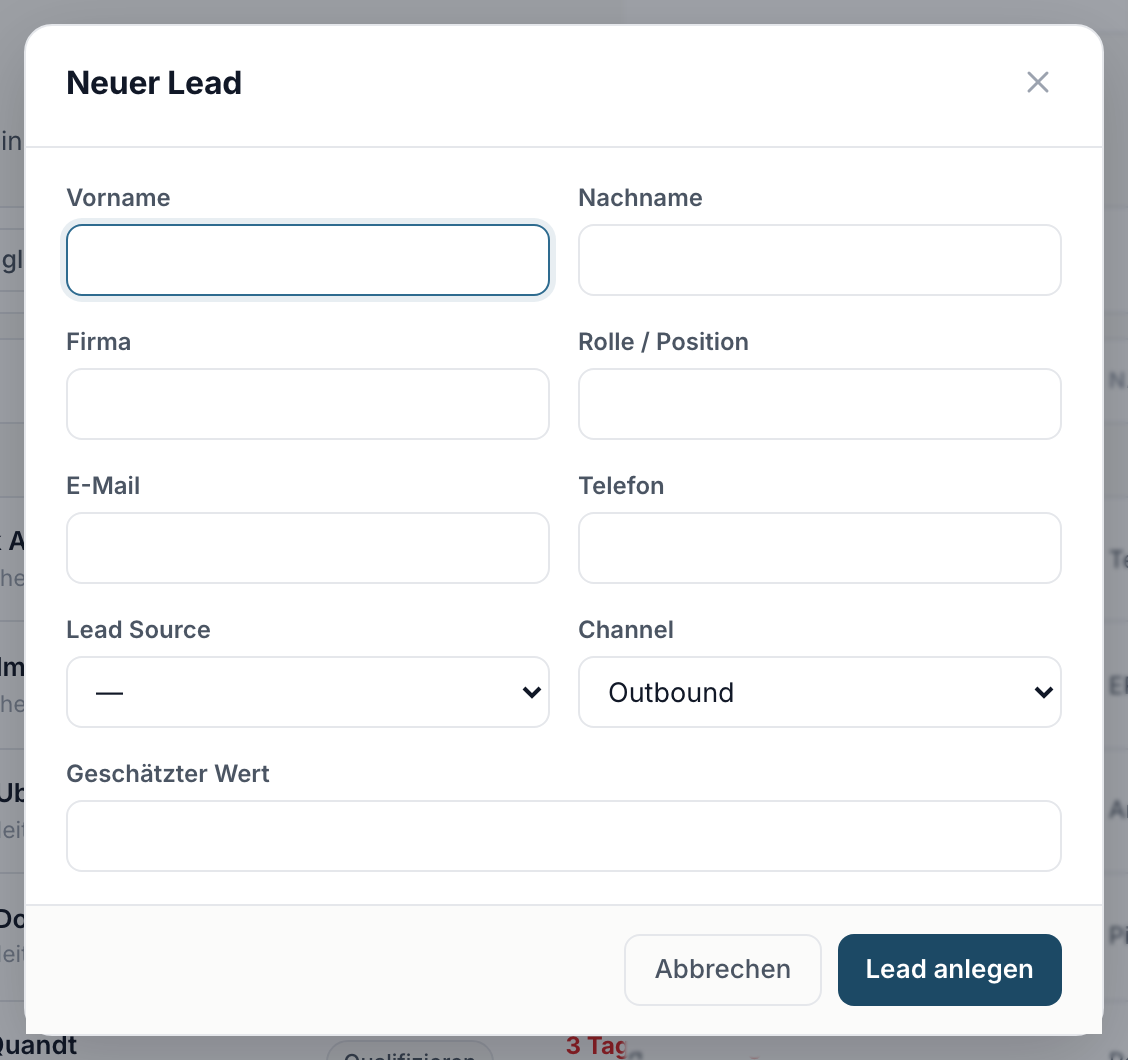
- Click the plus button in the top bar. New lead opens.
- Fill in at least First name or Last name. Without a name you see Please enter a name.
- Add what you have: Company, Role / title, Email, Phone, Lead source, Estimated value and Channel.
- Confirm with Create lead.
The lead then sits on Qualify. Set a Follow-up date right away, otherwise it will not appear in Open leads ↗.
Importing leads from a file
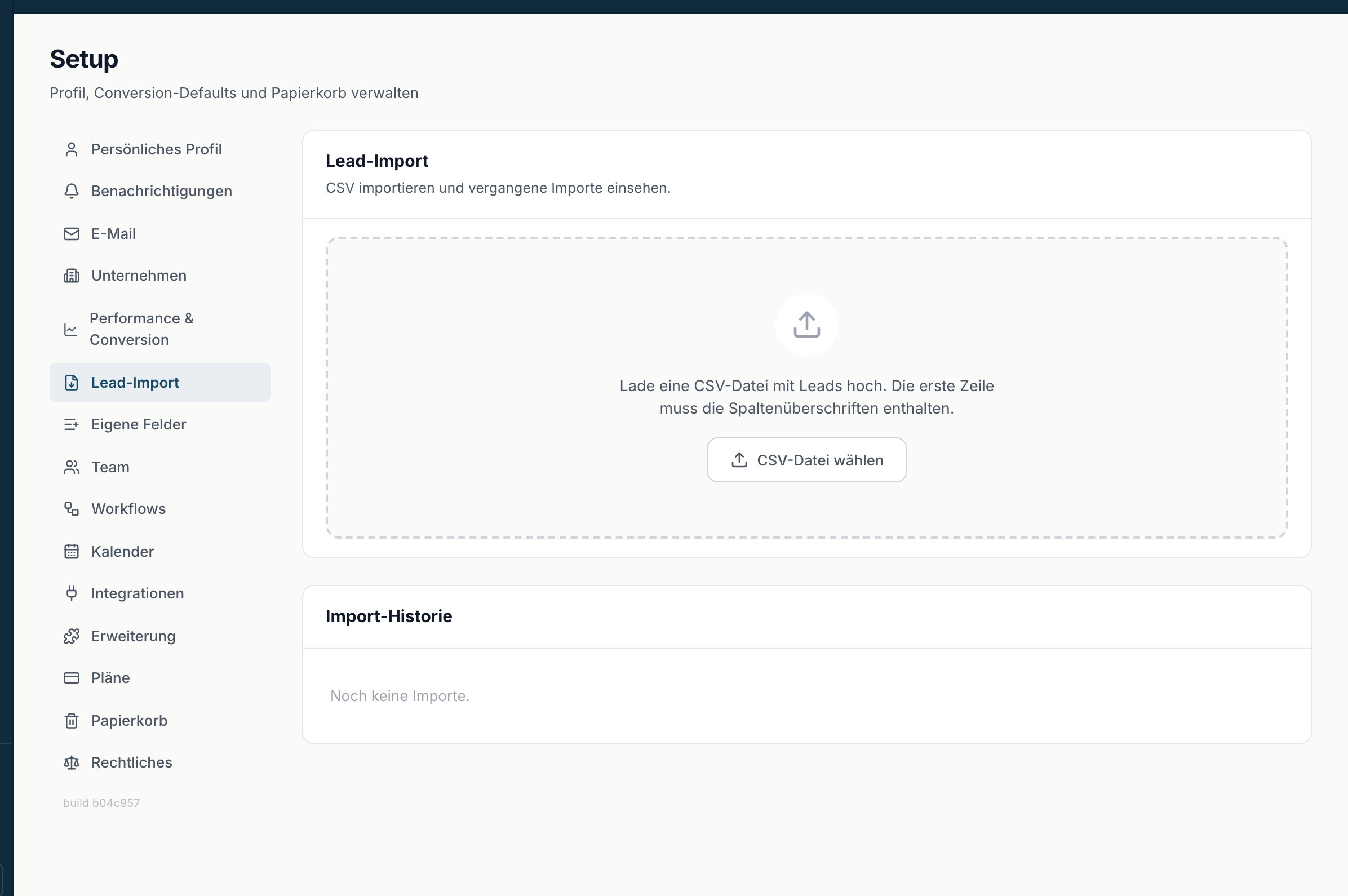
The import is its own page in Setup: Lead import ↗. The Import button above both lead lists takes you there as well. The import requires permissions - with the Sales role it is not visible.
-
Open the page. At the top you see the hint: Upload a CSV file with leads. The first row must contain the column headers. Below it sits the Import history.
-
Pick your file via Choose CSV file - or simply drag it onto the area. inDeal checks the file first: a CSV file (.csv) of up to 4 MB with at most 50,000 rows and 200 columns is allowed. Split larger files.
-
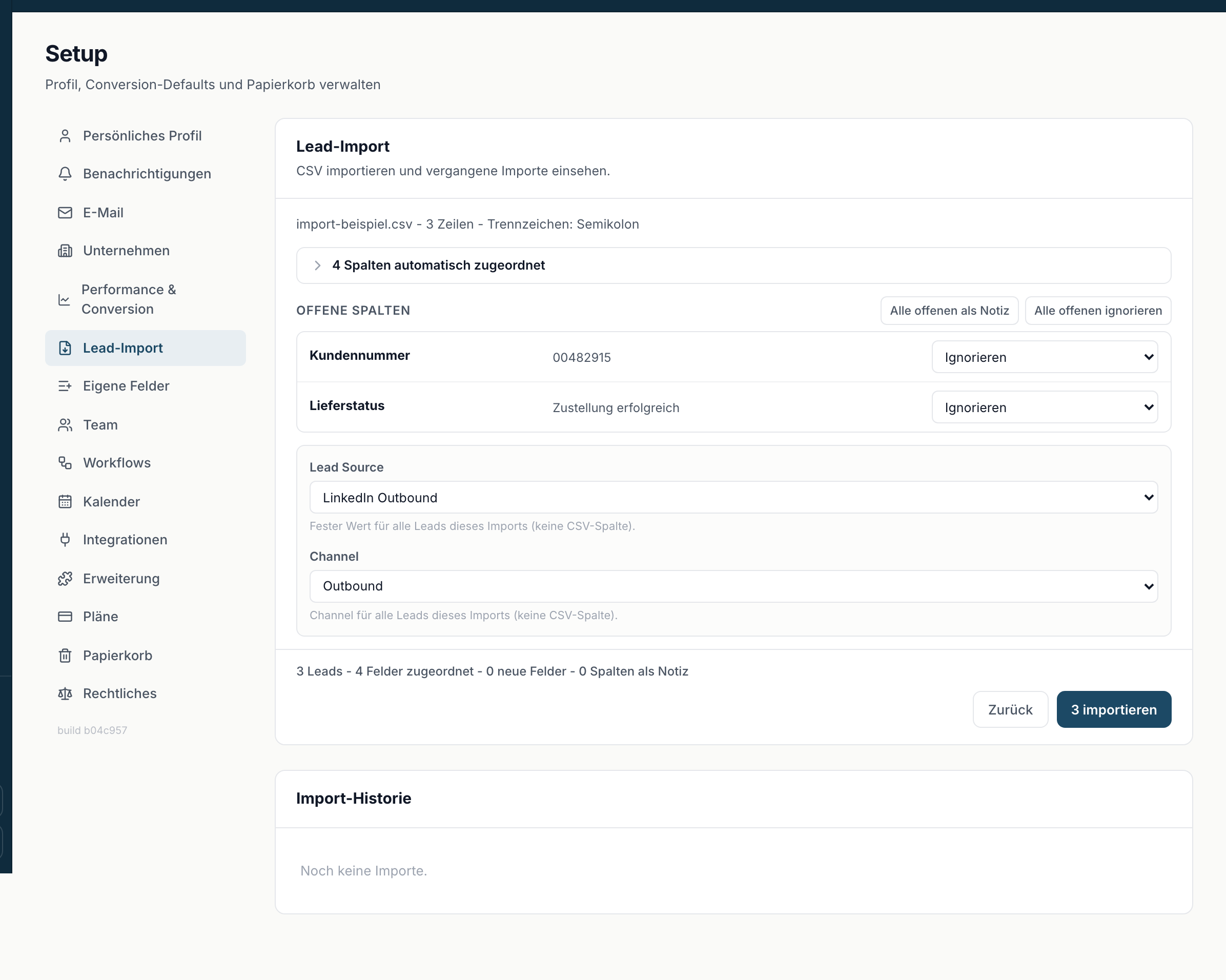
Decide per CSV column what happens to it. Whatever inDeal recognises confidently is already mapped and sits collapsed under {n} columns mapped automatically; uncertain matches carry the marker uncertain match and stay visible. The picker is grouped into Contact, Company, Address, Phone, Campaign & status and Custom fields; use Search field to find a field faster. For every column there are five options:
- Ignore - the column is not taken over.
- A field of the lead, for example First name, Email, Mobile, Mobile 2, Phone, Company phone, Company, Street, ZIP code, City, Country, Campaign, Sentiment, Loss reason, Meeting booked by or Assigned to. Each field can only be used once. A second mobile number such as "Mobile_2" goes to Mobile 2, a direct dial ("Durchwahl") to Phone if the file has no phone column of its own. Columns such as "Campaign ID" are never mapped to Campaign automatically.
- Attach as note - the content is collected into a note on the lead, see below.
- A field under Custom fields - the values go into a custom field that already exists. If a column has the same name as the field or its API name, it is already mapped. Each field can only be used once.
- Create as new field - the column becomes a new custom field with Title and Type, see Custom fields in the import.
With All open as note and Ignore all open you decide the remaining columns in one go.
-
Under Leads that already exist you choose what happens to leads you already have: Fill empty fields (default) or Skip. Details under Filling existing leads.
-
Under Fixed values for all leads in this import, Lead source and Channel are already prefilled. Use Add field to set more fields for all leads at once, see Fixed values.
-
Click Show preview. inDeal goes through the file without saving anything and shows what will happen: "X created · Y filled (Z fields) · W unchanged · V skipped". The button then reads Process {count} and starts the import. If you change the mapping, the fixed values or the choice for existing leads afterwards, calculate the preview again.
At least one name field, an email or a profile address must be mapped, otherwise you see Map at least first/last name, an email, or a LinkedIn URL.
Custom fields in the import
You manage custom fields under Layout ↗, see Customizing the layout: sections and custom fields. In the import:
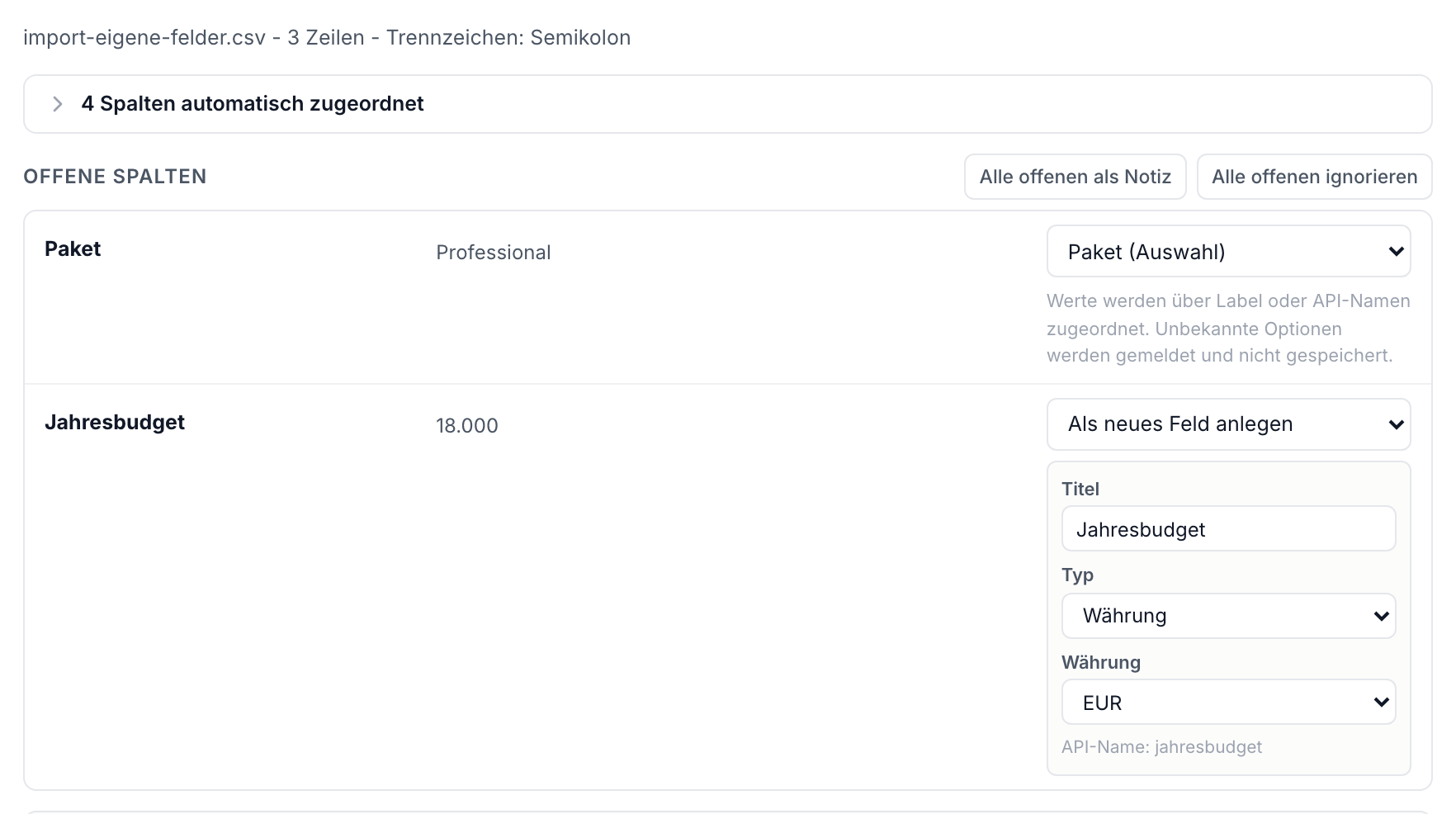
- New field: You can choose the same types as in the layout editor. inDeal suggests a type based on the values, for example checkbox for yes/no, date or date and time for matching values. New fields are added to the end of Additional data. Their API name is generated automatically and never reuses the one of a hidden field.
- Dropdown and multi-select fields are created without options. You add the options in the layout afterwards. Until then the values of that column are reported and not saved.
- Values are converted when they fit the type:
- numbers and amounts in German or English format, for example 1.234,56 or 1,234.56
- dates as 2026-10-15, 15.10.2026 or 15.10.26
- date and time such as 15.10.2026 14:30, in German time
- checkbox with yes/no, true/false, 1/0, x, ja/nein
- dropdown by the option's name or API name, case does not matter; for multi-select several values separated by semicolon, comma or vertical bar
- Campaign expects the name of a campaign that already exists in inDeal; case and surrounding spaces do not matter. The lead then counts in that campaign's numbers. The import does not create new campaigns.
- Country accepts codes (DE) as well as German or English names. Sentiment accepts positive, neutral or negative. Assigned to and Meeting booked by expect the email or name of a team member; only admins can assign to others, otherwise the lead stays with you.
- Invalid values do not stop the lead: the lead is created, only the invalid value is left out of the field. So nothing gets lost, it is kept in a note on the lead, for example "Import: Country = Atlantis (invalid)", all invalid values of a lead together in one note. Invalid are, for example, an unknown option, a date that does not exist, or a number with a leading zero or more than 15 digits (such IDs belong in a text field).
Filling existing leads
inDeal recognises a lead you already have by its email or LinkedIn URL, always only within your own account. With Fill empty fields:
- A field is only filled if it is empty on the lead and the file or a fixed value provides a valid value. Whatever is already there stays unchanged, even if the file says something else. This applies to all fields, including custom fields.
- Campaign: the lead is added to the campaign from the file or the fixed value. Existing campaigns stay, and it is never added twice.
- Assigned to, Lead source and Channel are only set if they are empty.
- If the lead belongs to a company, company and address fields belong to the company. inDeal fills them there only if they are empty on the company, and every contact of the company gets the value. The preview shows how many companies get filled and how many more contacts that reaches.
- Skipped are leads in the trash (they stay there and are not restored), leads on the blacklist, rows where the email belongs to one lead and the LinkedIn URL to another (conflict), and rows that appear twice in the file (the first one is processed). These rows are listed with a reason in the Error report (CSV).
- Filled fields appear in the lead's History, just like a change made by hand, including address, job title, company phone and custom fields. What an import fills on a lead shows up there as one entry. If the lead has a company, the company's data and address fields follow as a second entry.
With Skip, existing leads stay unchanged, as before.
Fixed values
Under Fixed values for all leads in this import you set a value that applies to every lead in the file, for example a campaign, an industry or Assigned to. You pick from the same field list as in the mapping, including custom fields. The input fits the field: campaigns and team members come from a list, choice fields from a dropdown, dates from a calendar.
- A field comes either from a column or from a fixed value. If it is mapped to a column, it is locked in the fixed values, and the other way round.
- New leads always get the fixed value, existing leads only where the field is empty (see above).
- An invalid value is marked red until you fix it or remove the entry. Until then you cannot continue.
On a repeat import everything is prefilled
If you later import a file with the same column headers, inDeal takes over your last mapping: at the top it says Mapping taken from {date}, the columns sit under {n} columns taken from your last import. If everything fits, start right away via Import now. Reset falls back to the automatic mapping.
After the import
A summary appears, with Fill empty fields in the same form as the preview, plus {n} new and {n} errors - and how many new fields were created and how many notes were written. Columns attached as a note are collected into a note titled Lead import {date} in the activity list of each lead. If there were errors or values were left out, Error report (CSV) downloads the report so you can fix the data and import again. It has the columns row, field, raw value and reason, for example "Option "Gold" unknown". It opens directly in Excel; with an English interface the separator is a comma. On the next import, leads that exist by then are filled or skipped, depending on your choice. Start another import begins the next run right away.
Important, and the most common question afterwards: imported leads are cold. They sit on Qualify, have no follow-up date and therefore do not appear in Open leads, only in All leads ↗. They show up in the work list as soon as a reply arrives or you set a follow-up date. That is exactly what the note after the import says.
Undoing an import
The import history in Setup lists every run with File, Date, Run by and Result. Move imported leads to trash removes a whole run again. Leads that have already been worked are kept - the dialog names the number. Fields filled in on leads that existed before are not undone. The action is reversible: via Undo or the trash.
Leads from campaigns
Contacts who reacted to your outreach appear as leads automatically. The Details block then names the Campaign they came from. There is nothing for you to do. More on that in the Campaigns category.
Enriching data
If a phone number or email is missing, Enrich data in the lead header helps. inDeal then searches publicly available contact details.
How it goes:
- Click Enrich data. The button changes to Enriching data ….
- If it takes longer, you see Extending search across additional providers ….
- Afterwards the values found sit in the fields. Verified details are marked verified.
If a lead has been enriched before, the button reads Re-enrich; after a failed attempt, Retry enrichment. Hovering shows when it was last enriched.
Some leads are enriched automatically as they arrive. A note then appears at the top saying contact details are being searched and the page refreshes itself.
Enrichment costs credits
Contact details consume credits, company data does not. Your balance sits at the bottom left of the sidebar as {n} credits.
| Detail | Price |
|---|---|
| Mobile number | 5 credits |
| Email address | 1 credit |
| Landline number | 0.5 credits |
| Company data | free |
Only what is actually found and newly written is charged. A field that is already filled is not overwritten and costs nothing. The number of providers queried makes no difference - the price depends on the field found. Direct dial and switchboard together count as one landline number. Enrichment does not fill Mobile 2. You maintain that field yourself, by import or via the API.
If your credit doesn't cover everything, we add what fits. The order and what the lead then shows are explained in Credits and usage.
Your usage is in Setup under Plans & Billing ↗ in the History, broken down into Email, Mobile, Landline and Company data. More on that under Credits and usage.