
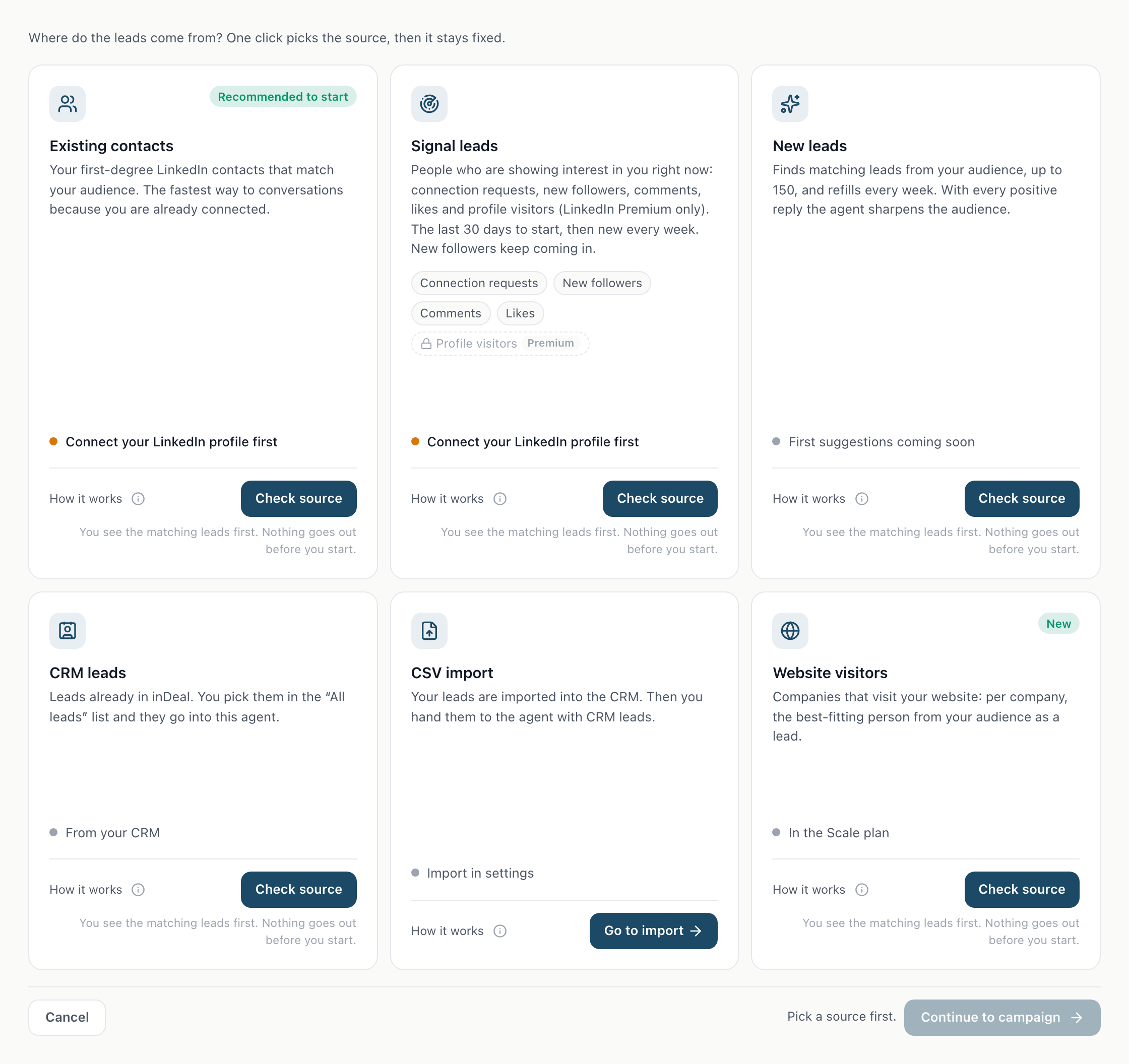
With the Website visitors source, inDeal recognises which companies visit your website. If a company matches your audience, the agent finds the best-fitting person there and suggests them to you as a lead. The source is part of the Scale plan, also in the trial. On the Starter plan you can try it free for 14 days, see Trial on the Starter plan.
Contents
- How it works
- Add the code
- Check the code
- Leads and start
- Approval or autopilot
- Trial on the Starter plan
- Data protection
- FAQ
- Next
How it works
- You add a short code to your website. It reports page views to inDeal and sets no cookies.
- inDeal recognises the company from the visit, not the individual person.
- inDeal matches the company against a company database: main website, LinkedIn company page, size and headquarters. This turns a subsidiary or country website into the right company with its real size. The check against your audience runs on this data.
- If the company matches your audience, the agent looks for at most one person there with a matching role and a LinkedIn profile. For large companies it first searches at the location of the visit, if that is not the headquarters.
- The person appears as a lead in the Leads tab. The agent works around the clock, independent of your working hours. Sending still only happens within your working hours.
Nobody is contacted twice. The agent skips people on your blacklist and leads already running in another agent. Leads with a waiting period stay suggestions for you to decide on.
Add the code
Create a new agent and choose the Website visitors card in the Leads tab.
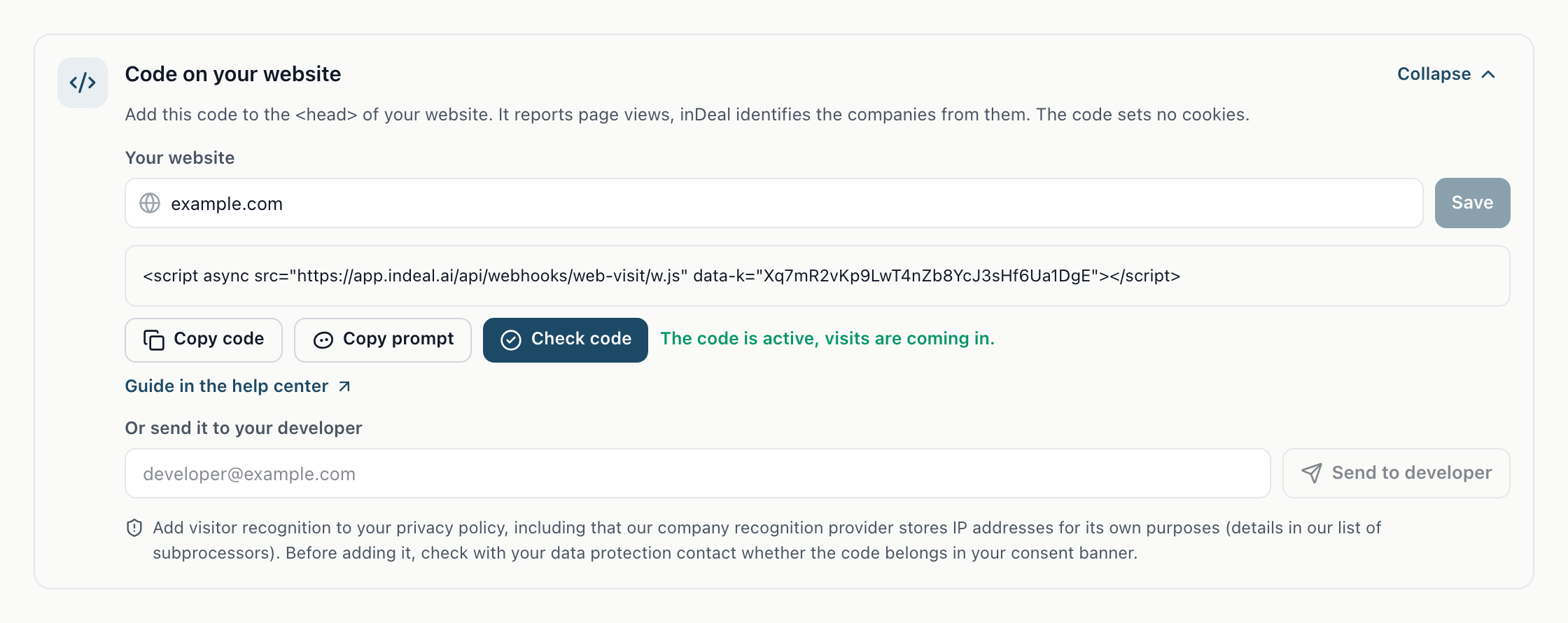
Then:
- Under Your website, enter your domain, for example example.com, and click Save. Only owners and admins can change the domain.
- Click Copy code to copy the code. It belongs in the head section of every page, right before the end of the head, for example in the template or via your tag manager.
- Does someone else build your website? Enter their address under Or send it to your developer and click Send to developer. They get the code with instructions, you get a copy.
The code is unique to your account. It only works on the domain you entered.
Copy prompt gives you a ready-made task for AI tools such as Claude Code or Cursor. How to add the code in Next.js, WordPress, Webflow, Framer or static HTML is explained in Adding the website code.
Check the code
Once the code is added and published, click Check code. inDeal looks for the code on your homepage and waits for a first visit. When everything works, it says The code is active, visits are coming in. Only then can you go on with Continue to campaign.
If it does not work, inDeal tells you why. If the code is on the page but no visit has arrived yet, open your website once yourself and check again. Browsers with a privacy signal (GPC or Do Not Track) deliberately report no visit, so use a different browser.
Leads and start
At first there are no leads yet, because they only come with the visits. That is why Start agent is locked until the first lead. The campaign header then says As soon as the first leads arrive, you'll get an email. The email comes once, with the first lead that matches your audience. It contains a link straight to the Leads tab.
Every Friday from 8 am, the person who owns the agent gets a weekly report by email if companies were recognised in the last 7 days. It only shows numbers: companies recognised, how many of them are in your audience, and target persons found. A link takes you straight to Identified companies.
When the agent finds new leads that match your target audience, the person who owns the agent gets an email with the number at 8 am the next morning, also on weekends. Leads whose check is unclear or doesn't match never trigger an email. Hand the leads over to the agent in the Leads tab. With Autopilot it takes over new matching leads automatically, and the email then shows how many it took over and how many still wait for your decision. You can turn the email off under Settings > Notifications with New leads from your website, or straight from the link in the email.
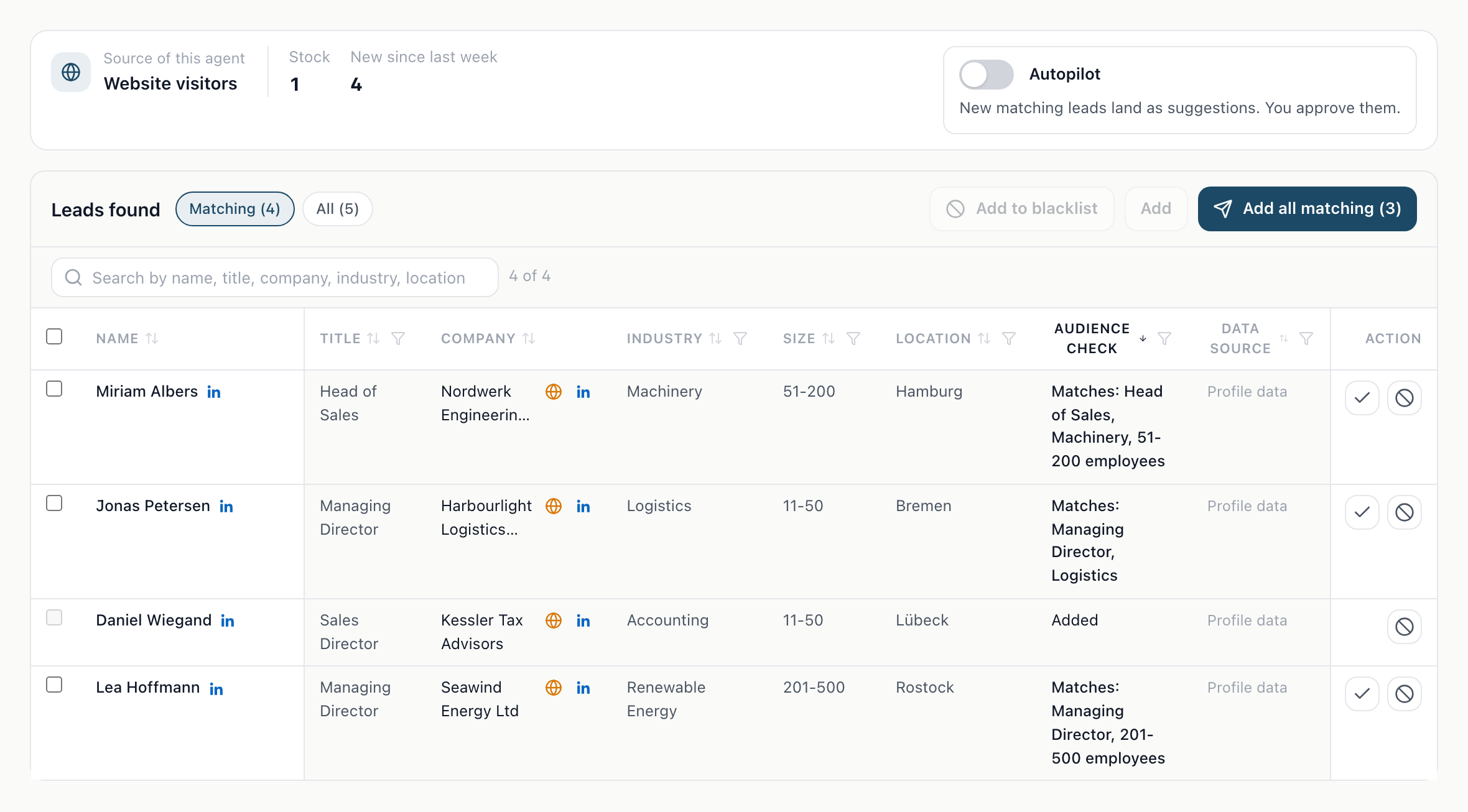
In the Leads tab, Leads found shows the same table as the other sources: name with LinkedIn profile, title, company with website and LinkedIn company page, industry, size and location. The Audience check column shows whether the person matches and why. Matches means the person clearly fits your audience. Not checkable means some details are missing, so take a quick look yourself. Use Matching and All to switch between the matching leads and the full list. All also shows leads that are already Added or Excluded.
Add puts the selected leads into the campaign, Add all matching adds everyone who matches. The check mark in a row adds just that lead. With Add to blacklist or the block icon in a row you choose Only this person or Entire company. Blocked leads are no longer added and show as On the blacklist in the list.
The connection request refers to the visit without naming the page or the time. With LinkedIn Premium the reference goes out with the request, otherwise in the first message.
Identified companies
In the Leads tab, Identified companies shows all companies inDeal recognised among your website visitors, including those outside your audience. The number in brackets shows how many there are. The table shows the company with website and LinkedIn company page, industry, size, location, a one-line description, the number of visits and the last visit. Hover over the description to see all of it.
The status applies to this agent, another agent can rate the same company differently:
- Target audience: The company matches your audience, and the person found matches too. They are listed under Leads found.
- Person unclear: The company matches your audience, but whether the person found matches cannot be checked. Take a quick look under Leads found.
- Person does not match: The company matches your audience, but the person found does not. They are listed under Leads found and only go into the campaign if you tick them.
- No contacts found: The company matches your audience, but the agent found no suitable person with a LinkedIn profile there. This company gets no message.
- Not target audience: The company does not match, is on the blacklist or is your own company. Hover over the status to see the reason, for example Size does not match. These companies get no messages.
- Added manually: You added the company with Add anyway.
- Not checked: There is no result for this agent yet, for example because no audience is set.
Use the column headers to filter by status, industry, size and country and to sort by size or last visit. The search field finds company, website, city and description. The table shows the 500 most recently active companies.
Add anyway: If a company does not match your audience and you still want to reach out, click Add anyway in its row and confirm with Search. inDeal then looks for the best-fitting person from your audience at that company. If one is found, they appear under Leads found and you add them to the campaign with the check mark there, even if the check shows Does not match. Add all matching and autopilot never add them, only your check mark does. The company stays Added manually for this agent, even if no person was found. Companies on the blacklist cannot be added. If the daily limit of the person search is reached, try again the next day.
Approval or autopilot
At the top of the Leads tab, the Autopilot switch lets you choose how new leads get into the campaign:
- Autopilot off (default): New matching leads appear as suggestions, you add them yourself.
- Autopilot on: The area turns green and shows Autopilot on. New matching leads go straight into the campaign. Leads that need a check stay suggestions.
Trial on the Starter plan
On the Starter plan you can try website visitors free for 14 days, also during your trial period. Owners and admins start the trial with Try free for 14 days. You find the button when you create an agent, in the Leads tab above the sources. The trial runs for 14 days from the start and can be used once per account.
While the trial runs, website visitors work just like on the Scale plan. Contacts count towards your weekly limit as usual. The end date is shown in the agent with website visitors, in the Leads tab under Trial ends on.
When the trial ends, website visitors pause. inDeal no longer accepts visits and finds no new leads. Your leads, your domain and the code on your website stay in place. The agent then shows Trial ended. If you switch to Scale, it continues without a new setup.
Data protection
You are responsible for the visit data of your website, inDeal processes it on your behalf. So:
- Add visitor recognition to your website's privacy policy. Our company recognition provider also stores IP addresses for its own purposes. The details are in our list of subprocessors.
- Check with your data protection contact whether the code belongs in your consent banner.
inDeal stores the IP address of a visit for at most 26 hours. Recognised companies are deleted 90 days after the last visit, leads you did not add 90 days after they were found. For companies added manually the mark stays, but inDeal still deletes the person data after 90 days. More in the privacy policy, section 10b.
Before you start, use the final checklist from the privacy template.
FAQ
Can I see exactly who visited my website? No. inDeal only recognises the company. The suggested person is the best fit from your audience at that company, not necessarily the visitor.
Why are there no leads although visits come in? Many visits cannot be matched to a company, for example from home offices or mobile networks. Other companies do not match your audience or have no matching person with a LinkedIn profile. Under Identified companies you see this per company as Not target audience, No contacts found, Person does not match or Person unclear.
Why does a company show a different size than expected? Size, industry and LinkedIn company page come from the match with the company database and apply to the whole company, not only to the location the visit came from. If the database does not know the company, inDeal shows the details from the visitor recognition.
Does every visit cost something? No. Website visitors are included in the Scale plan, and in the trial on the Starter plan as well. They use no credits.
Can I reach out to a company that does not match my audience? Yes. Under Identified companies, click Add anyway for that company. More under Identified companies.