
A click on a lead opens its detail page. Everything known about that contact is there, and that is where you change it.
Contents
- The header
- Changing fields directly
- The field blocks
- The two most important fields
- Assigning a lead
- Deleting a lead
- Next
The header
Name, job title and company sit at the top, with the actions to their right:
- Call dials the stored number. If several numbers are stored, you can pick one.
- LinkedIn opens the contact's profile in a new window. The button only appears when a profile address is stored.
- Email opens a new mail window. Only appears with a stored address.
- A button for the meeting.
- Enrich data searches for missing contact details.
- The menu with the remaining actions.
The arrows above page through the list you came from. Next to them it reads Lead {n} of {total}.
Changing fields directly
Just click a value. Almost every field is editable in place; hovering shows the hint Click to edit. Changes save immediately and Saved appears briefly. If it fails, you see Couldn't save.
Date fields open a calendar with quick picks; your selection there is only applied with Save. On the Follow-up date you can additionally set an email reminder - see Set a follow-up with a reminder.
You change the name via Edit name in the heading.
The field blocks
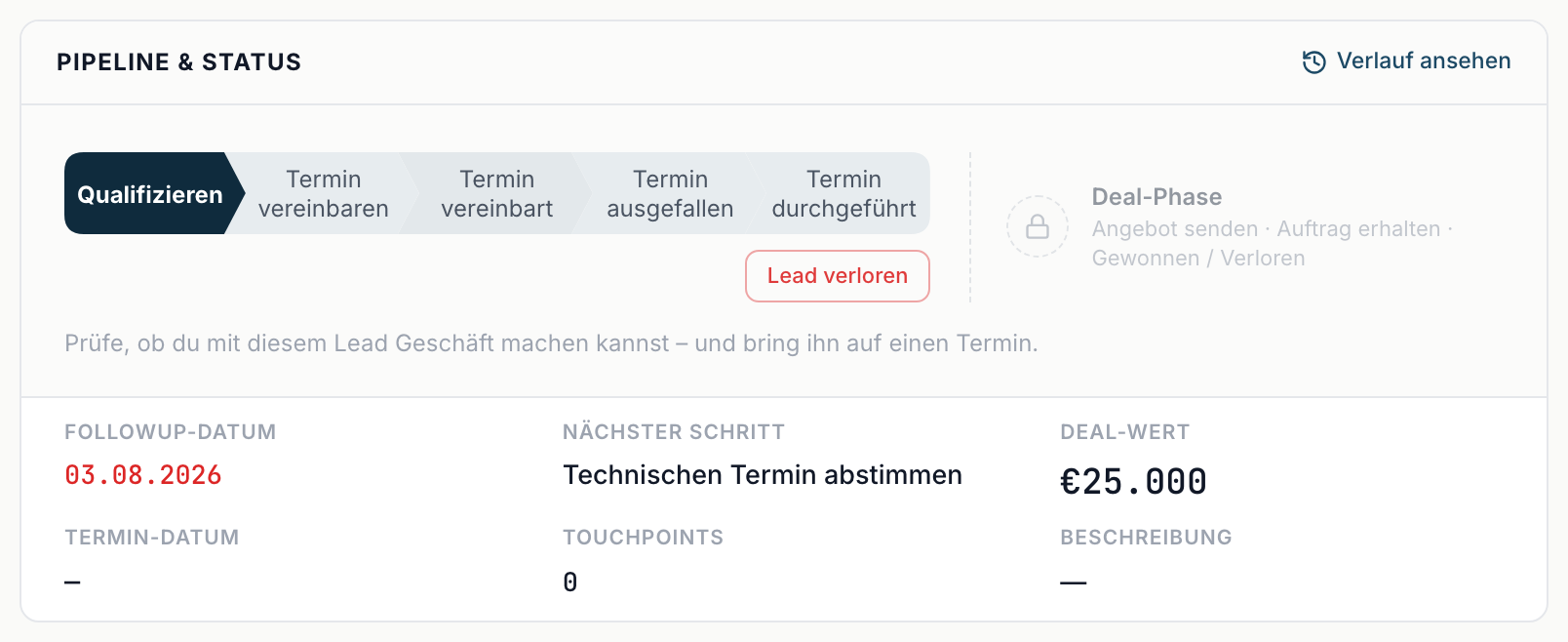
Pipeline & status - the stage bar plus Follow-up date, Next step, Deal value, Meeting date and Description. If a meeting that happened or fell through has no date, Meeting date missing appears under Meeting date with a field to add it.
Contact - Job title, Mobile, Email, Phone, LinkedIn and Company phone.
Company - Company, Employees, Industry and Website.
Details - Meeting booked by, Campaign, Channel with the values Inbound and Outbound, Lead source, Lost reason, and, once a reply exists, Last reply and Sentiment.
Address - Street, Postal code, City and Country. With an address stored you also get Open in Google Maps.
System - Last activity, Days open, Created and Assigned to. These values are not editable, with one exception: the assignment can be changed.
The two most important fields
Follow-up date and Next step decide whether the lead comes back to you at all. Without a date it appears in no work list and in no metric on Home ↗. Set both whenever you touch a lead.
Assigning a lead
In the System block you change who is responsible under Assigned to. Deactivated people carry (deactivated) after their name.
Careful: with the Sales role you only see your own leads. Assign a lead to somebody else and it disappears from your view.
Deleting a lead
At the very bottom sits the Danger zone with Move to trash. The note reads: The entry lands in the trash and is purged after 30 days. Until then it can be restored.
This requires permissions. With the Sales role you do not see the actions menu.