
The inDeal Chrome extension lets you pull a contact into inDeal straight from their profile page, without retyping anything.
Contents
- Who can use it
- Where you find it
- Installing
- 3 steps to your first leads
- Leads from Sales Navigator
- What happens to the captured lead
- Extension or connection: which when
- If something does not work
- Next
Who can use it
Everyone, whatever their role. Unlike Integrations ↗, the Extension ↗ page is not restricted to Admin - it is a tool for daily sales work.
Where you find it
Two ways:
- In Setup under Extension.
- At the bottom left of the sidebar via Install Chrome plugin.
Installing
Click Install the inDeal Chrome extension ↗. The link opens the Chrome Web Store, where you install it as usual.
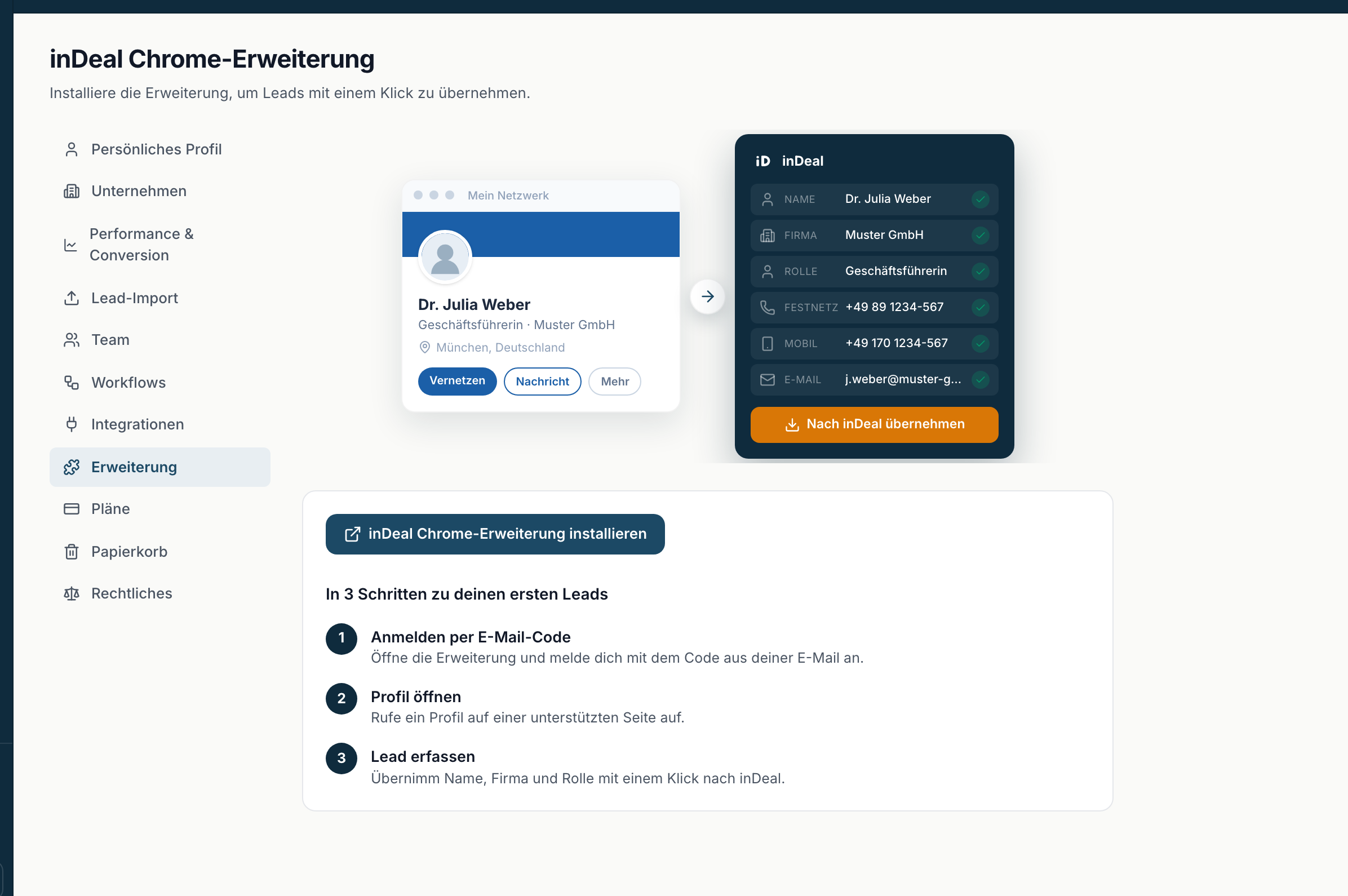
3 steps to your first leads
That is what the guide in the product is called, and that is how it goes:
1. Sign in with an email code
Open the extension and sign in with the code from your email.
The extension uses a numeric code, not the sign-in link from the browser. You enter your address, receive the code by email and type it into the extension.
Use the same address as in inDeal. A different address does not know your account.
2. Open a profile
Go to a profile on a supported page.
That means a person's profile page on LinkedIn. The extension recognises it and shows its panel.
3. Capture the lead
Import name, company and role to inDeal in one click.
The extension reads Name, Company and Role from the profile and creates a lead from them. If contact details such as Landline, Mobile or Email are present, they come along. The button is called Import to inDeal.
Leads from Sales Navigator
For now, you can only capture leads from the profile page, meaning an address like linkedin.com/in/.... Capturing straight from Sales Navigator lists or search results is not possible, the extension shows no panel there.
Open the person's profile and click Import to inDeal there.
What happens to the captured lead
It lands on the stage Qualify and is assigned to you.
Set a follow-up date right away. Without a date the lead counts as cold and does not appear in Open leads ↗, only in All leads ↗. That is the same rule as for imports, see Open leads and All leads.
Extension or connection: which when
Both bring leads in, but for different purposes:
| Extension | PROSP connection | |
|---|---|---|
| Trigger | you click | automatic |
| Volume | one at a time | whole campaigns |
| Who uses it | everyone on the team | set up once by an admin |
| Typical case | a contact you happen to come across | ongoing outreach |
The extension is for finds, the connection is for campaigns. Running both is the normal case.
If something does not work
- No code in the email. Check the spam folder and the spelling of the address.
- The extension shows no panel. You are most likely not on a profile page but on an overview or a search.
- Fields stay empty. The extension cannot read what is not in the profile. Add the details on the lead by hand, or use Enrich data.