
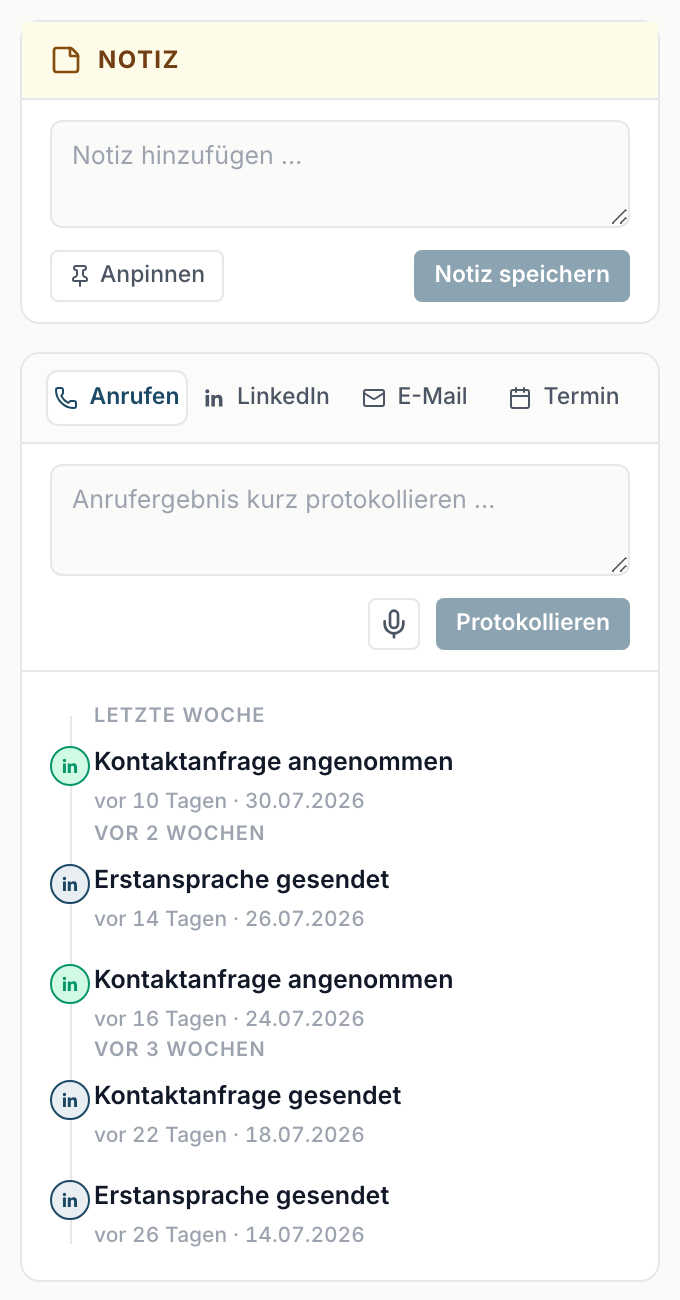
Three things sit stacked on the left of a lead: the Note field, the logging area and the activity list. That is where you record what happened with the contact.
Contents
Logging something
Four tabs sit above the activity list:
- Call - the entry is then titled Call logged.
- LinkedIn - the entry is titled LinkedIn touch.
- Email - the entry is titled Email logged.
- Meeting - the entry is titled Meeting logged.
How it works:
- Pick the right tab.
- Write what happened into the Log a quick note … field.
- Click Log.
There is a separate button for voice input.
Keep it short. One sentence is enough: what was discussed and what follows from it. The entry counts as a touchpoint and shows up as Last activity in the list.
The note
Above the logging area sits the Note field with the placeholder Add a note …. The difference from logging:
- An activity records what happened at a point in time and belongs in the timeline.
- A note records what holds permanently: responsibilities, constraints, particulars.
Save note stores it. Pin keeps it at the very top, after which it is marked Pinned. Unpin reverses that.
Pin whatever somebody opening the lead for the first time needs to know.
The activity list
Below it, every event appears in chronological order, grouped into Today, Yesterday, This week, Last week and {n} weeks ago. With nothing there yet, it reads No activities yet.
Alongside your own entries, automatic ones appear. The important ones:
| Entry | Meaning |
|---|---|
| Outreach | your outreach went out |
| Connection request / Connection accepted | the connection was requested or confirmed |
| Reply | the contact reacted |
| Meeting scheduled / Meeting done / No-show | the state of the meeting |
| Stage change | the stage was changed, shown as Stage → {stage} |
| Follow-up due | the date you set has been reached |
| Offer sent, Won, Lost | events from the deal phase |
Automatically created entries carry System as the author.
Deleting an entry
Delete on an entry removes it. The confirmation reads: This entry will be permanently removed from the timeline. This cannot be undone. Unlike the lead itself, there is no trash here.
The history
View history shows which fields were changed when and by whom. That is something different from the activity list: the list records what happened with the contact, the history records what was changed on the record. With nothing there, it reads No history yet. Hide history closes it again.
The history helps with the question of why a field suddenly looks different from what you expected.
Touchpoints
The touchpoints number counts the contact points with a person. It sits on the detail page, in the list as TP, and in Contact on Home ↗. You can also sort by it.
A high number with no movement in the stage is a warning sign: plenty of effort, no progress.