
The Campaign tab shows what the agent does and when: the steps from the connection request to the follow-up, the texts and a preview for each lead.
Contents
- Du or Sie for German agents
- The steps
- Edit texts
- Placeholders and Lead's post
- Record voice and video messages
- The preview of the first leads
- What you can change after the start
- Next
Du or Sie for German agents
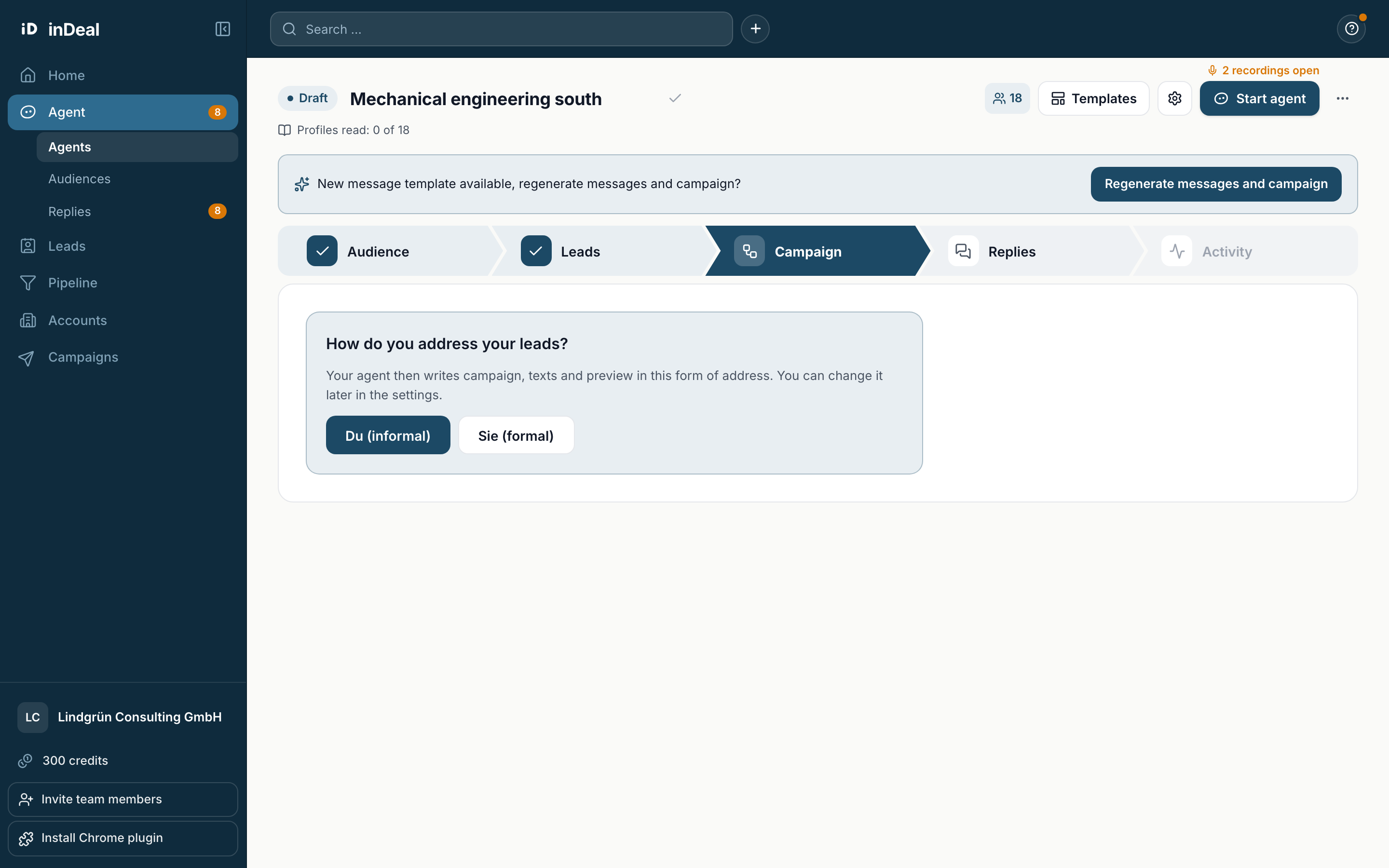
German has an informal and a formal way to address people. For German-language agents, the agent asks after you take over leads: How do you address your leads? You pick Du (informal) or Sie (formal). Your agent then writes campaign, texts and preview in this form of address. No texts are created before that, and the agent cannot be started. English-language agents skip this question.
You can change the form of address later in the settings (gear) under briefing at Form of address. This works in a draft and for a paused agent.
The steps
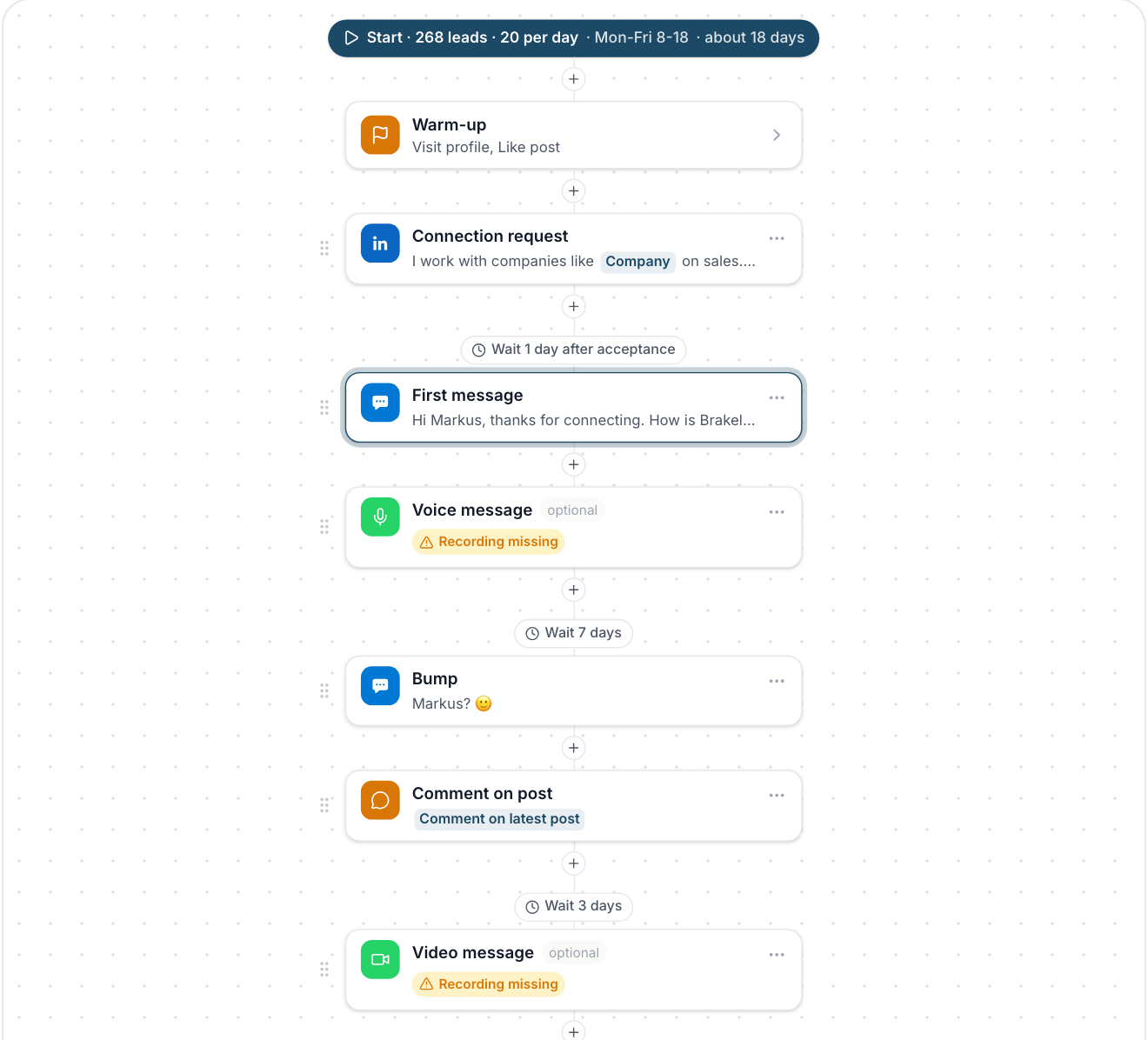
On the left you see the sequence from top to bottom, with the wait times between the steps. Use the plus to add steps:
- Messages: message, voice message, video message
- Warm-up: visit profile, like post, comment on post
- Control: wait, condition, A/B test
- In inDeal: set follow-up, set pipeline stage
On top of that comes the connection request, at most one per campaign. Its note has at most 300 characters. Without LinkedIn Premium, requests go out without a note. In the suggested campaign the first message follows as soon as the person accepts the request.
Edit texts
Click a step to show it on the right. Edit opens the editor with name, text and the wait time before the step. Save applies the change.
The agent writes the texts from your audience and your briefing. When a new text template is available, it offers Regenerate messages and campaign.
Placeholders and Lead's post
Above the text field are the placeholder buttons:
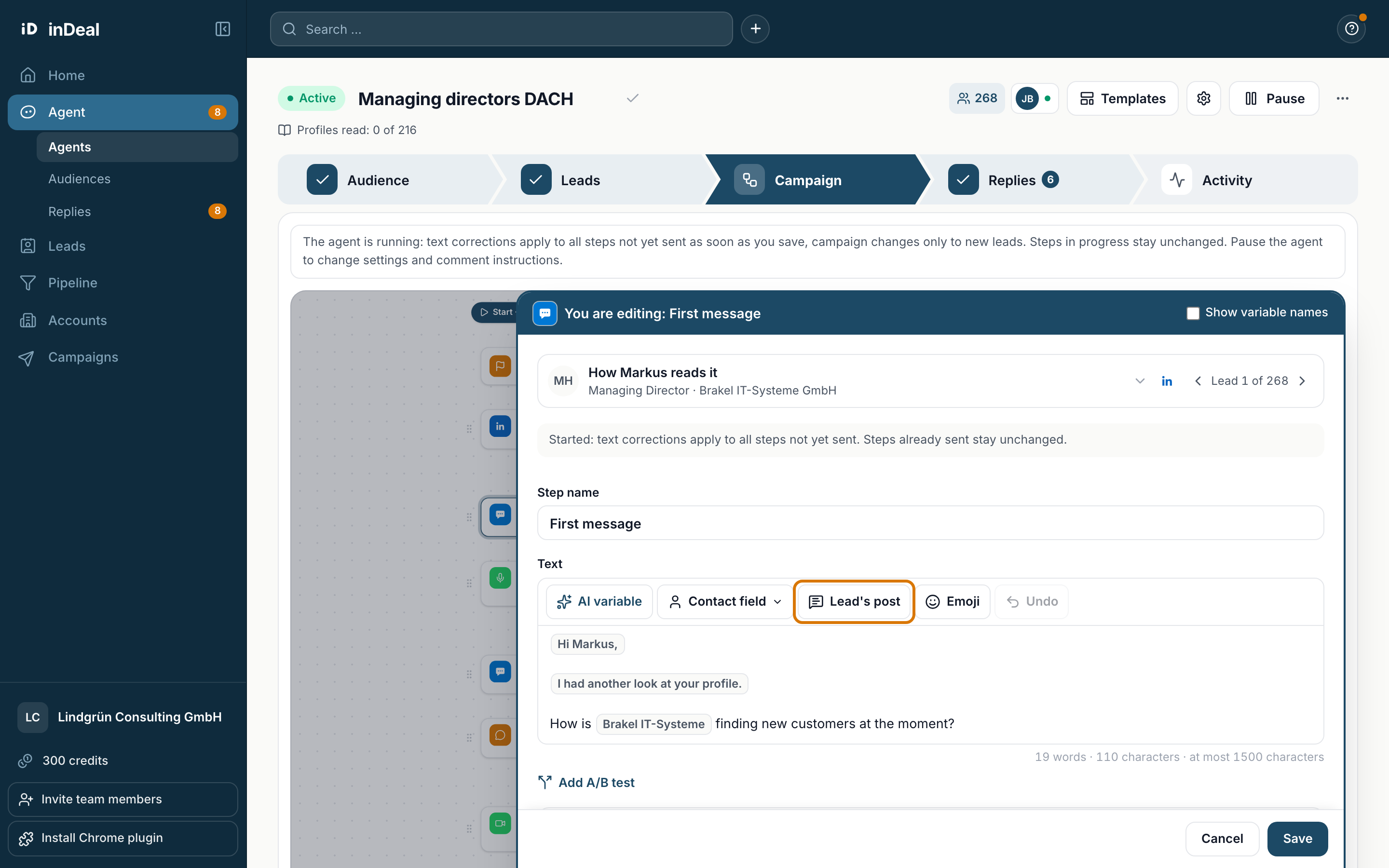
- AI variable: a sentence the agent writes for each lead, for example a greeting or a personal line. For an AI variable you can set a Fallback text. It applies when the profile is too thin. Empty means the sentence is dropped.
- Contact field: first name, last name, company, job title or location.
- Lead's post: a sentence about the lead's latest suitable post. If there is no suitable post, the placeholder uses the reason from the source instead, for example that you are already connected. It is never empty.
- Emoji
If a placeholder does not give a complete sentence for a lead, the agent holds this step for that lead. You see this in the Activity tab.
Record voice and video messages
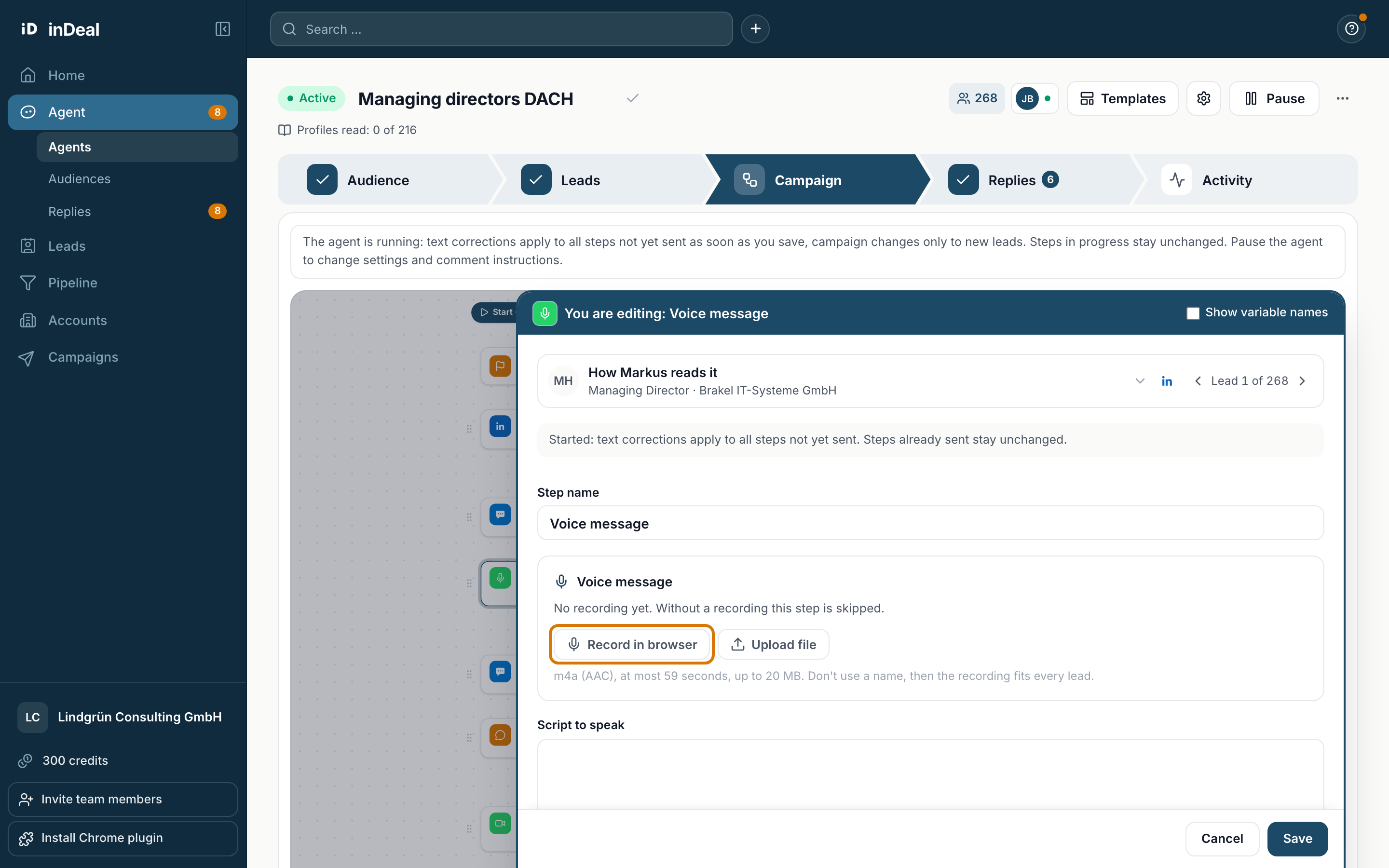
You record voice and video messages yourself. The agent suggests the script.
- Record in browser or Upload file.
- Voice message: m4a (AAC), at most 59 seconds, up to 20 MB. At 0:00 the recording stops by itself.
- Video: mp4 (H.264, AAC), portrait 9:16, up to 20 MB.
- One recording applies to all leads of the agent. So do not address anyone by name.
- Without a recording the step is skipped. You can still start.
Admins and the person sending from this LinkedIn profile can change recordings.
The preview of the first leads
On the right the agent shows how the text reads for this lead, under the heading with the lead's first name, for example "How Markus reads it". For the first three leads it prepares the preview by itself, without a click. While that runs, you see Preparing the preview ….
Use the arrows to switch to the previous or next lead, for example "Lead 1 of 270". The selector lets you search for a specific lead. For more leads, click Create preview. Highlighted text comes from this lead's profile.
What you can change after the start
- You can edit texts while the agent runs. The correction applies to all steps not sent yet. Sent steps stay unchanged.
- Changes to the sequence only apply to new leads.
- Briefing and comment settings you change after pausing.