
The appointment agent reaches out to matching people from your LinkedIn profile, follows up and prepares replies. The goal is a meeting. You decide who it contacts and what it writes. You decide whether replies go out with approval or by autopilot.
Contents
- What an agent is
- The Your agents overview
- The five tabs of an agent
- The header of an agent
- Who can do what
- Next
What an agent is
An agent reaches out to an audience from one source, with its own campaign, on one LinkedIn profile. For a second audience, another source or another profile, you create another agent.
You find the appointment agent in the sidebar under Agent. Below it are Agents, Audiences and Replies.
The Your agents overview
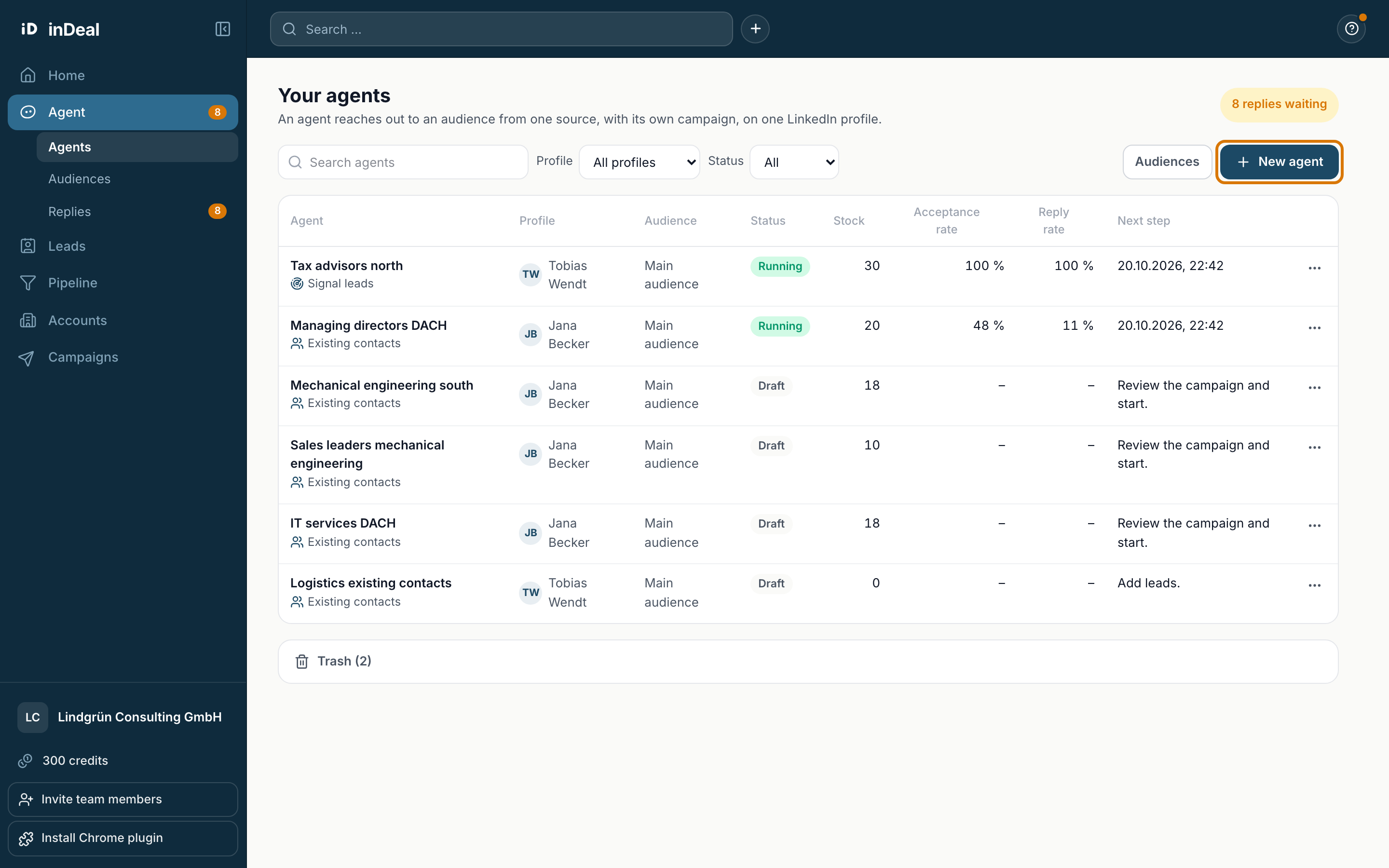
Under Agents you see all agents in a table: name and source, profile, audience, status, stock, acceptance rate, reply rate and the next step.
- Use Search agents, Profile and Status to filter the list.
- New agent creates a draft.
- When replies are waiting for your approval, the top right shows for example "8 replies waiting". One click takes you to the replies.
The five tabs of an agent
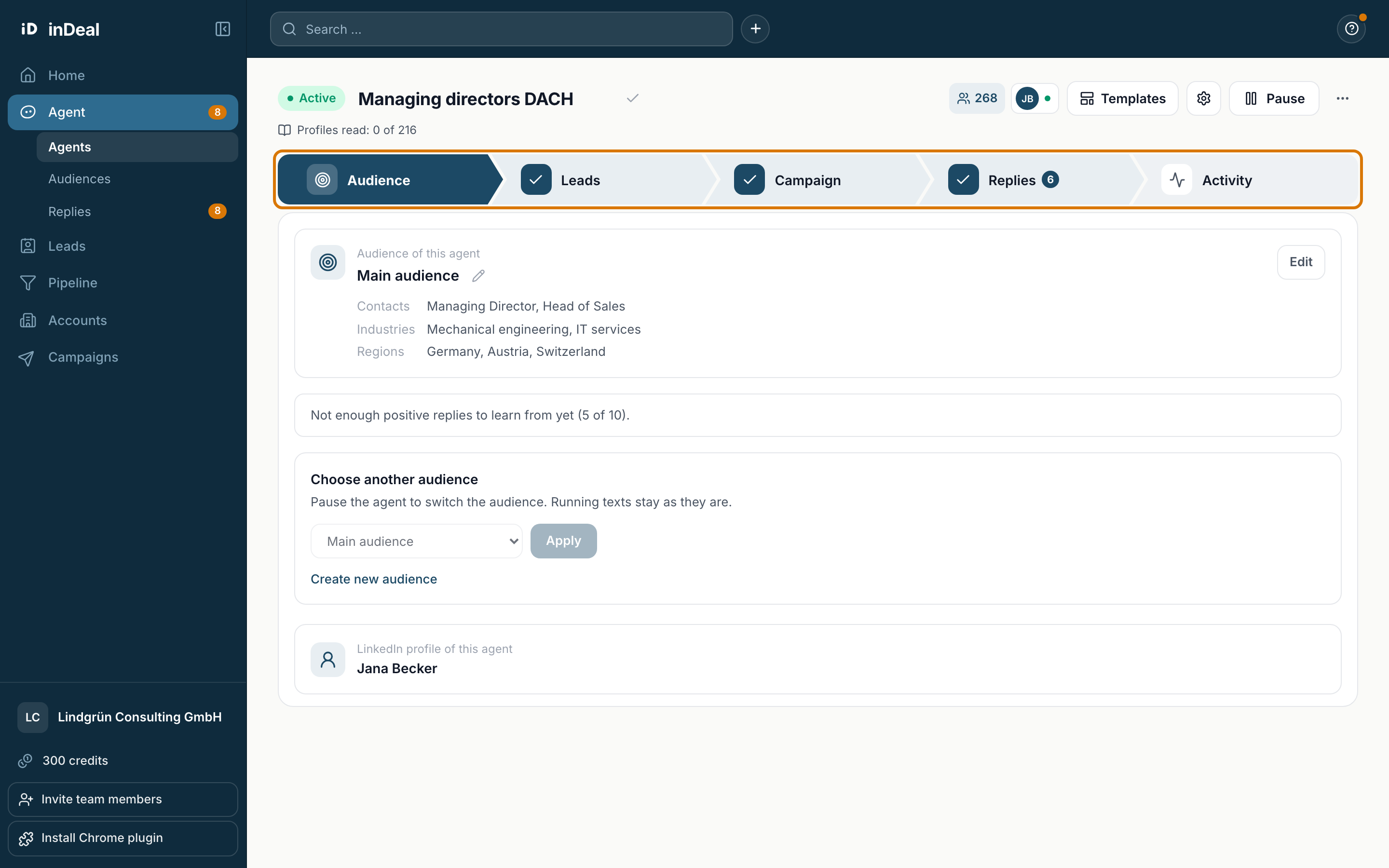
An agent has five tabs. When you set it up, you go through them from left to right:
- Audience: who the agent contacts and which LinkedIn profile it writes from.
- Leads: where the leads come from and which ones you take over.
- Campaign: the steps, the texts and a preview for each lead.
- Replies: what happens as soon as a lead replies.
- Activity: what happened today, what comes next and where a lead is paused.
In a draft, tabs stay locked until the previous one is done. Hover over a locked tab to see for example Add leads first. Finished tabs show a check mark.
The header of an agent
At the top you see the status and the name of the agent. You change the name directly in the field.
- The status is Draft, Active, Paused, Completed or Archived. If a running agent stops, the reason shows instead, for example Paused: LinkedIn account restricted.
- The number next to the people icon is the number of leads. One click opens the Leads tab.
- The gear opens the settings: briefing, requests per day and working hours.
- Depending on the status, the main button says Start agent, Pause or Resume.
- Behind the three dots you find Duplicate, Archive, Move to trash and End and archive, depending on the status.
An ended agent cannot be started again. Campaign, replies and numbers stay readable.
Who can do what
- Admins manage every agent in the account.
- Members create agents and manage the agents that write from their own LinkedIn profile.
- Only admins create and edit audiences. Members can move their own drafts to the trash, only admins can restore them.
Learn more in Multiple profiles in a team.