
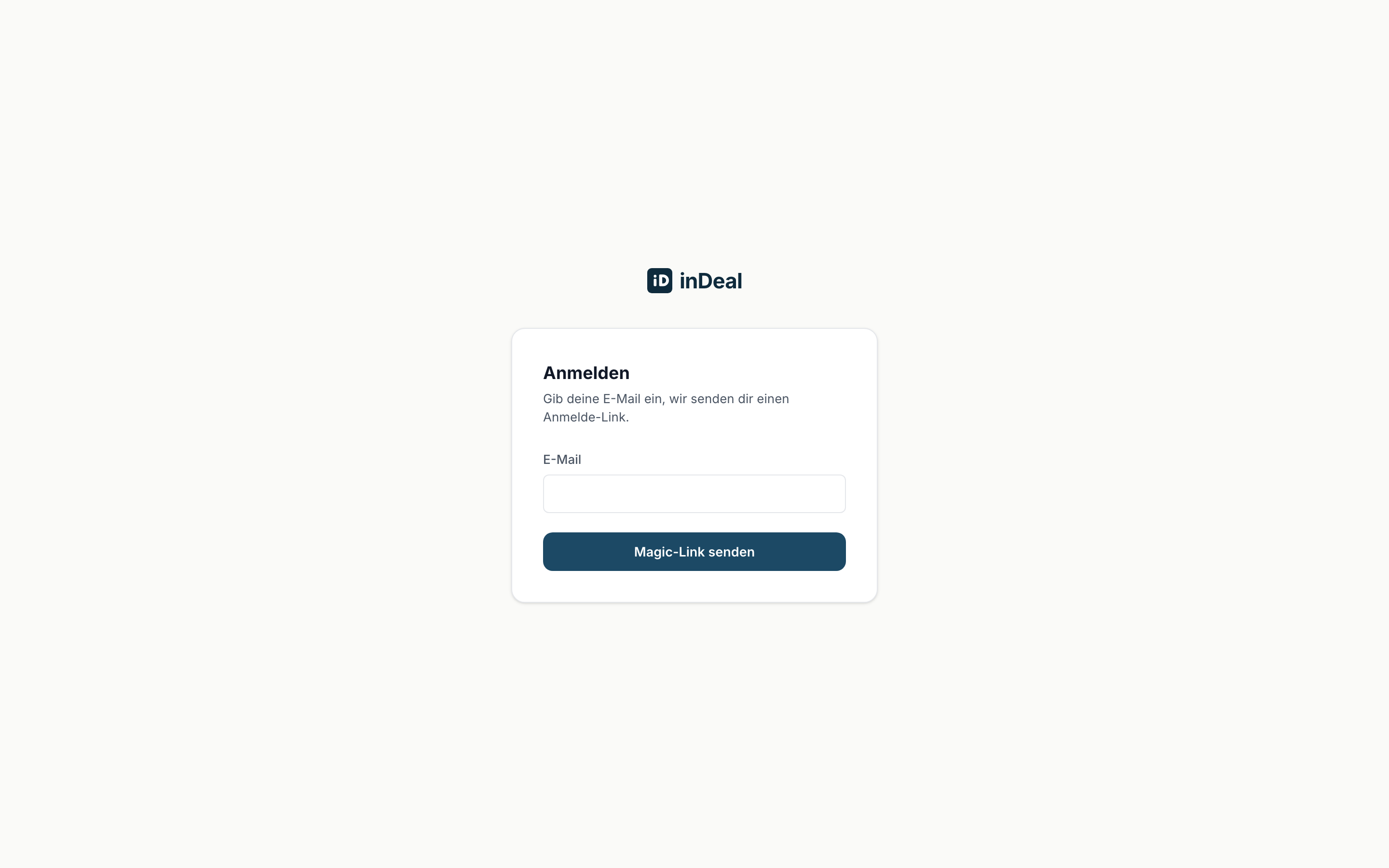
inDeal has no password. You sign in with a link we email you.
Contents
Signing in
- Open the sign-in page.
- Under Email, enter the address your account was created with.
- Click Send Magic Link.
- Open the email and follow the link.
- Confirm in the browser with Confirm sign-in.
The same message appears after every submission, whether or not an account exists for that address. That is deliberate: it means nobody can find out from the outside who has an inDeal account.
If no email arrives
- Check your spam folder.
- Check the spelling. The link only goes to the exact address your account was created with.
- Request a new link. Every new link invalidates the previous one.
If nothing arrives after that, ask the person who invited you, or contact support: Getting help and support.
If the link has expired
A sign-in link is short-lived and works only once. Once it is used up you will see Link expired or already used. Click Back to login and request a new one.
The first time you sign in
On your very first sign-in, inDeal asks for your name under Welcome to inDeal! That name appears to your colleagues on the leads and deals assigned to you. Enter it under Your name and confirm with Continue.
If you are setting the account up for your company, the field Company name appears as well. Finish with Let's go.
You see this once. Later you change both in Setup under Personal profile ↗.
Signing out
Click your company name at the bottom left, then Sign out.