
The audience tells the agent who to contact and how to spark interest. The more precise it is, the better the leads and the texts fit.
Contents
- Main audience and further audiences
- The Audience tab
- Edit an audience
- Offer
- Proven texts with placeholders
- References and knowledge
- Who can do what
- Next
Main audience and further audiences
Under Agent and Audiences you find all audiences of the account. The first one is called Main audience and carries the label First audience. With New audience you add more, for example for a second product or another industry. Each agent uses exactly one audience.
You can only delete an audience when no agent uses it.
The Audience tab
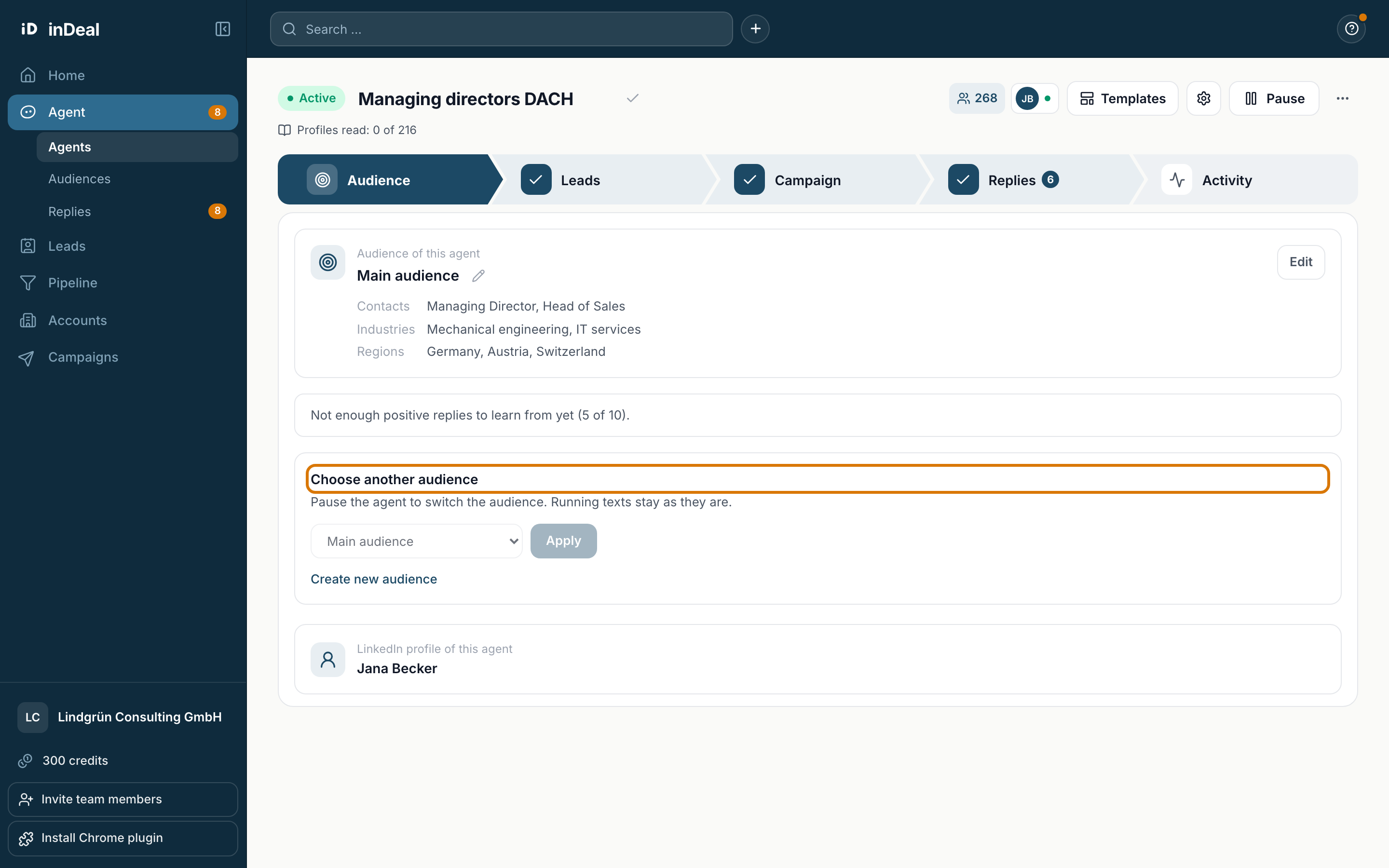
In the Audience tab of an agent, Audience of this agent shows the contacts, industries, regions and company size.
- Edit opens the audience.
- Choose another audience swaps the audience. This works in a draft and for a paused agent. While the agent runs, you see Pause the agent to switch the audience. Running texts stay as they are.
- Below, you see the LinkedIn profile of this agent. You cannot change it here.
After a switch, the texts stay as they are at first. New texts come with Recreate texts in the settings (gear) in the Campaign tab.
Edit an audience
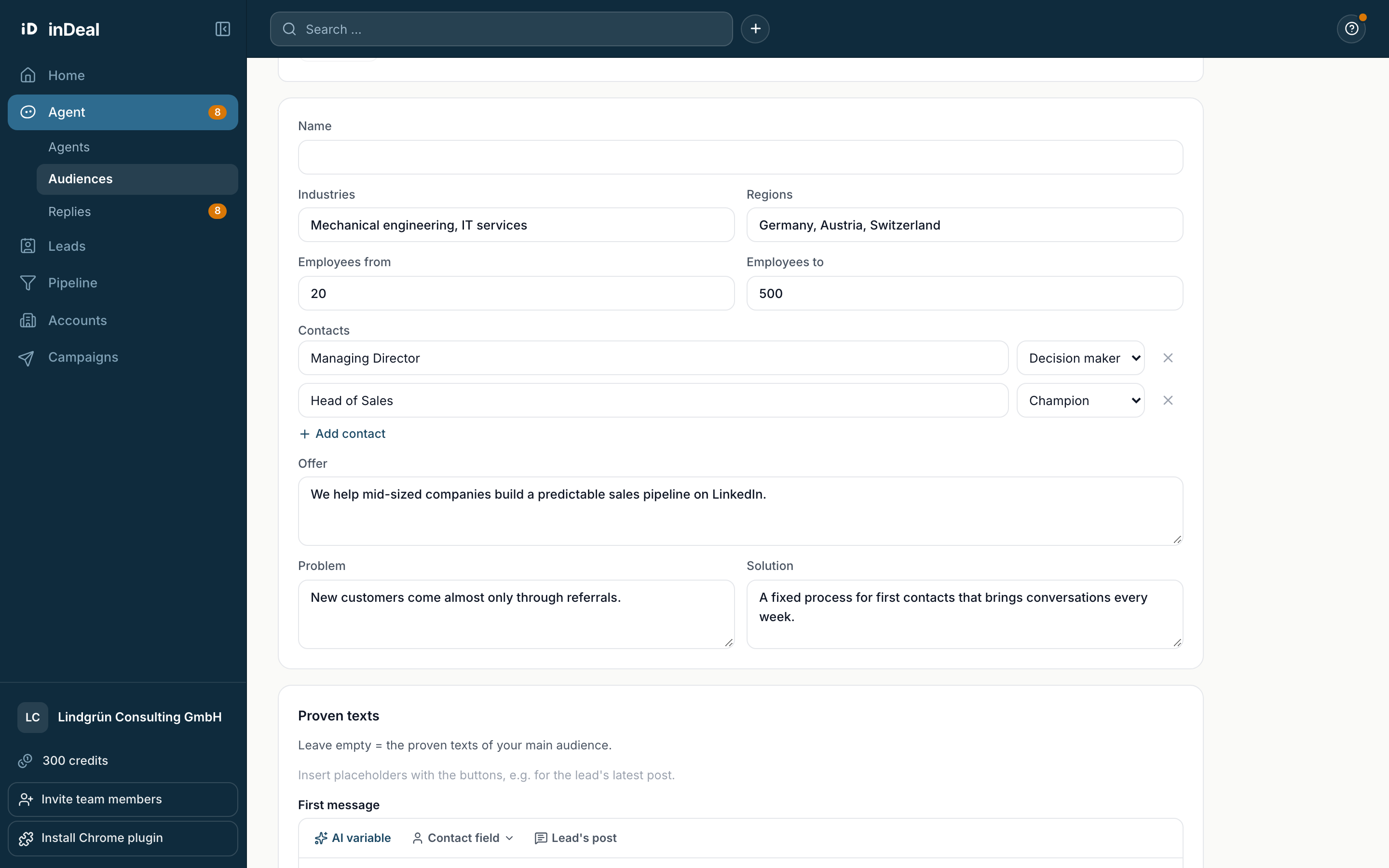
An audience has these fields:
- Name
- Industries and Regions, each separated with commas
- Employees from and Employees to
- Contacts: the role, for example managing director, and whether the person decides, champions or influences
- Offer, Problem and Solution
At the top you can enter websites or documents. Scan prefills the fields. Check the suggestions, then save.
You edit the main audience on its own page. Seven steps guide you through sources, audience, avatar sentences, references, aha messaging, free offers and door-opener questions. Learn more in Define your ICP.
Offer
The agent writes towards a yes. For that it needs a free offer, for example a short review, or a door-opener question. If both are missing, the agent shows Add a free offer or a door-opener question to your target group so the agent can write towards a yes.
You pick the offer an agent mentions in the briefing under Free offer. The agent only uses confirmed offers.
Proven texts with placeholders
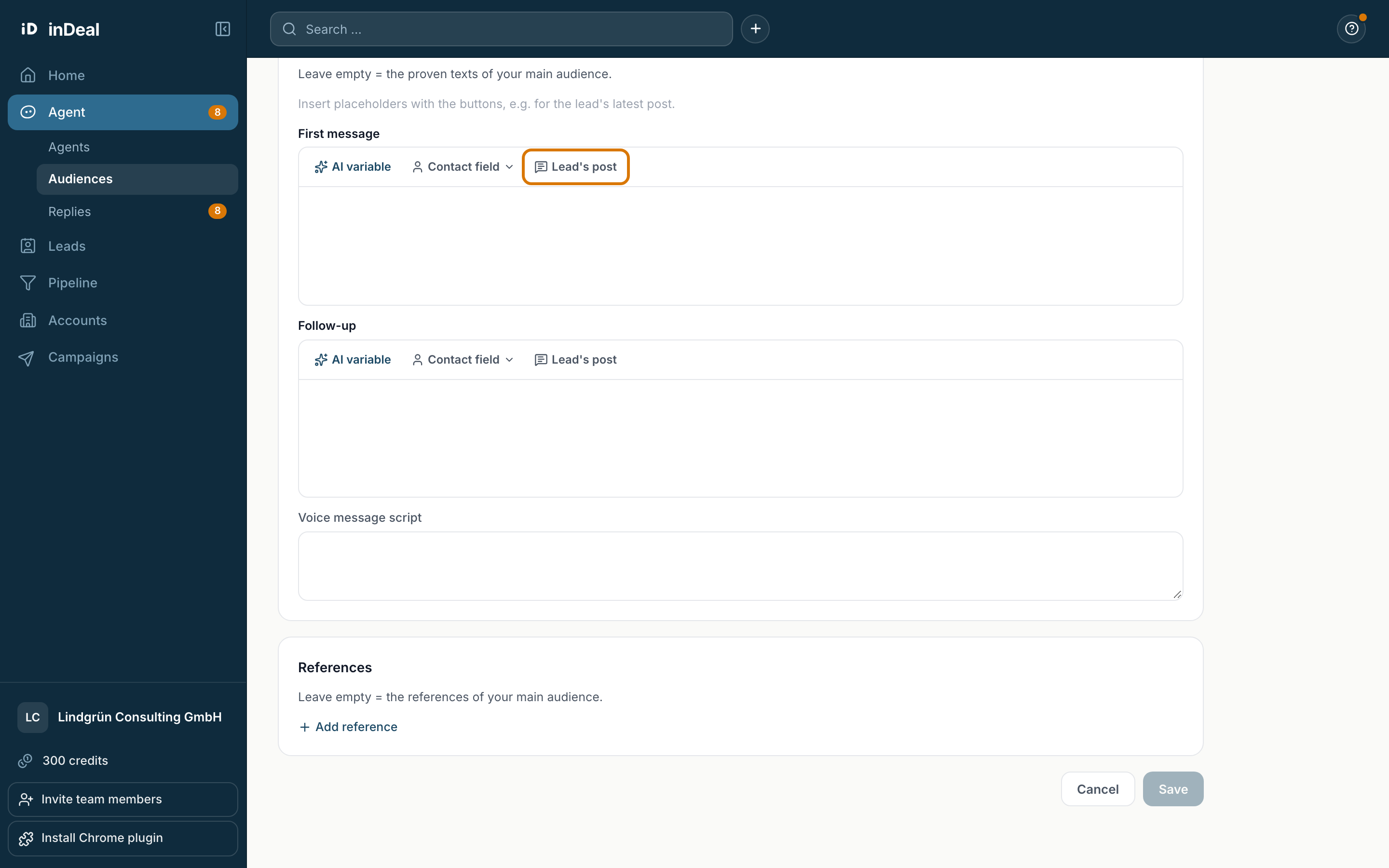
If you have texts that already work well, add them under Proven texts: First message, Follow-up and Voice message script. The agent takes them as a guide.
Insert placeholders with the buttons above the field:
- AI variable: a sentence the agent writes for each lead.
- Contact field: first name, last name, company, job title or location.
- Lead's post: a sentence about the lead's latest suitable post.
If a placeholder does not fit, the audience cannot be saved. The voice message script has no placeholders. If you leave the fields empty, the proven texts of your main audience apply.
References and knowledge
- References: customer and result, for example a project with numbers. Leave empty and the references of your main audience apply.
- Knowledge for replies: what should your agent know when someone replies? Upload for example your objection handling or FAQ, as PDF, Word, Excel, CSV or HTML, up to 10 MB each, at most 5 files. There is also a field for free text.
Who can do what
Admins create, edit and delete audiences. Members see the audience of their agent. If something is missing, they see An admin of your team adds this.