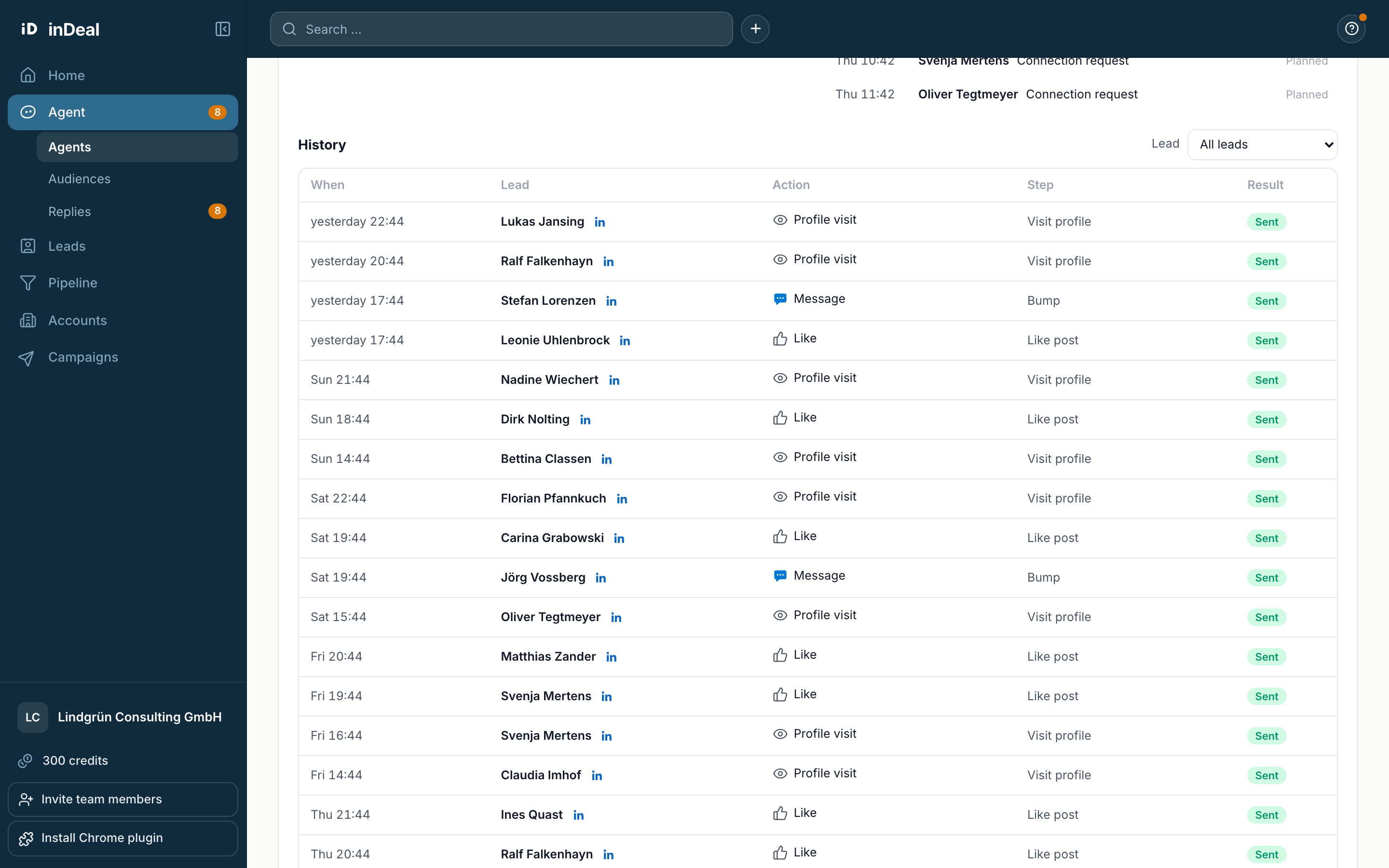
The Activity tab shows what your agent did, what comes next and where it is waiting for you. It fills up as soon as the agent runs.
Contents
- Numbers at the top
- What needs your decision
- Paused leads and Try again
- Today and Up next
- Understanding hold reasons
- History
- Next
Numbers at the top
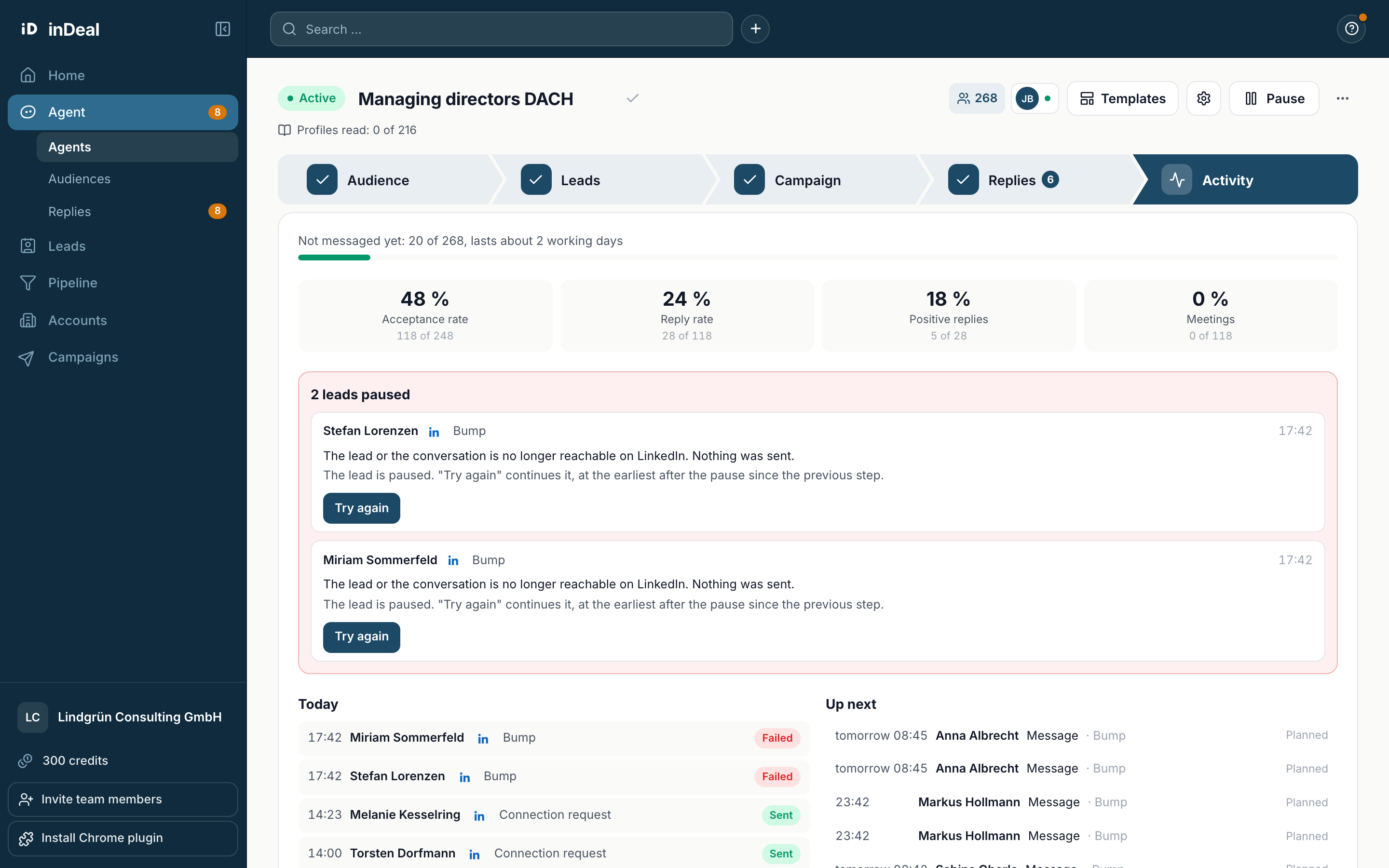
- Not messaged yet: how many leads have no request and no first message yet, and roughly how long the stock lasts. Add leads tops it up.
- Acceptance rate, Reply rate, Positive replies and Meetings, each with its base, for example 120 of 250.
If the agent stops, the reason shows at the top, for example Stopped: profile disconnected or a limit reached until a date. One click explains what to do.
What needs your decision
These sections only appear when there is something in them:
- Sending unclear: the agent does not know whether a step arrived. Check your LinkedIn inbox and choose Was sent, continue or Skip. The agent never sends a second time by itself.
- Conversation could not be checked: for 24 hours the agent could not check whether a conversation already exists. Choose Send anyway or Skip.
- Messages waiting for approval and comments to approve, if you set these to approval.
- Alerts (last 7 days), for example when the agent runs out of leads or a profile needs to be reconnected.
Admins and the person sending from this LinkedIn profile can decide.
Paused leads and Try again
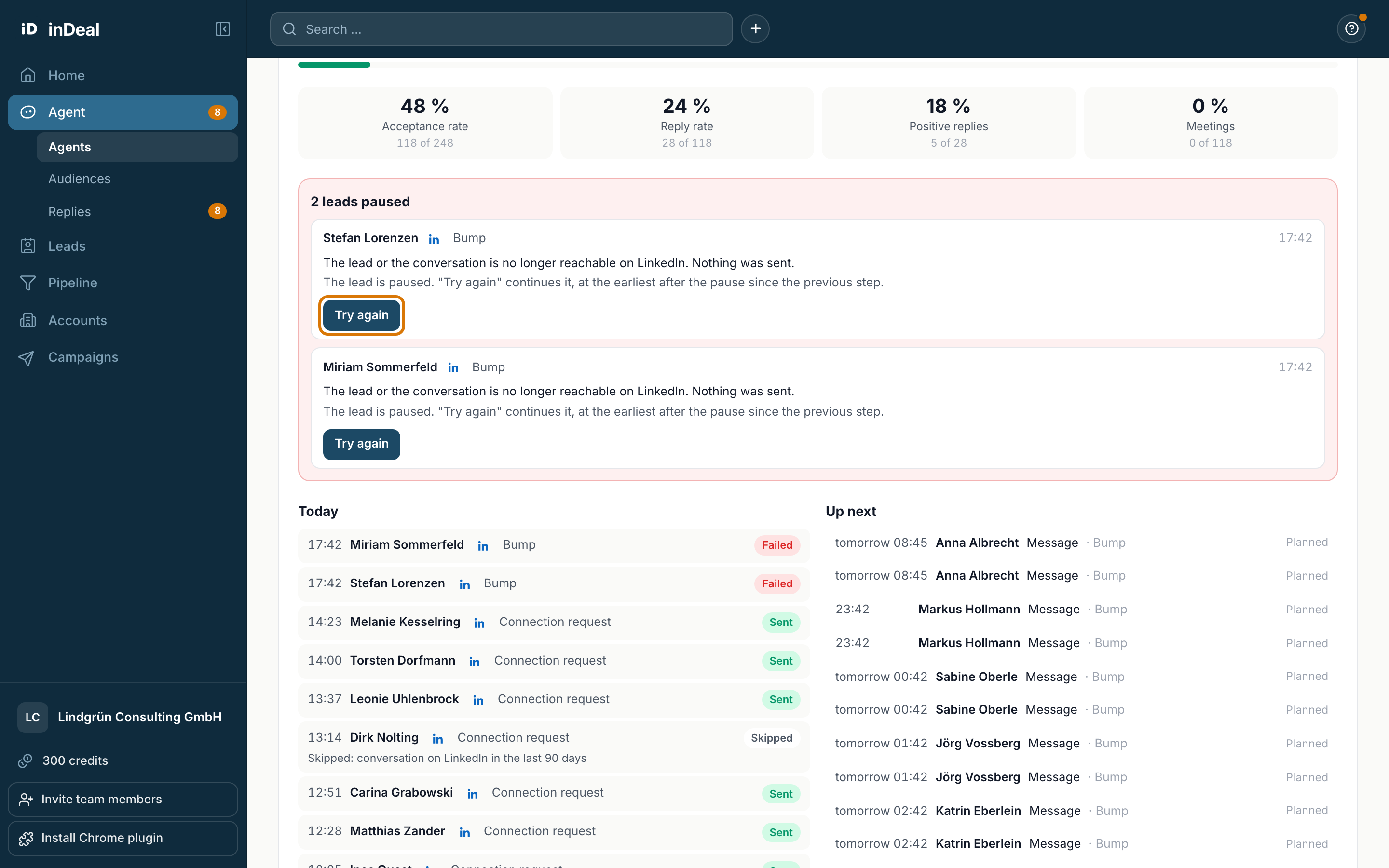
If a step fails, the agent pauses the lead. Under leads paused you see the step for each lead and the reason in plain words, for example The lead or the conversation is no longer reachable on LinkedIn. Nothing was sent.
Try again lets the lead continue. The agent schedules the step again in a few minutes, at the earliest after the usual gap to the previous step and always within working hours.
The button only appears when nothing was sent for sure. If it is open whether something arrived, for example because LinkedIn did not answer, the agent does not try again. This way it never messages anyone twice.
Today and Up next
- Today: all actions from today with their result, for example Sent, Skipped, Waiting for approval or Failed.
- Up next: the next planned actions with time, lead and step. Replies the autopilot is about to send are listed there too.
If a planned time falls outside the working hours, the start of the next working hours shows.
Understanding hold reasons
Below an action you see why it waits or was skipped:
| Note | Meaning |
|---|---|
| Waiting: your LinkedIn account is restricted, the agent pauses | Once the account works again, it continues. |
| Waiting: the LinkedIn profile is not ready right now, next try later | The agent tries again by itself. |
| Waiting: the same person is in a paused agent | The person is in another agent that is paused right now. |
| Ended: the same person is already in another running agent | Only one agent writes to the person. |
| Skipped: conversation on LinkedIn in the last 90 days | There was already a conversation, the agent does not interrupt. |
| Skipped: request withdrawn | The connection request was withdrawn. |
| Blocked: on the blacklist | The person is on your blacklist. |
| Not needed | For example already connected or the lead has replied. |
If the text for a lead still contains an open placeholder or a broken sentence, the section Held: text cannot be sent like this appears. The agent checks again every hour. After your fix the step goes out. After 72 hours the step counts as failed.
History
At the bottom you find the History with when, lead, action, step and result, newest first. The Lead filter shows a single lead. A click on a lead opens it in the preview of the Campaign tab.