
Both lead views can be displayed two ways. At the top right you switch between Kanban and List. The selection of leads is identical in both, only the presentation differs.
Contents
Kanban
One column per stage, in the order Qualify, Set discovery, Discovery scheduled, Discovery failed, Discovery done and Lead lost. Above each column sit the count and the value as {value} potential.
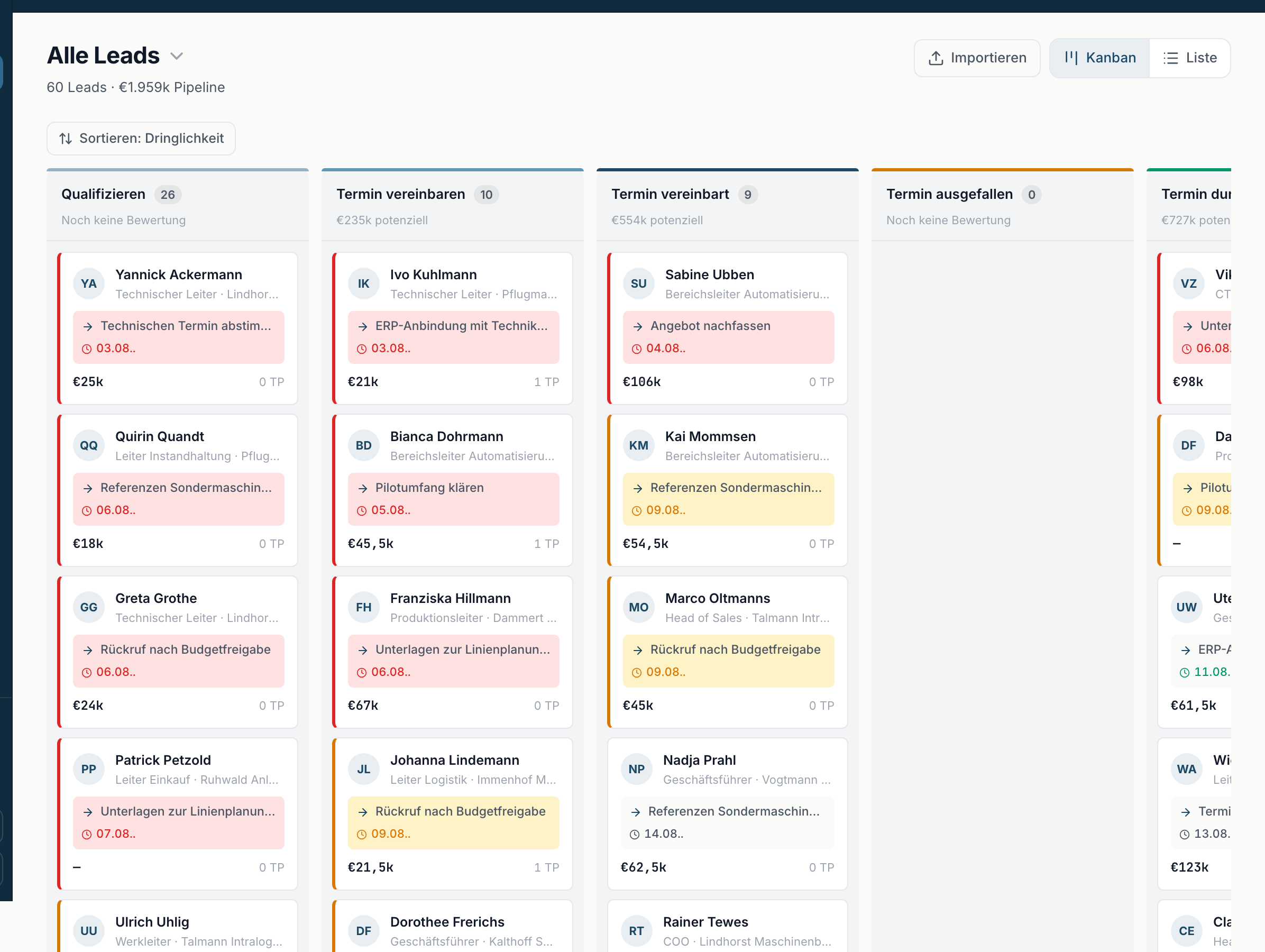
You can drag cards into another column with the mouse. That is the fastest way to change a stage. If the target stage needs extra details, a small window opens - more on that under Setting stages correctly.
If a column holds more cards than shown, Load {n} more appears at the bottom.
Use Kanban when you need an overview of the distribution or want to move several leads on quickly.
List
One row per lead, grouped by urgency into Overdue, Due today and Later. The columns are:
| Column | Content |
|---|---|
| Lead | name, below it job title and company |
| Stage | the current stage |
| Follow-up | when the next step is due, otherwise No follow-up |
| Last activity | when something last happened |
| Next step | the text you stored, otherwise a dash |
| TP | number of touchpoints |
| Value | the estimated value |
| Action | quick access |
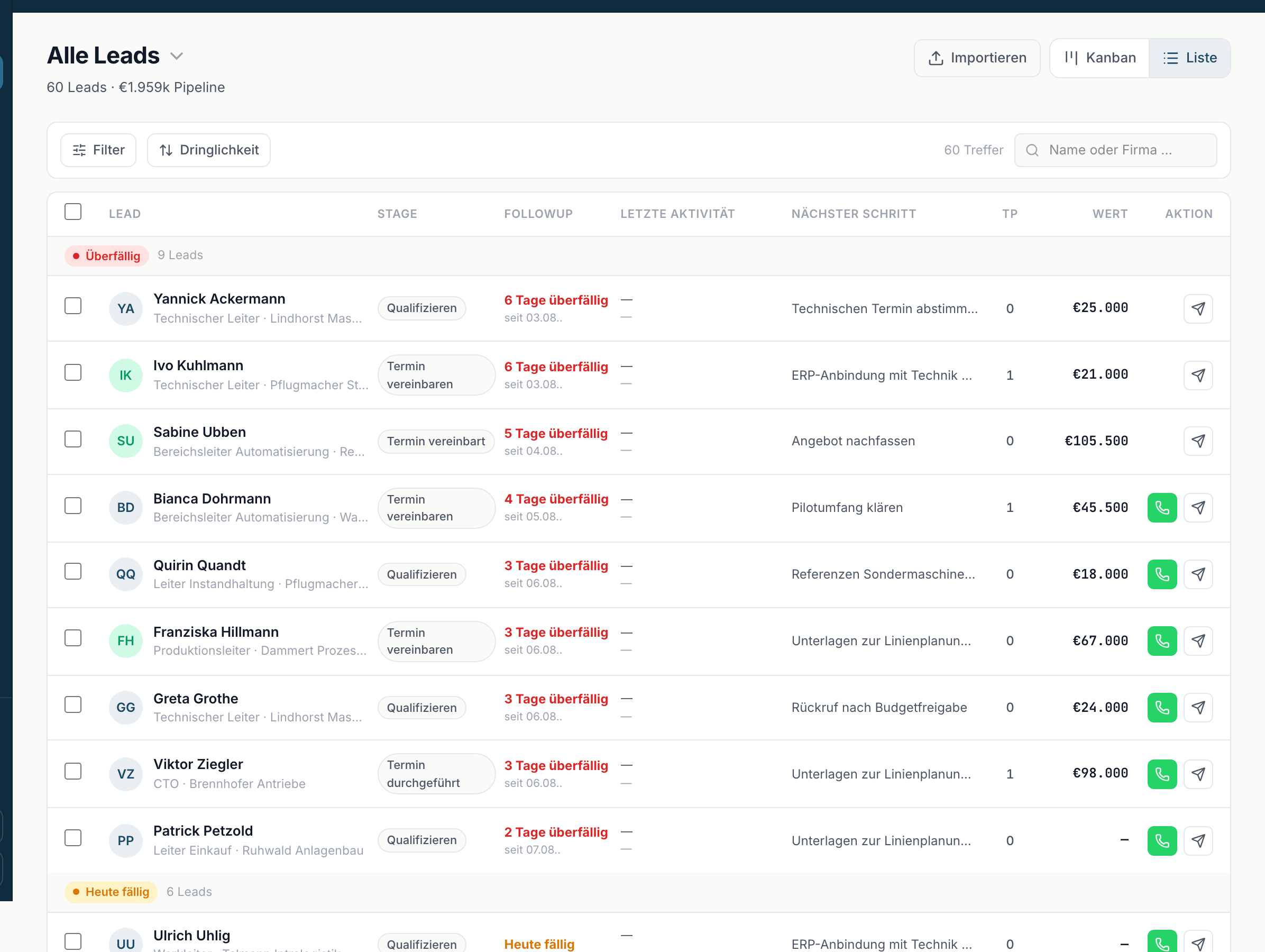
Use the list when you are working through follow-ups, sorting, or editing several leads at once.
Editing several leads at once
In the list you select leads with the checkboxes on the left. As soon as one is selected, a bar appears at the bottom with {count} selected and these options:
- Update - opens Update {count} leads. There you pick Change stage or Set follow-up under Field, enter the Value and confirm with Apply.
- Delete - moves the selection to the trash.
Deleting asks first: The selected leads move to the trash and can be restored there. Leads with a linked deal are skipped. After deleting, Undo appears briefly.
There is an upper limit on how many leads can be selected at once. When you reach it, a note asks you to refine the filter.
Both options require permissions. With the Sales role you see neither Update nor Delete.
What stays the same in both views
Search, filters and sorting apply to both presentations. If you filter in the list and then switch to Kanban, the filter stays. The view then shows Filtered: {label}.