
Integrations ↗ is where you connect your outreach tools with inDeal. The subtitle puts it briefly: Connect your outreach tools with inDeal. There are two cards: PROSP for LinkedIn campaigns and PlusVibe for email campaigns.
Contents
What the connection does
Once it is set up, three things happen automatically:
- Campaigns from PROSP or PlusVibe appear in inDeal under Campaigns.
- Leads from those campaigns are imported.
- Replies arrive through a webhook, get classified and trigger the workflows.
Without a connection, the Campaigns area stays empty and leads only arrive by hand or by import.
Who sees this area
Integrations is reserved for the Admin role. With the Sales role the menu entry does not appear, and opening the address directly leads to Personal profile ↗.
The Extension ↗ page next to it, by contrast, is visible to everyone regardless of role - a tool for daily sales work, see The Chrome extension.
Two possible views
What you see on the page depends on whether your agency has enabled self-service setup.
Without it: managed by your agency
You see the LinkedIn Outreach and Email Outreach cards, each with the note Managed by your agency. and one of two markers:
- Connected, plus the note This integration is managed by your agency. There is nothing to set up here.
- Not connected, plus The integration is not set up yet. Your agency will take care of it.
Either way there is nothing for you to do. Contact agency is how you get in touch if you want something changed. For email the card adds: Want to change your email integration or connect it yourself? Your agency sets this up for you.
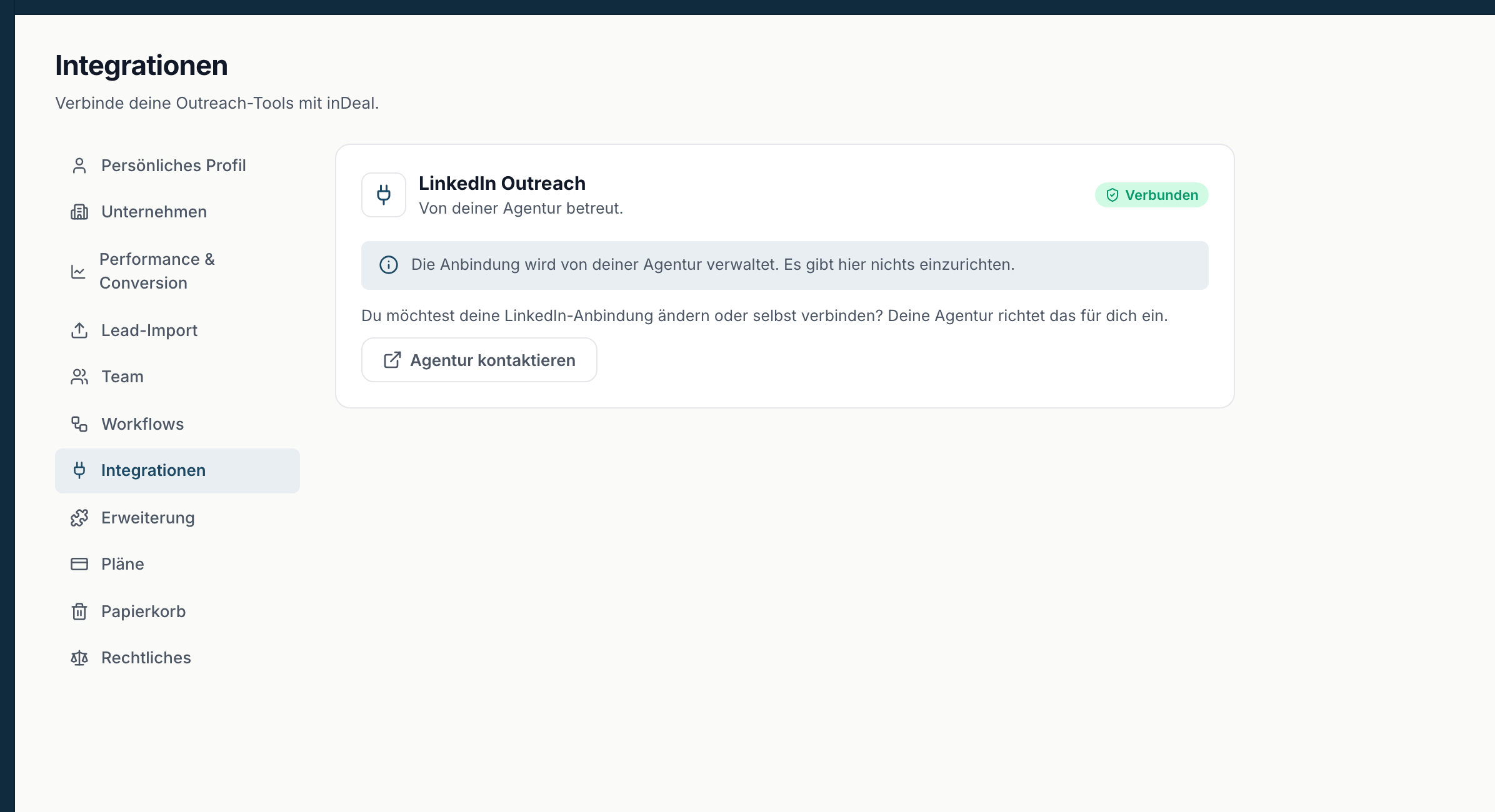
This is not an error and not a missing permission. The connection runs through your agency's access and is maintained there.
With it: self-service
On each card you see the button Connect PROSP or Connect PlusVibe with the note Connect your PROSP account to import campaigns and leads into inDeal automatically. One click starts the wizard, see Connecting PROSP and Connecting PlusVibe. The permission is granted per tool, so your agency may enable only one of the two.
If the page reports an error
If it reads The connection status could not be loaded., the state is temporarily unavailable. Reload the page. If it persists, contact support: Getting help and support.