
With templates you write recurring emails once and insert them in the composer with one click. inDeal fills in variables like the lead's first name when sending.
Where to find templates
Open Email ↗ in the settings and switch to the Templates tab at the top. The tab only appears once your mailbox is connected. The search at the top of the settings navigation is faster: type templates.
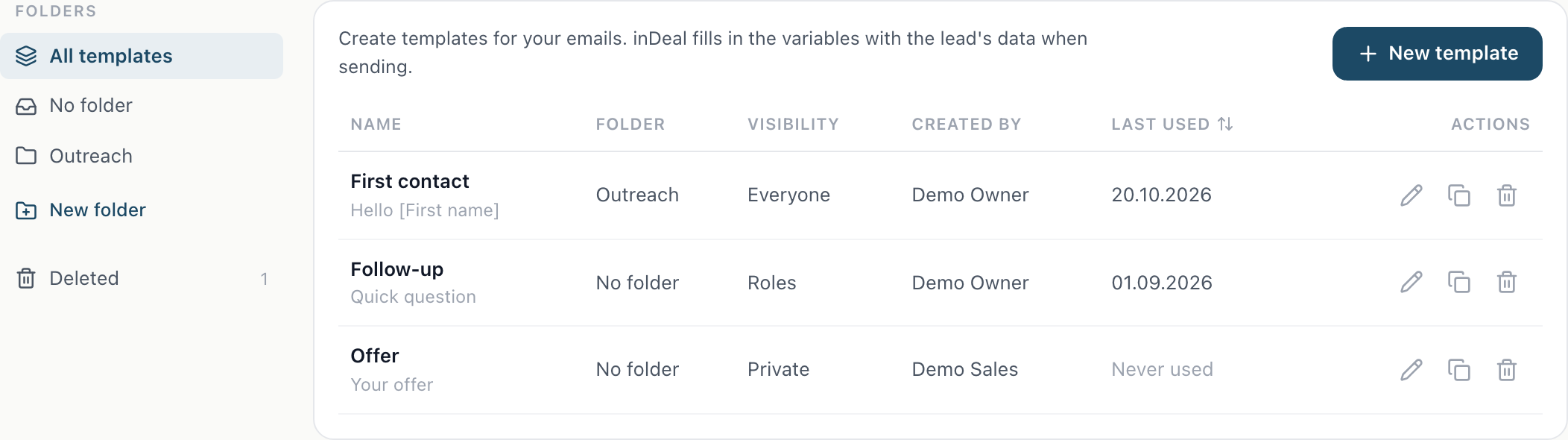
On the left are the folders: All templates, No folder, your folders and Deleted. On the right is the list with name, folder, visibility, who created the template and when it was last used. Click Last used to sort the list. This way you spot templates nobody has used for a long time (Never used).
Create a template
- Click New template.
- Enter a Name and pick a Folder if you like.
- Write the Subject and Text. The editor is the same as in the composer.
- Click Save.
In the list you can Edit, Duplicate or Delete a template. Deleted templates are under Deleted, where you can Restore them.
Insert variables
Variables appear as coloured markers in the editor. There are two ways:
- Type
#in the subject or text. A list opens and filters as you type. The Enter key inserts the variable,Esccloses the list. - Click Variable in the toolbar and pick one.
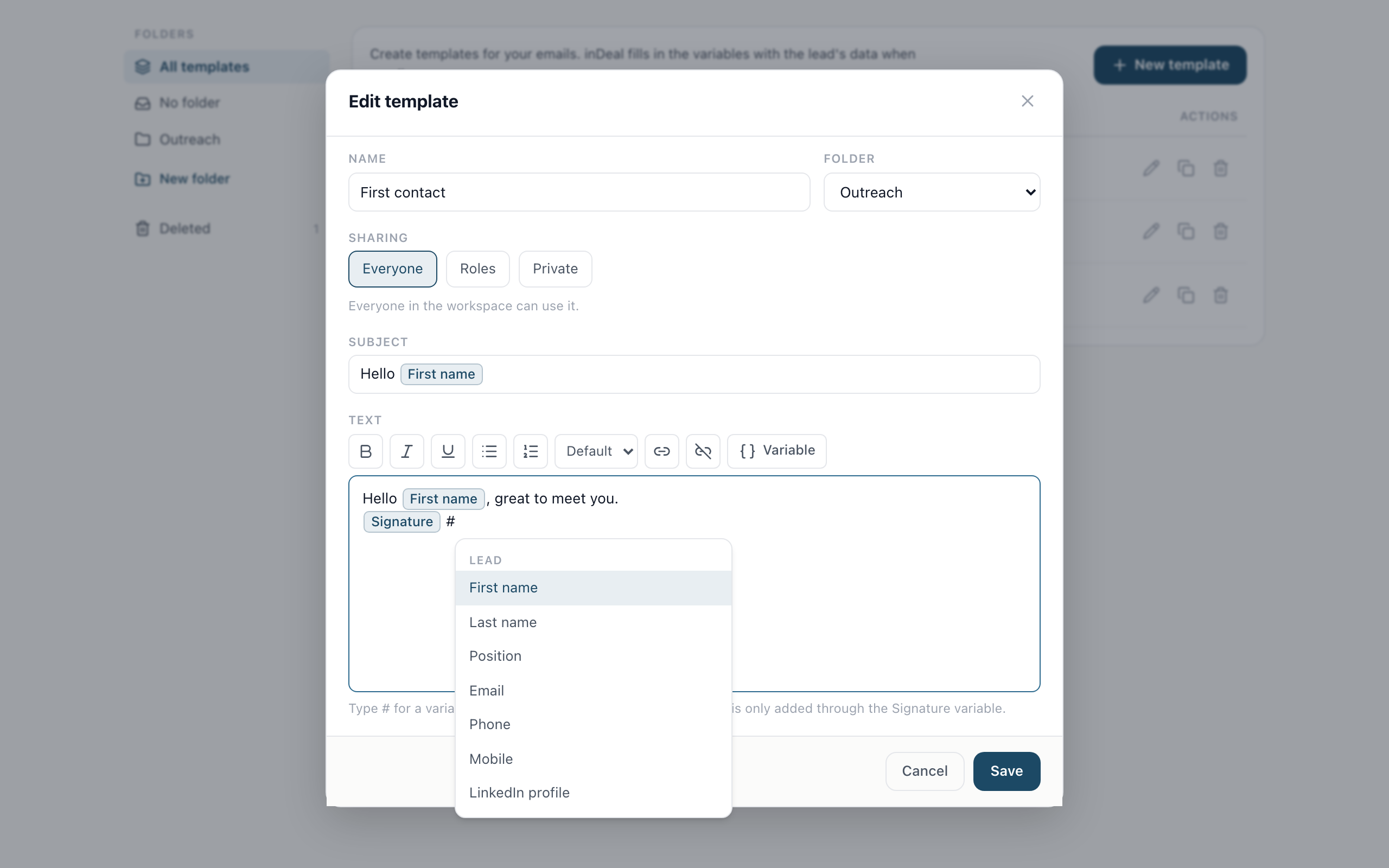
The list shows all fields, grouped:
- Lead: for example first name, last name, position, email, phone, mobile, LinkedIn profile, next step, due date, meeting (date) and meeting (time).
- Company: for example company, website, LinkedIn company page, industry, employees and the address.
- Custom fields lead, Custom fields company and Custom fields deal: all custom fields of your workspace. For deal fields, inDeal uses the person's current deal.
- Sender: sender first name, sender last name, sender email and signature.
The search finds fields by name and by group. inDeal inserts dates as 27.10.2026 and times as 18:28. A custom field with date and time appears twice, once with (date) and once with (time).
If you delete a custom field that is used in a template, the variable is marked red ("Deleted field"). It stays empty in the email.
For template emails, the signature is only added through the Signature variable. If it is not in the template, no signature is attached. The subject has no signature.
Sharing
- Everyone: everyone in the workspace can use it. For admins this is preselected for new templates.
- Roles: only the selected roles (Admin, Sales) can use it.
- Private: only you see and use the template.
Admins can share with Everyone or Roles and create, rename or delete folders. Everyone else creates private templates. If you delete a folder, its templates move to No folder.
Use a template on a lead
- Open a lead and click Email.
- In the composer toolbar, click Template.
- Search for the template or filter by folder. The preview on the right shows the lead's data.
- Click Insert. If the composer already has text, inDeal asks: Replace?
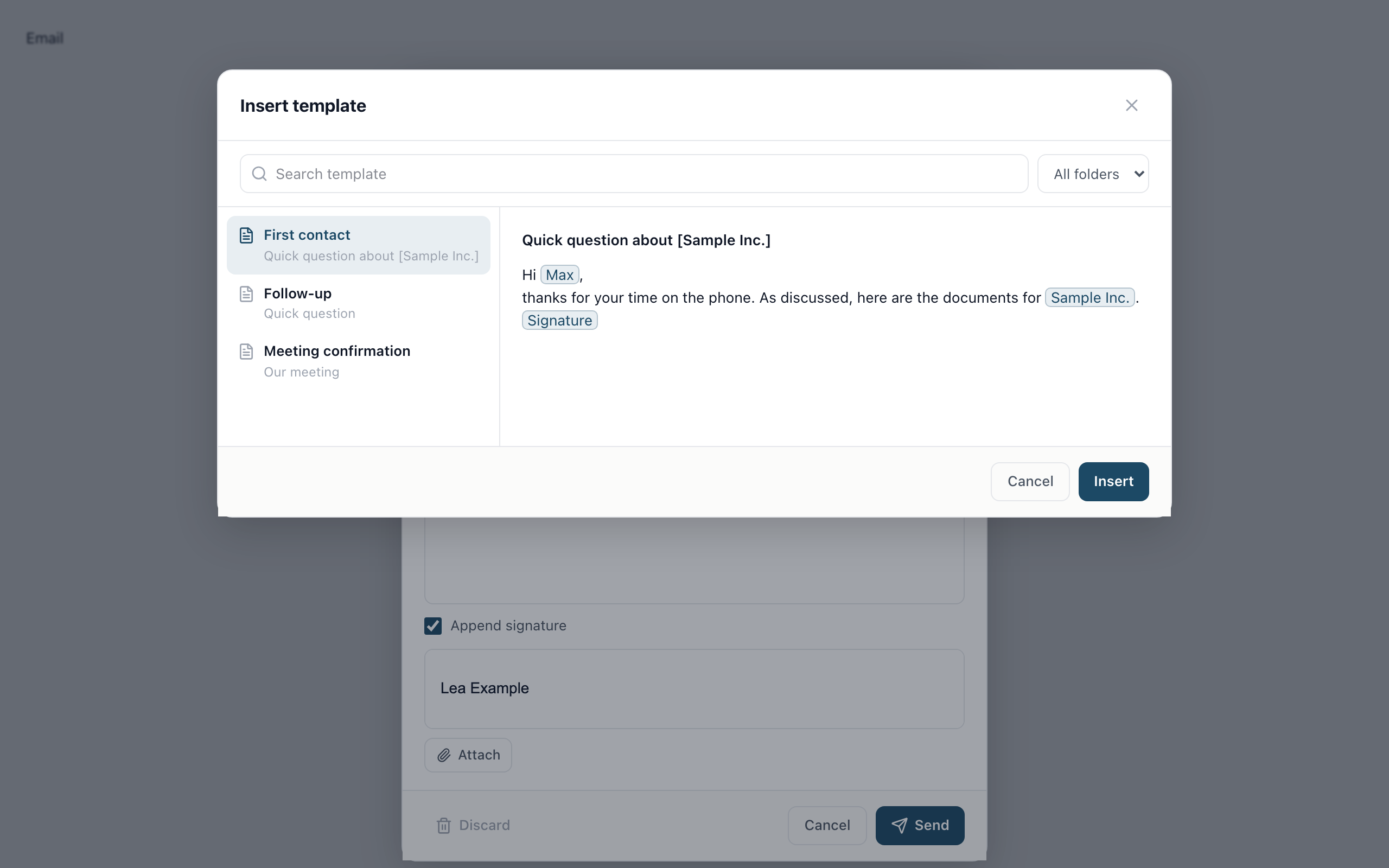
Subject and text are inserted, the variables show the lead's values. If a value is missing, the variable is marked red (for example "Company missing"). Before sending, inDeal points this out, for example with "1 variable without a value". Send anyway sends the email with that spot left empty. After sending, the template is marked as last used.
Create templates with Claude or ChatGPT (MCP)
If you connected Claude, ChatGPT or another AI assistant to inDeal via MCP, you can also create and find templates in the chat, for example: "Create a template 'Follow-up after meeting': Hi {{first_name}}, thanks for the call ..." or "Which templates do we have in the folder Outreach?" The assistant writes variables as {{first_name}} or {{company}}, the signature as {{signature}}. In inDeal they then appear as regular variables.
Sharing follows the same rules as in inDeal: private templates belong to you, admins can share with Everyone or Roles. An API key can only read templates, and only those shared with everyone. How to connect the assistant is explained in MCP: Connect Claude, ChatGPT and Cursor.