
With the Lookalike source, your agent finds companies that resemble your best customers. You name the websites of companies you would like more of. inDeal works out what makes these companies tick, searches for companies with the same profile and contacts the role from your audience there. The source is part of the Scale plan, also in the trial.
Contents
- How it works
- Enter your ideal customers
- The status of each website
- The profile: segments and traits
- The search and its numbers
- Take over leads and start
- Costs and limits
- Frequently asked questions
- Next
How it works
- You enter 1 to 10 websites of ideal customers, for example your best customers.
- inDeal reads each website and identifies business model, niche, offering and customer type. Size, industry and country of the company come from a match against a company database.
- The websites form a profile. If your ideal customers belong to different kinds of companies, inDeal splits them into up to three segments.
- For each segment, the agent searches for similar companies in the country of your ideal customers. Your ideal customers themselves are left out.
- Every company found is checked against the profile on its own, only once per agent.
- In the matching companies, the agent looks for people with the role from your audience, at most two per company.
- These people appear as leads in the Leads tab, up to 150 in stock. When leads move into the campaign, the agent refills.
The role comes from your audience. Industry, size and region of the audience do not narrow the search for Lookalike. They come from the profile of your ideal customers.
Enter your ideal customers
-
Create an agent, see Create an agent and choose a source. Your audience has to be complete.
-
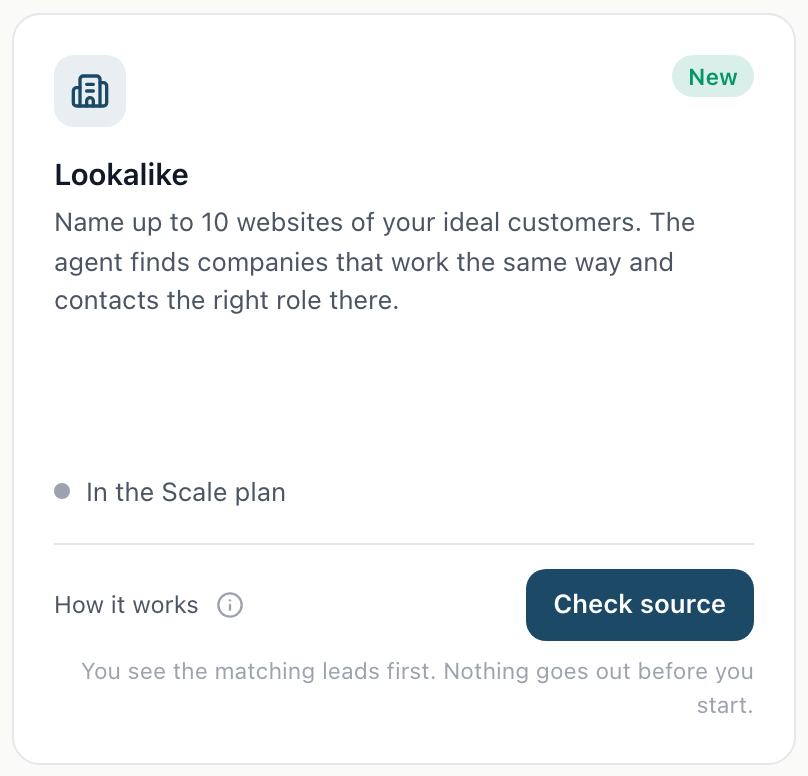
In the Leads tab, pick the Lookalike card and click Check source.
-
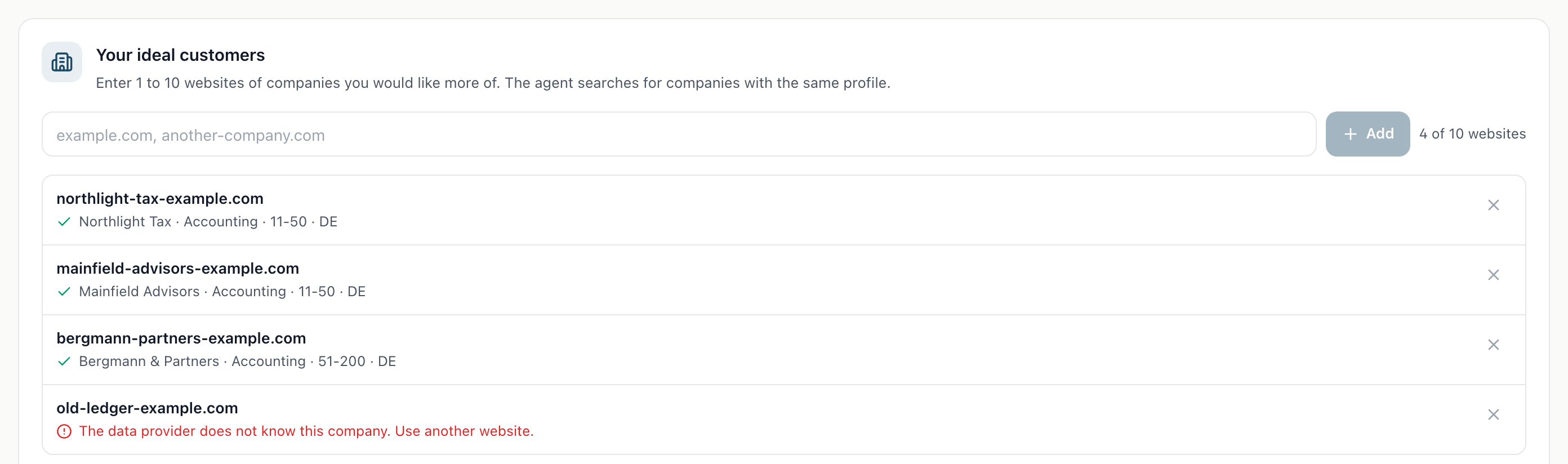
In the Your ideal customers box, enter one or more websites, for example "example.com, another-company.com". Separate several with a comma, semicolon or space. A pasted list with one website per line works too.
-
Click Add.
Next to the field you see how many websites are entered, for example "3 of 10 websites". No more than 10 are possible. For more ideal customers, create a second agent.
The X next to a website removes it again. You can add and remove websites in a draft and for a running or paused agent.
Tip: Pick companies you work well with and that understand your offer right away. The more alike your ideal customers are, the narrower the profile.
The status of each website
Each website has its own row in the box. Below it you see its status:
| Status | Meaning |
|---|---|
| Reading … | inDeal reads the website and matches the company. |
| Company, industry, size and country | The website has been read. If this information is missing, it says Read. |
| No segment | The website has been read but belongs to none of the segments. It is not part of the search. |
| The website could not be read. | The site was not reachable or could not be evaluated. Try again reads it once more. |
| The data provider does not know this company. Use another website. | The company cannot be found in the company database. Another attempt will not help, use another website. |
| Reading did not work. | The attempt broke off. Try again reads the website once more. |
| The data provider cannot be reached right now. Try again in a moment. | The company database is not responding right now. Try again starts a new attempt. |
| The data provider is not set up right now. | Matching against the company database is not possible right now. Contact us if this lasts. |
| The profile could not be created right now. Try again in a moment. | Evaluating the website failed just now. Try again starts a new attempt. |
| No more lookups are possible today. Try again tomorrow. | The daily limit for reading websites has been reached, see Costs and limits. |
The websites are read while the page is open. If you close it earlier, the agent catches up in the background and then builds the profile.
The profile: segments and traits
As soon as all websites are read, you see Creating the profile …. After that, each segment has its own row, for example "Segment 1: Tax advisory firms", followed by Similar to: and the traits found:
- Business model
- Niche
- Offering
- Customer type
- Size, for example "11 to 50 employees"
- Region: the countries of your ideal customers
Each trait is a chip with an X. The X removes a trait and the search gets broader. A removed trait is shown struck through. Click it to add it back. One of the traits business model, niche, offering and customer type has to stay, otherwise the agent cannot check the companies.
If you remove the region, the agent searches without limiting to a country.

If your websites belong to more than three kinds of companies, you see Your websites belong to more than 3 kinds of companies. The search covers the 3 largest. For the rest, create a second agent.
If the profile could not be created, you see The profile could not be created. with Try again. If none of the websites could be read, add another one.
If you change websites or traits, the agent searches the affected segment again. Leads already in the campaign stay. Leads of this segment not yet taken over disappear from the list, the new search replaces them.
Once everything is set up, the box collapses into a single line, for example "3 websites, 1 segment". Edit websites opens it again, Collapse closes it.
The search and its numbers
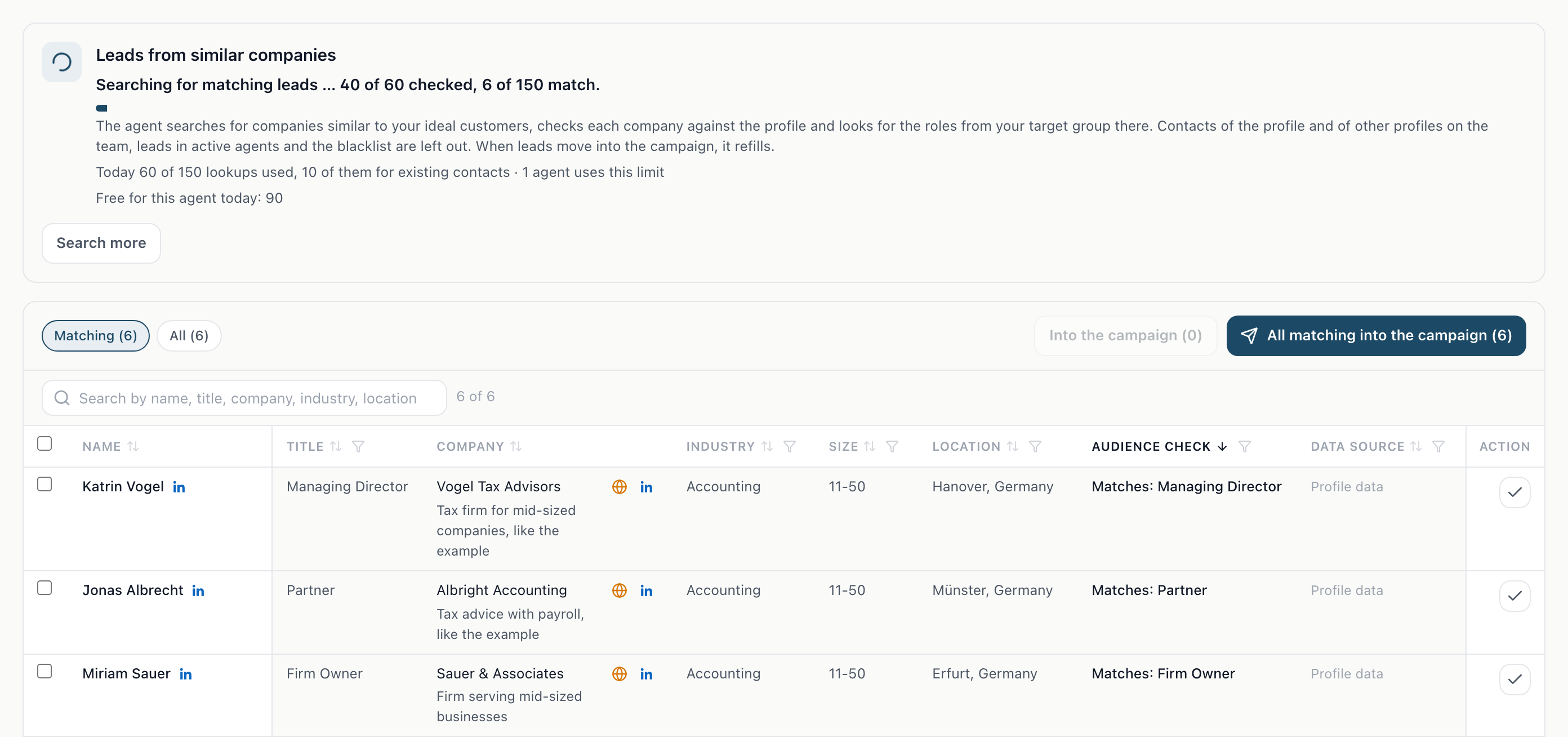
Once the profile is ready, the search starts on its own. The Leads from similar companies box shows the status:
| Display | Meaning |
|---|---|
| Searching for matching leads … the first matches appear here as soon as they are checked. | The search has just started. |
| "Searching for matching leads … 40 of 60 checked, 12 of 150 match." | The search is running. 150 is the stock per agent. |
| "46 of 150 matching leads" | This many matching leads are ready. |
| "46 of 150 matching leads. All similar companies have been searched." | The agent finds no further similar companies. For more leads, add a website or remove a trait. |
Below each segment you see how many companies the agent has checked and how many of them match, for example "40 companies checked, 12 match." If all similar companies of a segment have been searched and fewer than 20 match, you also see This segment yields little. Add another website or remove a trait.
The search can also wait. The box then names the reason:
- The search is waiting: there is no profile yet. Enter the websites of your ideal customers above.
- The search is waiting: the websites are still being read.
- The search is waiting: no search can be built from the roles of your target group. Check the role in the target group tab.
- The search is waiting: the data provider lists no country for your ideal customers. Add a website of a company with a known location.
- The search is waiting: the region of your ideal customers cannot be matched right now. We will retry automatically.
- The search is paused: Lookalike is part of the Scale plan.
- The search is paused right now. We are on it. You do not need to do anything.
If you cancelled the wizard, the search is paused as well. It then says "The search is resting (… of 150 matching leads)". It continues with Search more or when you start the agent.
Search more triggers the search again.
Take over leads and start
The leads found are listed below the box. Matching shows only the matching leads, All shows the others too. Below the company, a sentence explains why it matches the profile. The Audience check column shows whether the person's role matches your audience, see Matches, Does not match, Not checkable.
- Into the campaign takes over the selected leads.
- All matching into the campaign takes over all matching leads at once.
With the Autopilot switch, new matching leads go into the campaign on their own, just like with new leads. More in The Leads tab.
The list leaves out contacts of your profile and of other profiles on the team, leads in active agents and contacts on the blacklist. The usual rules apply to every lead: a lead runs in only one active campaign, and after outreach a waiting period of 90 days applies.
Sequence, texts and the handling of replies are the same as for the New leads source.
Costs and limits
- Plan: Lookalike is part of the Scale plan, also in the trial. On the Starter plan the card shows Lookalike is part of the Scale plan.
- Credits: Lookalike uses no credits.
- Lookups: Every page of the company search and every people search is one lookup. They count towards your account's daily lookup limit, which all agents share. The search box shows the status in the line "Today … of … lookups used". When the limit is reached, the box says when the search continues.
- Reading websites: Reading the websites of your ideal customers has its own daily limit per account. When it is reached, try again the next day.
- Websites: 1 to 10 per agent.
- Segments: up to 3 per agent.
- Stock: up to 150 matching leads per agent. When leads move into the campaign, the agent refills.
- Weekly limit: Lookalike leads count as new contacts. On the Scale plan your agent contacts up to 150 leads per week, of which up to 100 new ones. More in Start, working hours and limits.
Frequently asked questions
How do the websites here differ from the websites in the audience? The websites in the audience describe your own offer. They are the basis for texts and expertise. The websites in Lookalike belong to your ideal customers. They are the basis for the profile of the companies the agent searches for.
How many websites should I enter? One is enough to start. With several similar ideal customers the profile gets more reliable. If your ideal customers belong to different kinds of companies, up to three segments are created, which the agent searches separately.
Why does a website say "No segment"? The company belongs to none of the segments the agent searches, for example because your websites belong to more than three kinds of companies. The agent does not search for it. If you want to reach such companies too, create a second agent.
Why do only a few leads come in? The agent searches in the country of your ideal customers, which limits the number. On top of that, companies that fail the check against the profile drop out, as do companies without a person in a matching role. For more leads, add another website or remove a trait, for example the size.
Can I change the role the agent contacts? Yes, in the Audience tab. If the profile stays the same, the agent looks for people with the new role in the companies that already match.
What happens when I duplicate an agent? The copy takes over the websites and the profile. It does not take over the checked companies, the copy checks them itself.