
The Follow-up date decides whether a lead comes back to you - in the work lists and in the metrics on Home ↗. Here you'll learn how to set it with the calendar and get an email reminder at the right moment.
Contents
- Opening the calendar
- Adding a reminder
- The reminder email
- On deals too
- When a reminder expires
- Unsubscribing from reminders
- Next
Opening the calendar
On a lead's detail page, click the Follow-up date field. A calendar opens:
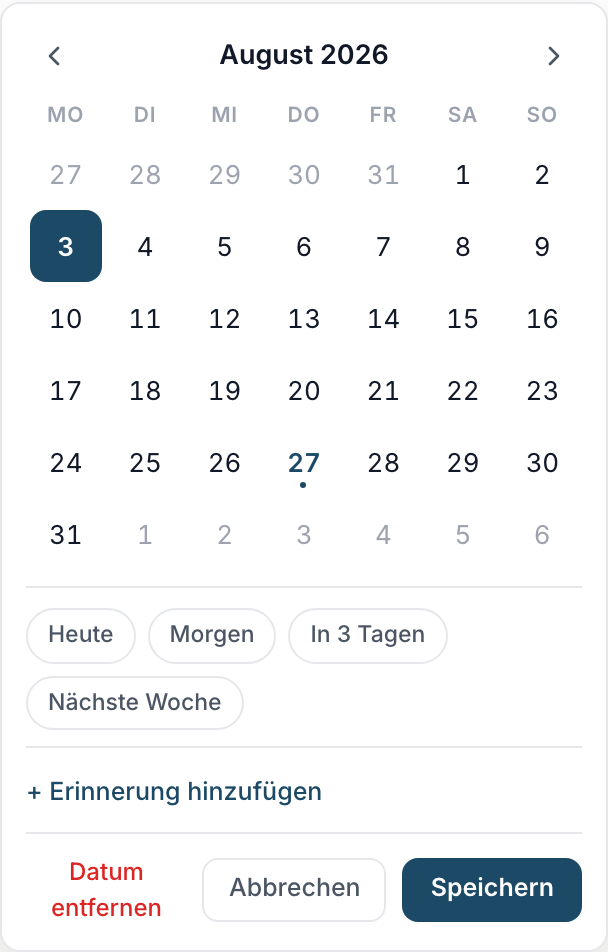
- The arrows switch the month; the calendar stays open while you browse.
- Today is marked, the selected day is highlighted.
- For the most common cases there are the quick picks Today, Tomorrow, In 3 days and Next week.
- Your selection is only applied with Save. Cancel, the Escape key or a click outside discard it.
- If a date is already set, Remove date clears the follow-up again.
On a phone the calendar opens as a sheet from the bottom of the screen - with the same options.
Adding a reminder
Below the quick picks you'll find + Add reminder. Clicking it unfolds the time picker:
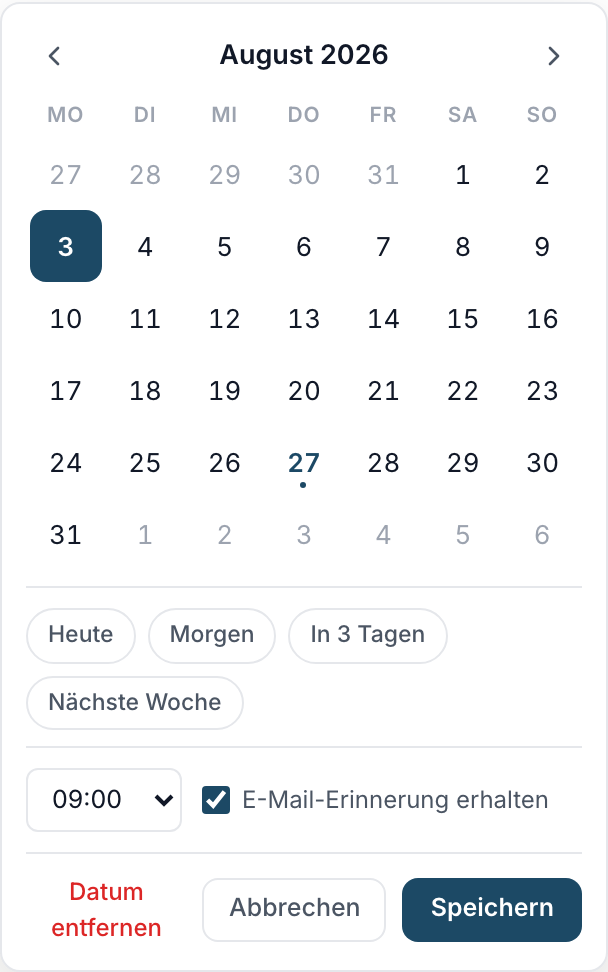
- Pick the time in 15-minute steps.
- The Get email reminder checkbox is ticked by default. If you only want to note the time without receiving an email, untick it before saving.
- After Save, the field shows a small bell with the time next to the date.
The reminder email
At the chosen time you'll receive an email with everything you need for the call: the lead's name, phone and mobile, the email address, the follow-up with date and time, the Next step and a button that opens the lead directly. Empty fields are simply left out.
The recipient is the person the lead is assigned to. If nobody is assigned, the email goes to the person who set the reminder.
On deals too
In the deal detail the Follow-up date works exactly the same way: the same calendar, the same time picker, the same email reminder. Two things differ: the email additionally shows the deal's value and stage, and its button opens the deal directly in the Pipeline ↗.
When a reminder expires
If the Follow-up date changes anywhere else - in the stage dialog, in the list's bulk edit or through a workflow - a set reminder is removed. Otherwise it would remind you of an appointment that no longer exists.
If you move a follow-up and still want to be reminded, just set the reminder again afterwards: click the field, check the time, Save.
Unsubscribing from reminders
Under Notifications ↗ you'll find the Follow-up reminder toggle:
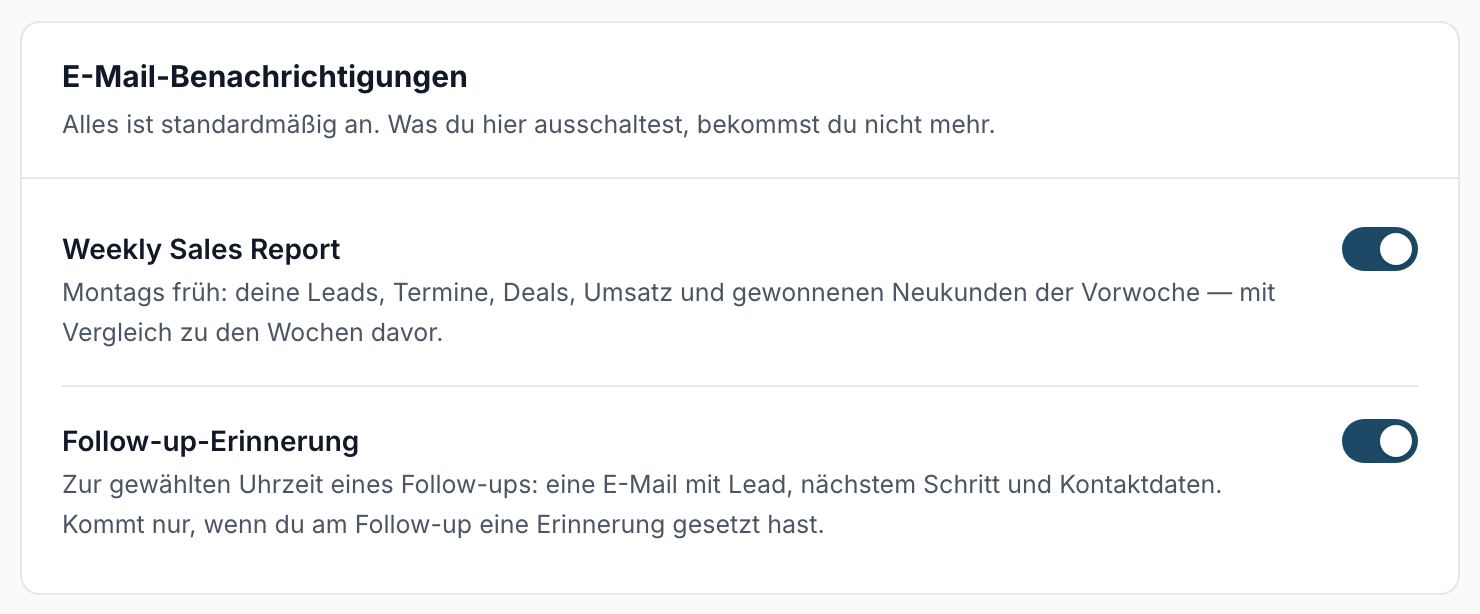
The toggle applies to lead and deal reminders together. Switch it off and inDeal stops sending you reminder emails. Reminders that are already set remain visible on the lead - only the email is skipped. The setting applies to you only, not to your team.