
The Notetaker joins your meeting as a participant of its own. Everyone sees it with its name and a camera image with a logo and the notice "This meeting is being recorded for note-taking purposes." The notice is shown in English and cannot be switched off.
When joining, the Notetaker also posts the same sentence in the meeting chat. Owners and admins switch the chat notice on or off under Settings > Calendar & joining (default: on).
Bot name
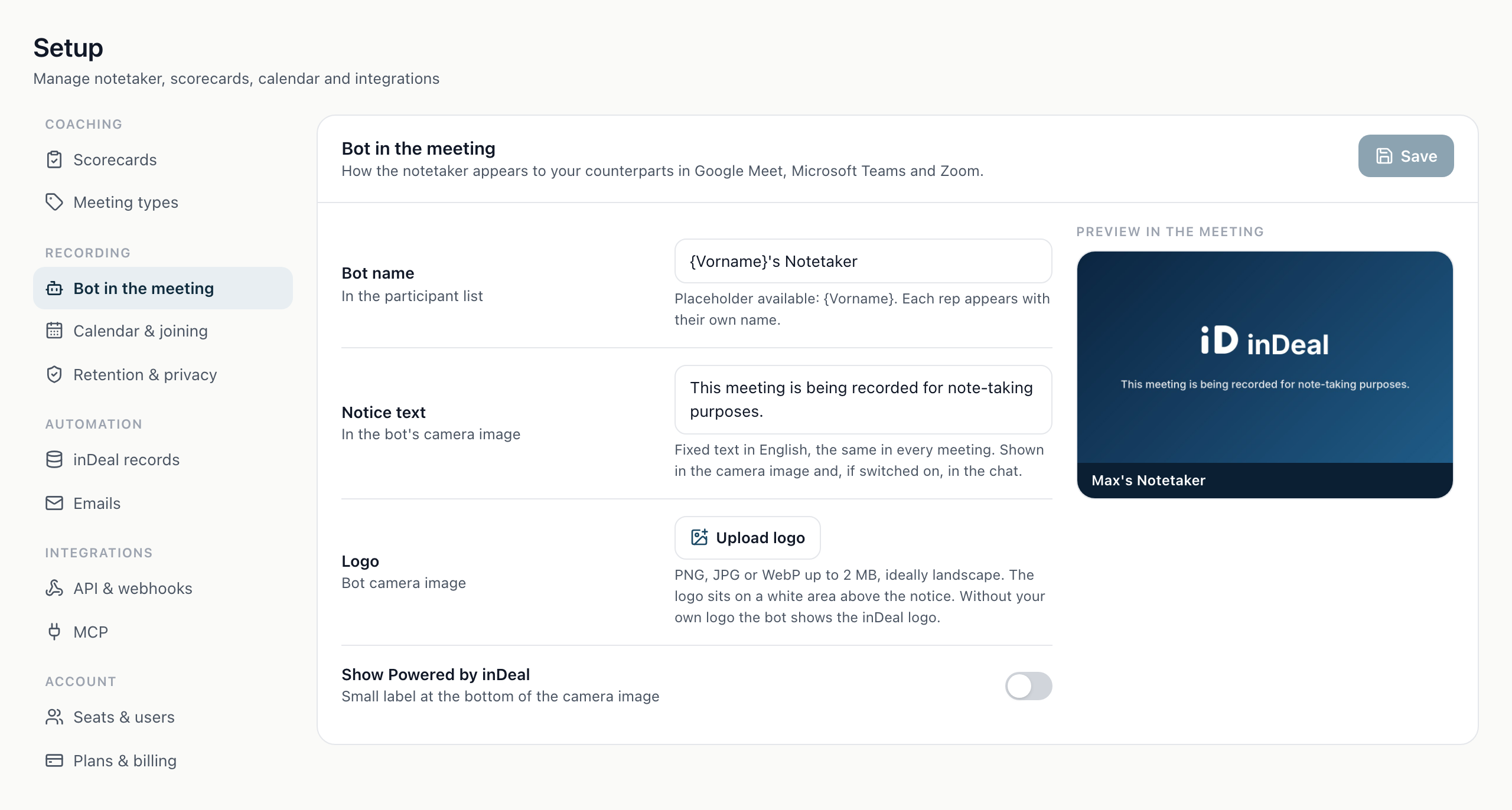
Under Settings > Bot in the meeting, owners and admins choose the bot's name, for example "{first_name}'s Notetaker" (default). {first_name} is replaced with the first name of the meeting owner.
Your own logo in the camera image
Instead of the inDeal logo, the bot can show your company logo. Here's how (owners and admins):
- Open Settings > Bot in the meeting.
- In the Logo row, click Upload logo and choose a file: PNG, JPG or WebP, up to 2 MB, ideally landscape.
- The Preview in the meeting immediately shows exactly the image the bot shows in the next meeting: your logo on a white area, with the recording notice below.
Use Replace logo to upload a new one, or Remove to show the inDeal logo again. The recording notice always stays in the image.
Which meetings are recorded
By default the Notetaker only records external meetings, meaning meetings with at least one participant outside your company. Internal meetings, where only people from your team take part, appear under Upcoming meetings switched off. Switch single internal meetings on there, or all of them under Settings > Calendar & joining with Record internal meetings.
Meetings with an exclusion keyword in the title, for example "private", are not recorded. Owners and admins manage the keywords under Settings > Calendar & joining.
When the bot leaves
The Notetaker leaves the meeting automatically
- when it is alone in the meeting or
- after 10 minutes of silence.
Short meetings
If the recording is shorter than 2 minutes, the Notetaker does not analyse the meeting. This keeps accidental starts, test calls and meetings without a real conversation out of your analyses and records.
- What counts: only the time the Notetaker is actually recording. Time spent in the waiting room until someone lets it in does not count. A meeting can therefore last longer than 2 minutes and still be too short. Let the Notetaker in right at the start.
- What does not happen: no summary, no coaching score, no entries on the lead or deal, no email.
- Video: is not kept and is deleted right away at the recording service, too.
- What stays: the meeting in your list marked "Too short to analyze" and the transcript, if one was created.
- Usage: none. The minutes do not count towards your free hours, your hour pool or your credits.
Title
If you don't enter a title when starting, the meeting automatically gets a short title from the conversation after the analysis. If the conversation doesn't provide enough for that (for example in meetings that are too short), it is called "Meeting". The Notetaker never changes a title you set yourself.
Sharing
At the top of a meeting and in the three-dot menu of each row in the meeting list you find Share.
- Internal: only people who are signed in and allowed to see the meeting can open the link (the meeting owner, admins and account owners). Others see "No access".
- Public link: off by default. Only the meeting owner and admins can switch it on. Anyone with the link then sees the summary, next steps and recording without signing in, but no transcript, no coaching and no chat.
- The public link is valid for 30 days. You only see it right after creating it; a new link makes the old one stop working. Switching it off works immediately.
- The link also ends when the meeting is deleted or the recording expires.
Retention
- Recordings stay playable for 150 days by default. Owners and admins can choose 30, 90 or 150 days or 1 year.
- Meetings marked with Bookmark (for example for training) stay playable for 12 months, even if the period is shorter. Bookmarks are personal; only a bookmark by the meeting owner or an admin extends the period.
- After expiry the video can no longer be played and is deleted for good 14 days later.
- Transcript, summary and scorecard stay as long as your account is active.
- Deleting a meeting by hand removes everything: video, transcript, analysis and chat history.