
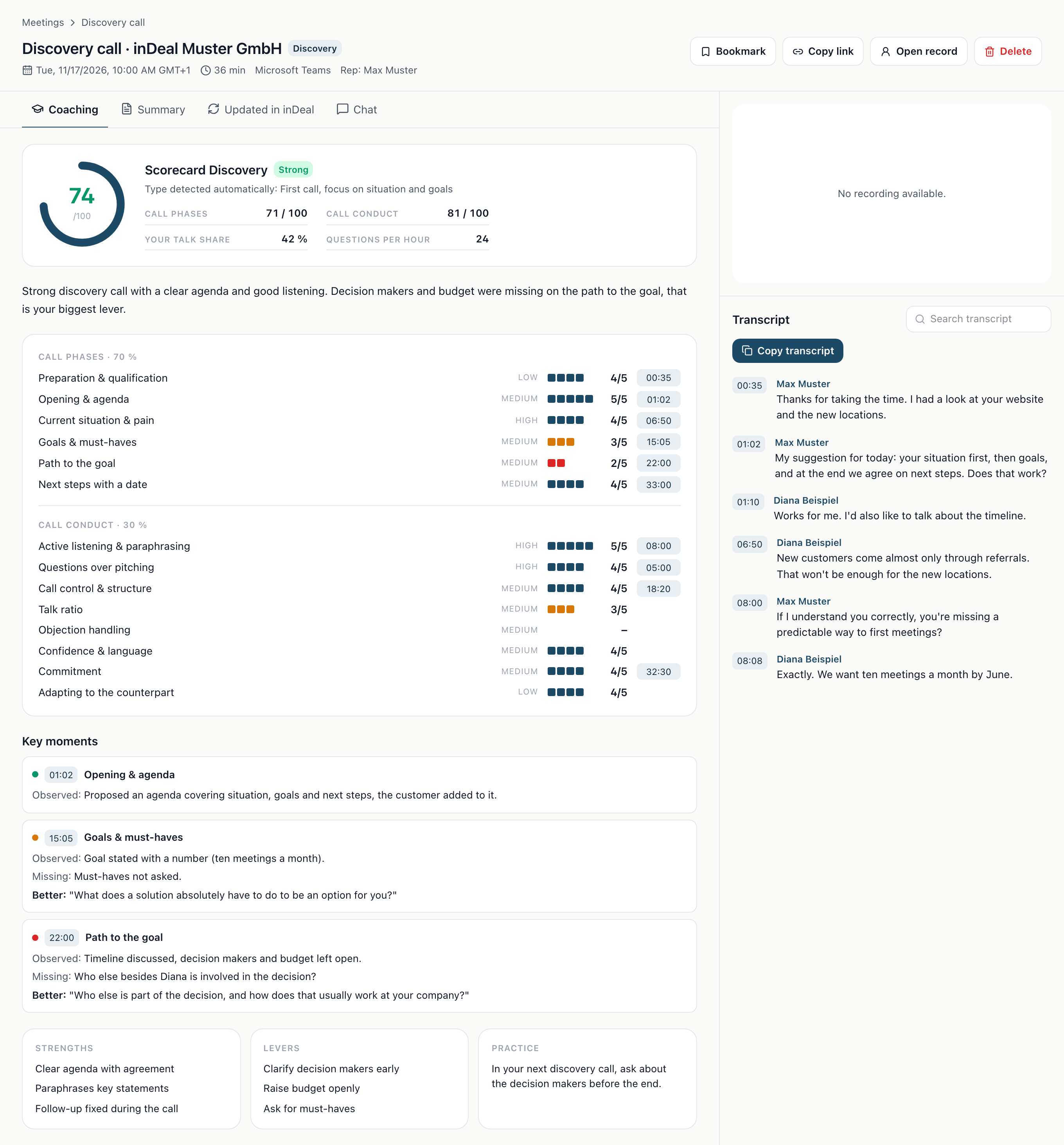
After every sales meeting the Notetaker rates the conversation with a scorecard and gives you a coaching score from 0 to 100.
Which scorecard fits
The Notetaker picks the matching scorecard for each meeting on its own. It chooses from all active scorecards: the templates Discovery, Closing, Discovery and closing and Customer success plus your own. The AI decides based on When this scorecard fits, a short description every scorecard has.
- No scorecard fits: the meeting counts as a non-sales meeting. It gets no score, only a summary and action items.
- Internal meetings (only your team on the call) run without a scorecard automatically. You can still assign one under Change scorecard.
- External participants never get a score or coaching, not in emails either.
If the wrong scorecard was picked, open the meeting and choose another active scorecard or No scorecard (non-sales meeting) under Change scorecard. The meeting is then scored again. Earlier ratings keep the scorecard they were made with. Owners and admins can do this for all meetings, members for their own meetings as long as Reps can change the scorecard is on under Settings > Detection & language (default). There you can also turn off Detect scorecard automatically: a scorecard once chosen then stays.
In the meeting list and in analytics you can filter by scorecard, including No scorecard (non-sales meeting).
How the score is built
- Conversation phases (default 70%): how well each phase of the conversation went, for example the needs analysis.
- Conversation skills (default 30%): asking instead of pitching, listening, clear next steps.
The rating covers the entire conversation: a point counts even if you clarify it in parts, for example early in discovery and later during the presentation. A point only counts as missing if it does not come up anywhere in the conversation.
Serious mistakes cap the score, even if the rest went well.
Talk ratio: every scorecard has targets for your talk ratio, overall and in discovery. Up to 10 points above the target costs little, beyond that a lot. The templates start with these values:
| Scorecard | Talk ratio overall up to | In discovery up to |
|---|---|---|
| Discovery | 55% | 40% |
| Discovery and closing | 65% | 45% |
| Closing | 65% | no target |
| Customer success | 60% | 45% |
| Score | Rating |
|---|---|
| 85 and up | Best |
| 70 and up | Strong |
| 50 and up | Solid |
| 30 and up | Gaps |
| below 30 | Missing |
Rating levels per criterion
Each criterion is rated on levels 1 to 5. Click a criterion in the meeting to expand it:
- Assessment: 2 to 3 sentences on what went well and what exactly is missing for the next level
- What matters: what the criterion requires in depth
- Level 1 to 5: one sentence each with a short example; the level you reached is marked
Level 4 is enough in most conversations. Level 5 is excellent and rarely needed.
Next to each criterion you see up to four timestamps: the moments that count toward the rating, in chronological order.
What you get
- the key moments with timestamps: what went well, what was missing and how to do it better
- your three strengths and your three biggest levers
- one exercise for your next meeting
Click a timestamp to jump to that moment in the recording and transcript.
Adjust scorecards
Owners and admins manage scorecards under Settings > Scorecards:
- List: at the top you see the active scorecards, first the templates, then your own, below that the ones that are switched off. Each card shows when the scorecard fits. Use the Active checkbox to switch any scorecard on or off, templates and your own alike. A scorecard that is switched off stays in the list, but the AI no longer picks it; switch it on again and it is available again. You can also archive your own scorecards in the editor. If no scorecard is active, all meetings count as non-sales meetings.
- Edit a template: Edit opens a window with name, criteria and weighting. If you save a template, it becomes your own active scorecard and the template is switched off. The template itself stays unchanged; you can switch it on again at any time.
- New scorecard: start empty or use one of the four templates as your own scorecard. New scorecards are active automatically once saved. The templates themselves stay unchanged.
- When this scorecard fits: required. Briefly describe which conversations the scorecard fits: type of conversation, counterpart, goal. The templates come with a text. For your own scorecards Generate suggestion creates a text from name and criteria that you adjust. Your own scorecards without this text are prefilled with a suggestion; check it and save.
- Edit: name, add, remove and reorder criteria. For each criterion you set what the AI looks for in a good grade, the target grade (1 to 5), the weight and whether it is required. A slider sets how much conversation phases count compared to conversation skills.
- Rating levels: for each criterion, expand Rating levels and adjust "What matters" and levels 1 to 5 with examples. The AI rates by them. The templates come with ready-made texts. Your own criteria do not need levels; without level texts the AI rates by the description. Remove levels takes them out again.
- Talk ratio: under Talk ratio overall up to and Talk ratio in discovery up to you set the targets in percent. Empty means no target.
- Target grade: the AI knows the target grade. If a criterion scores below it, the meeting shows "below target".
- Duplicate, archive, reset: the AI no longer picks an archived scorecard; meetings already scored keep it. Archived scorecards can be restored and are then active again. A scorecard created from a template can be reset to it.
- Versions: every save creates a new version. Meetings already scored keep their criteria and grades, new meetings use the current version.