
Under Settings > Calendar ↗ you connect your Google or Microsoft calendar to inDeal. When you then enter a meeting with a lead, it goes straight into your calendar, with Google Meet or Microsoft Teams. Your calendar sends the invite to the lead.
Contents
- Connect your calendar
- Use for meetings
- Online meeting on or off
- What happens with a meeting
- Reschedule and cancel
- If it doesn't work
- Disconnect
Connect your calendar
The calendar connection comes with the Notetaker. If it is active in your workspace, you see the Calendar connection section at the top of the page. Without the Notetaker there is a note instead, and meetings are sent to the lead as a calendar file by email, as before.
Click Connect with Google or Connect with Microsoft and sign in with your provider. Allow inDeal to read your events and create meetings. You are then back in inDeal, and your calendar is active for meetings.
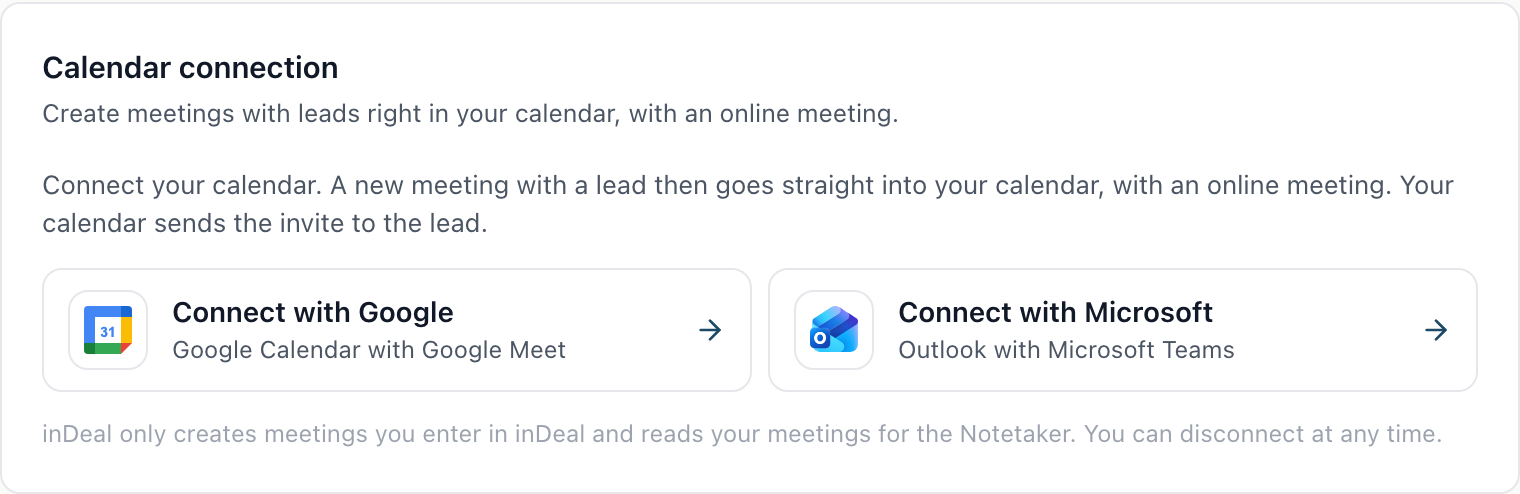
Everyone connects their own calendar. You can connect one calendar, Google or Microsoft.
Use for meetings
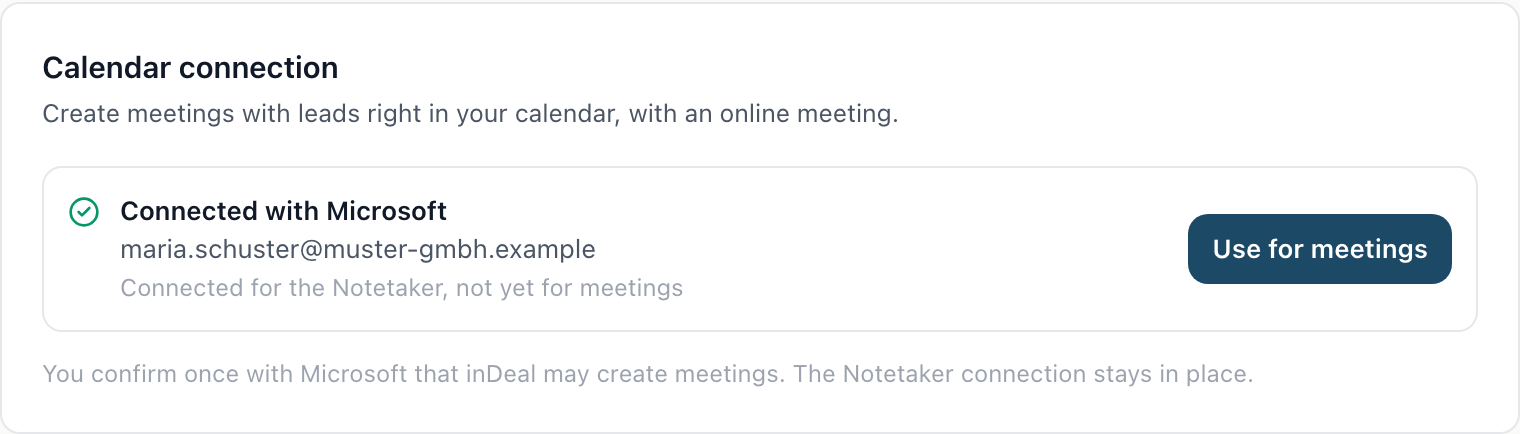
If you already connected your calendar for the Notetaker, you don't need to connect again. Click Use for meetings. The first time, you confirm once with Google or Microsoft that inDeal may also create meetings. The Notetaker connection stays in place.
Online meeting on or off
Once your calendar is active for meetings, the switch Create online meeting automatically is on. Every new meeting then gets a Google Meet link (Google) or a Microsoft Teams link (Microsoft).
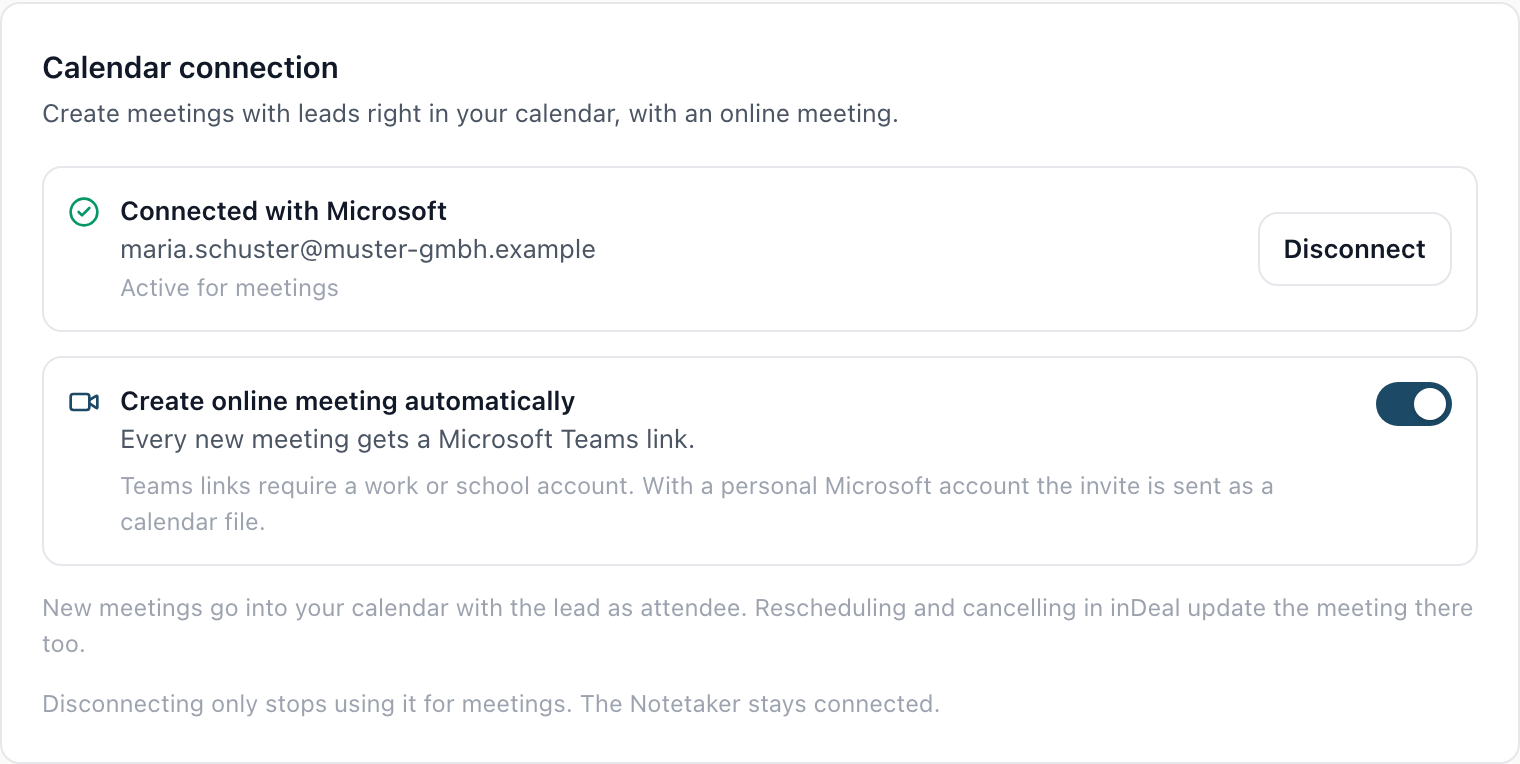
If you switch it off, meetings are sent to the lead as a calendar file by email, as before.
Teams links require a Microsoft work or school account. With a personal Microsoft account (for example outlook.com) the invite is sent as a calendar file.
What happens with a meeting
You enter the meeting as usual, with Meeting on the lead or by moving the lead to Discovery scheduled, also in the Kanban board. inDeal then creates the meeting in a calendar:
- in the calendar of the user the lead is assigned to, if their calendar is active for meetings,
- otherwise in your calendar, if you use it for meetings. The assigned user is then invited as an attendee,
- otherwise as a calendar file by email, as before.
Title, description and duration come from your workspace's meeting template, with the placeholders filled in. Admins edit the template, every role connects their own calendar. The lead is an attendee and gets the invite from Google or Microsoft, there is no extra email from inDeal.
You see the meeting link on the lead under Online meeting. The template has the placeholder {{meeting_link}} for it. With Google the link then also appears in the description. With Microsoft it is in the Teams block of the invite, and the placeholder stays empty there.
If the lead has no email address, inDeal still creates the meeting with an online meeting in that calendar, but without the lead as an attendee, and no invitation goes out. The meeting dialog tells you this too. If you add the email address later and change the meeting, the lead gets the invitation.
If the Notetaker is active for you, it picks up the meeting in your calendar like any other and joins it.
Reschedule and cancel
If you reschedule the meeting in inDeal, inDeal updates it in the calendar too, and the lead gets the change from Google or Microsoft. If you move the lead to Discovery failed or Lead lost and keep the cancellation on, the meeting is cancelled in the calendar.
If it doesn't work
If Google or Microsoft rejects the meeting, the invite goes to the lead as a calendar file automatically. The lead then shows: "Online meeting couldn't be created, the invite was sent as a calendar file." So the meeting is not lost.
If the provider doesn't respond (for example during an outage), inDeal tries again after a few seconds. If the first attempt did create the meeting, inDeal takes it over and no second one is created. If that fails too, no calendar file is sent, so the lead doesn't get two invites. The lead then shows a note. In that case, check the meeting in your calendar and reschedule or cancel it there as well.
If a change can't be synced to the calendar, the lead shows a note. Then change the meeting directly in your calendar.
Disconnect
Disconnect only stops using the calendar for meetings. New meetings are sent as a calendar file again. The Notetaker stays connected. You disconnect the calendar completely in the Notetaker settings.