
If you found inDeal through a partner, they can request access to your account, for example to help you with the setup. Without your consent they only see status, plan and revenue, no CRM content, contacts or deals. You decide whether they join, and you can remove the access at any time.
Contents
- The request
- Grant or decline access
- What the partner sees with access
- Remove access
- For partners: request access
- Next
The request
When your partner requests access, every admin of your account gets an email with the subject " from would like to join your inDeal account as an admin". The email has two buttons: Grant access and Decline. Both take you to Team ↗; the decision is made there, signed in as an admin.
A request is valid for 7 days. After that it expires, and the partner can request again.
Grant or decline access
Open requests are listed under Team ↗ in the Partner requests section, above the member list.
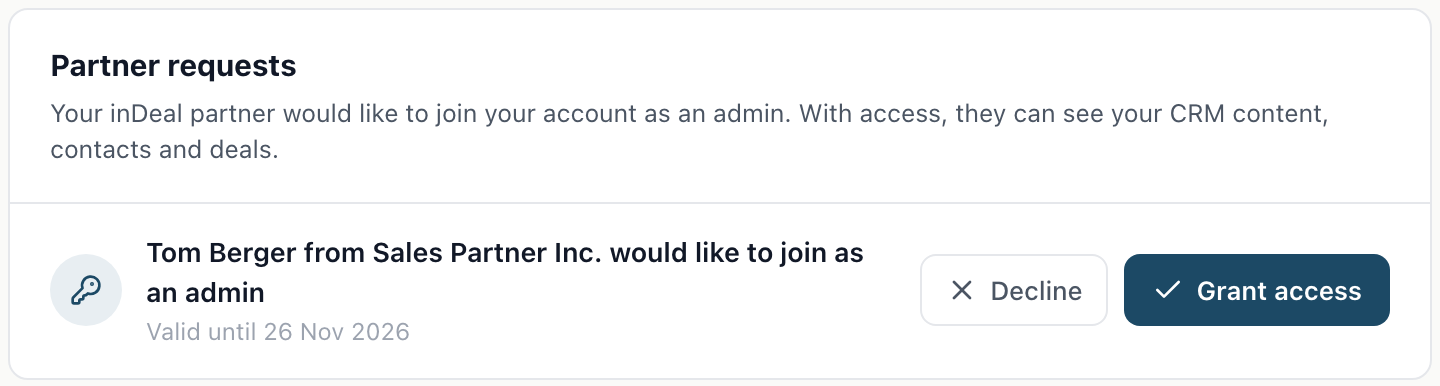
- Check who is asking: the partner's name and company are shown in the row.
- Click Grant access or Decline.
Only an admin of your account can decide. Anyone with the Sales role sees the note Only an admin of the account can decide. The partner gets an email with your decision either way.
What the partner sees with access
With access, the partner is an Admin in your account. They see and edit the same as other admins, including CRM content, contacts and deals. In the member list, their role is followed by Partner.
The partner does not count as a user for your billing and does not take a seat. They switch between their own account and yours via Switch account in the company menu at the bottom of the sidebar.
Remove access
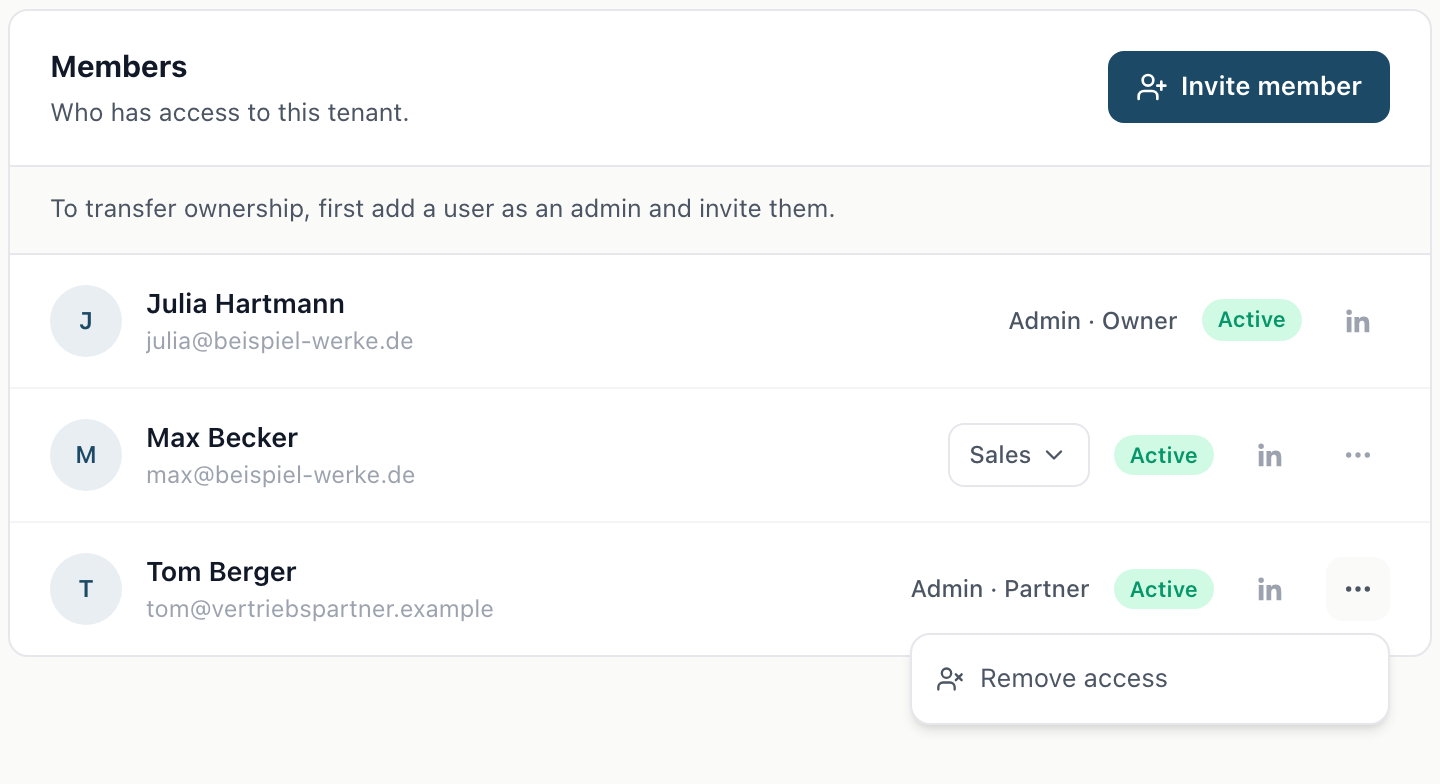
- Open the three-dot menu in the partner's row.
- Choose Remove access and confirm.
The partner is immediately no longer a member of your account. Leads and deals assigned to them are transferred to you; if you have set up webhooks for leads or deals, they report this change like any other assignment. The partner gets an email and can request again later.
Changing the role, deactivating or transferring ownership is not available for the partner; the only action is Remove access.
For partners: request access
If you are an inDeal partner yourself, you find your customers in the partner area under My customers. The Access column shows No access, Requested, Active or Declined for each customer.
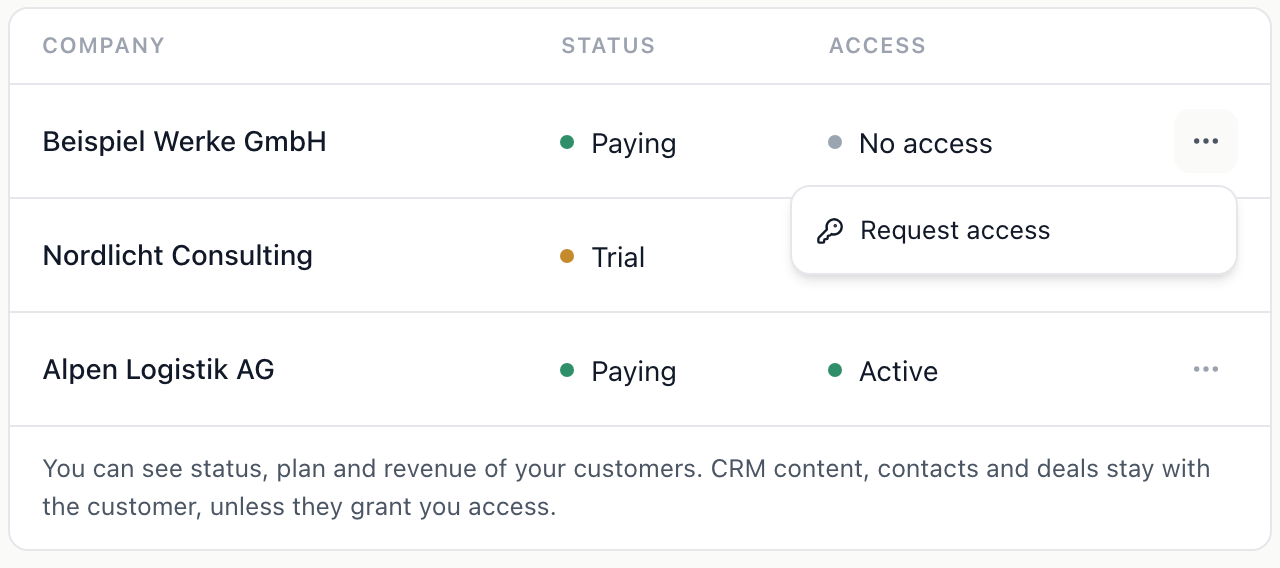
- Open the three-dot menu in the customer's row.
- Choose Request access. The customer's admins get the request by email.
- As soon as the customer agrees, the column shows Active, and the menu offers Open account.
There is only ever one open request per customer. After a decline or after the 7 days have passed, you can request again.